
WooCommerce store owners, whether you’re launching a new store, or looking to improve an existing one, there are some things you might want to avoid.
In this guide, we’re sharing some common mistakes we see ecommerce store owners make, and how you can avoid them.
We’ll be hearing from members of our team, including project managers, WordPress website developers, and successful store owners.
So, let’s get straight to it.

Common mistakes WooCommerce store owners make (and how to avoid them)
In this guide, we’re covering the top mistakes WooCommerce store owners make and sharing insights from our team. Including experts who have helped hundreds of ecommerce businesses grow on the ecommerce platform WooCommerce.
You’ll also hear from team members who run their own successful online stores. Their perspectives will help you avoid the pitfalls they’ve seen time and again so you can focus on building a store that’s set up to convert.
WooCommerce store owners mistake 1: Overlooking Product Photography Quality
Mistake: Many WooCommerce store owners underestimate the power of high-quality product photography. Poor product images can result in low engagement, decreased customer trust, and, ultimately, fewer sales.
“One of the biggest mistakes I see WooCommerce store owners make is not investing enough in quality product photography. Your product images are one of the first things customers see. If they’re blurry, poorly lit, or don’t show the product clearly, it can be a huge turn-off.”
Drew Griswold, Director of Outbound Marketing at Iconic and online store owner

Why product photography matters for your online business
Product images are often the only way customers can truly ‘see’ and evaluate a product online, so quality photography is essential to helping customers feel confident in their purchase. Good images showcase your products in their best light, making it easier for customers to picture themselves using the item.
If images don’t accurately represent the product or if they appear unprofessional, customers may lose trust and look elsewhere.

How to improve your WooCommerce product photography
- Invest in professional photography (or a DIY setup). If possible, invest in professional product photography. It can be a worthwhile investment that immediately impacts how customers perceive your brand. If professional photography isn’t in your budget, you can create high-quality images with a DIY setup. Use a high-resolution camera or smartphone, ample lighting, and a clean background. Experiment with different angles to highlight your product’s features.
- Follow our product photography guide. For detailed advice, check out our ecommerce product photography guide. This guide covers everything you need to know, from lighting and composition to editing techniques, so you can create photos that truly do your products justice.
- Show the product in context. Images that show the product in real-life situations give customers a better idea of its size, scale, and usage. For instance, if you’re selling clothing, show someone wearing it. For home goods, consider staging the product in a home setting. This approach helps customers visualize how they might use the product themselves.
Use multiple images and a zoom feature with WooThumbs
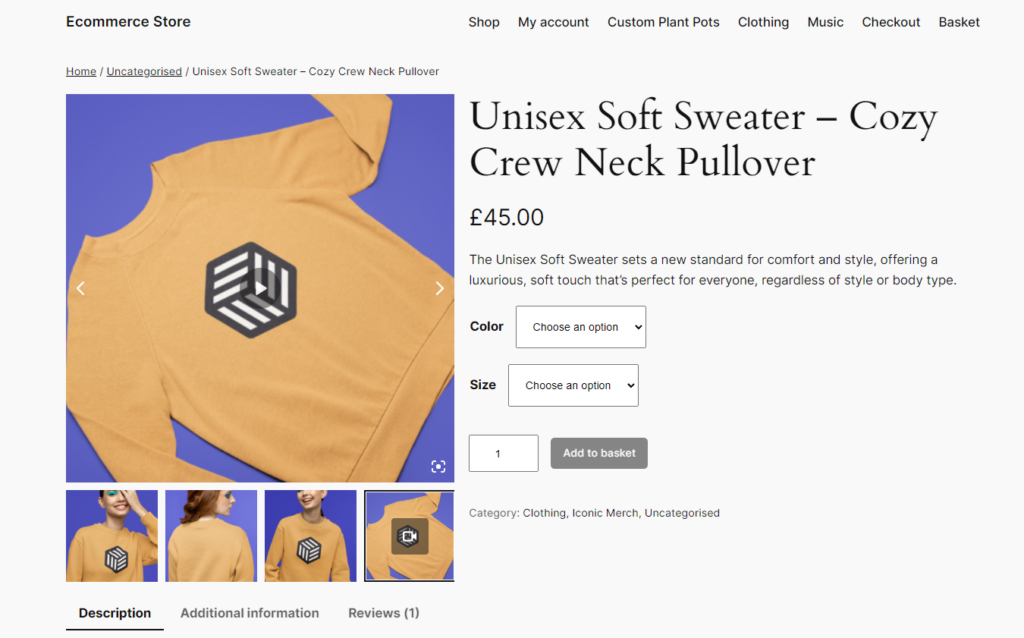
Offering multiple images for variable products and including a zoom feature provides a richer shopping experience that helps customers feel more confident in their choices. This can all be done with the WooCommerce plugin, WooThumbs for WooCommerce.
Display multiple images per product. With WooThumbs for WooCommerce, you can add multiple images per product variation, showcasing it from various angles and highlighting important details. This feature is particularly useful for products where every angle matters, such as fashion items, electronics, and decor, allowing customers to get a good view of what they’re buying.
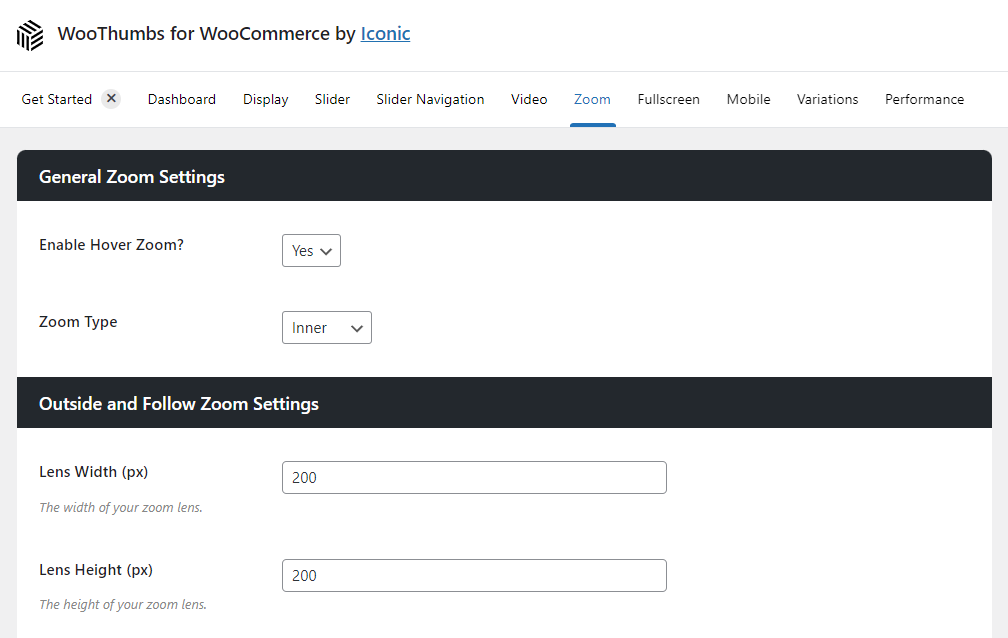
Enable an image zoom feature. WooThumbs also offers a powerful zoom function, which lets customers closely inspect product details. A zoom feature is crucial for products where intricate details are a selling point, such as jewelry, fabrics, or any high-quality item. By offering a zoom option, customers can examine textures, finishes, and other fine elements, boosting their confidence in your product’s quality.
WooThumbs for WooCommerce
Customize your WooCommerce product image gallery in minutes with a new layout, embedded video, multiple images per variation, and more.
Benefits of high-quality product photography
- Enhanced trust. High-quality images reassure customers that your brand is trustworthy and professional.
- Improved engagement. Clear, compelling photos can lead to higher engagement and keep customers on your product pages longer.
- Higher conversion rates. When customers have a clear view of your products, they’re more likely to complete a purchase.
Mistake 2: Missing cross-sell and upsell opportunities
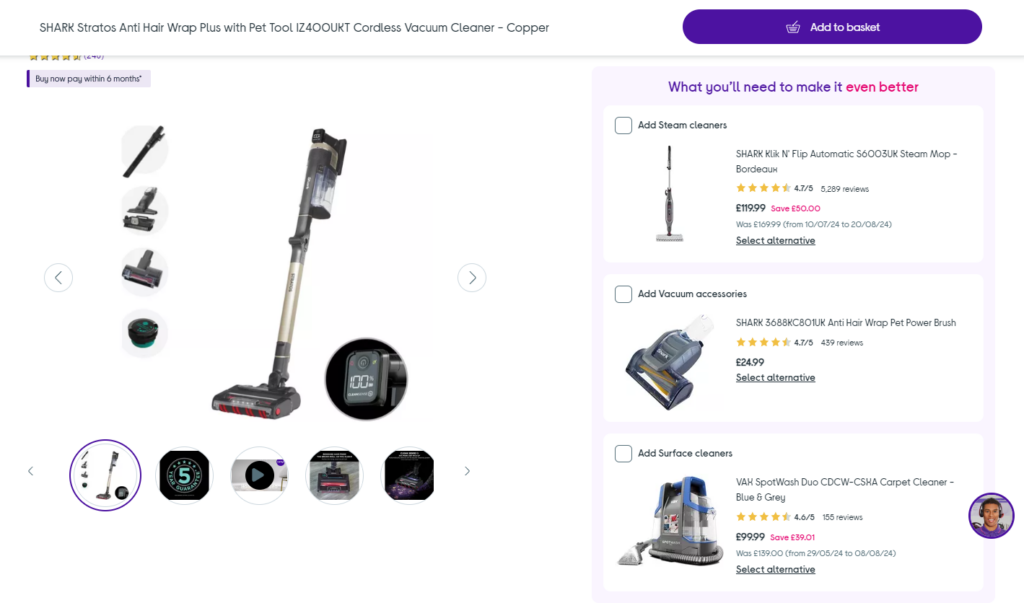
Mistake: Failing to set up cross-sells and up-sells results in missed opportunities to increase your store’s average order value (AOV). By not recommending relevant items, add-ons, or upgrades, store owners miss a simple yet powerful way to boost revenue without additional traffic.
“One of the most common missed opportunities I see is when WooCommerce store owners don’t leverage cross-sells and up-sells. A lot of customers are open to buying complementary products, but if they’re not presented with options at the right time, it’s easy for these opportunities to slip by.”
Gina Lucia, Content Manager at Iconic
Why cross-sells and upsells matter
Cross-sells and upsells are essential tools for encouraging customers to add more items to their carts. They tap into natural buying behaviors by showing products that enhance or complement a chosen item. By strategically positioning these suggestions, you’re helping customers discover new items they’re likely interested in while increasing AOV.
Whether it’s a compatible accessory, a premium version of the product, or something commonly purchased together, cross-sells and up-sells are effective ways to increase revenue and improve the shopping experience.
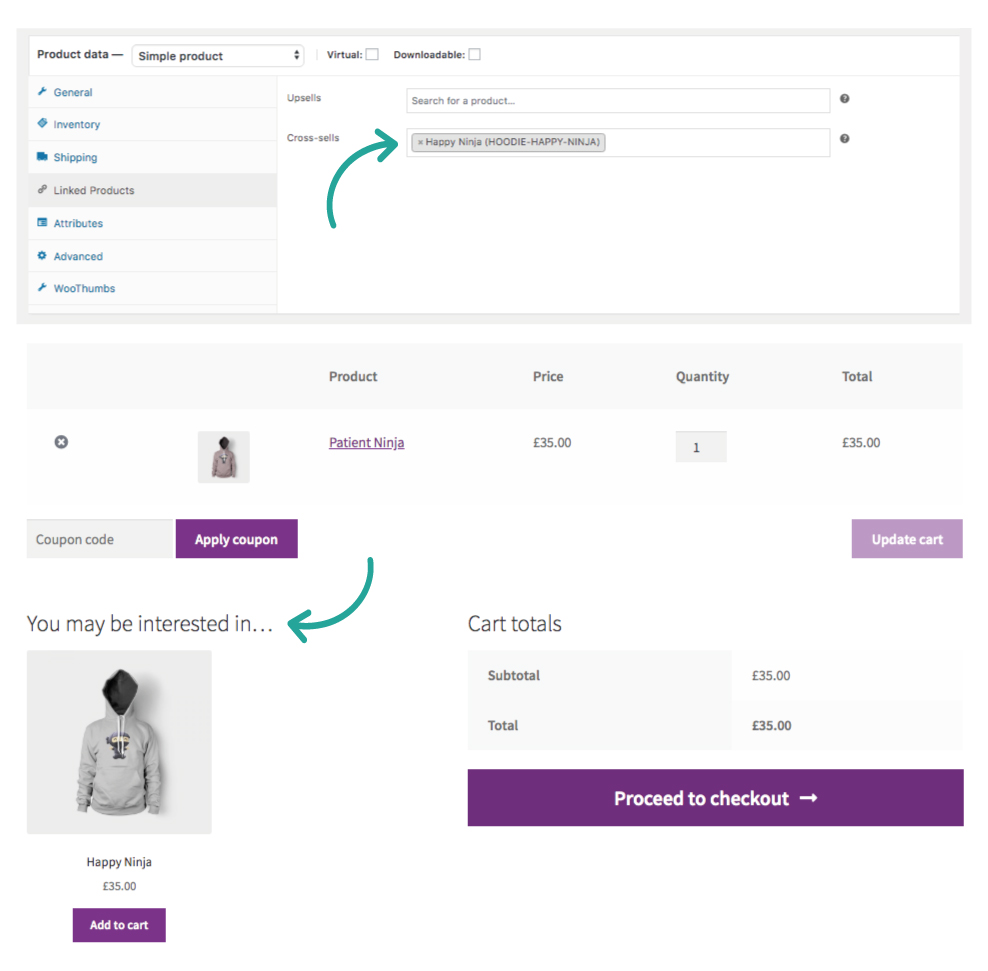
How to add cross-sells and upsells to WooCommerce
Use built-in WooCommerce tools. WooCommerce allows you to set up cross-sells and up-sells directly within product settings. For up-sells, choose products that are higher-end versions or closely related items. For cross-sells, think about complementary products your customers would benefit from alongside their chosen item.
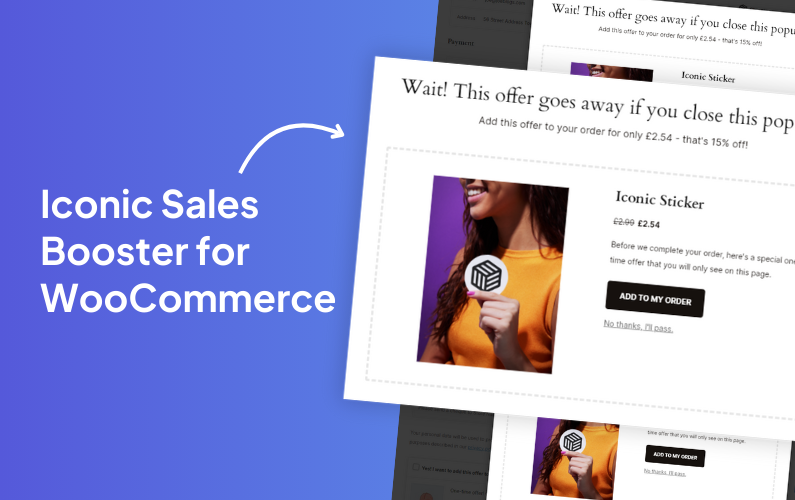
Enhance cross-sell options with Iconic Sales Booster for WooCommerce.
For advanced cross-sell and upsell features, Iconic Sales Booster for WooCommerce is a powerful tool for your WordPress site. It allows you to quickly add cross-sell features across your entire store with several innovative options:
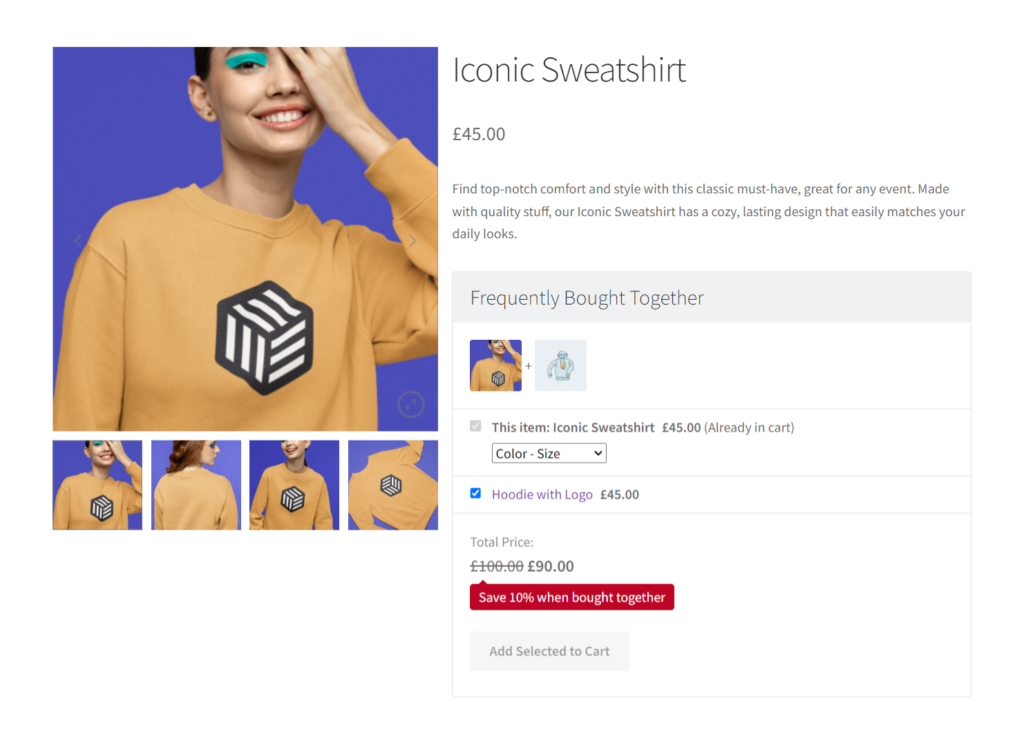
Frequently Bought Together. Show a ‘Frequently Bought Together’ section on product pages. This feature lets you customize the section’s title, product thumbnails, and add a discount offer to make the bundle more appealing.
Customers Also Bought popup. When customers add an item to their cart, a popup can appear showcasing additional items that “Customers Also Bought.” This non-intrusive popup allows customers to add these related products without navigating away from their cart, making it a convenient way to encourage add-ons.
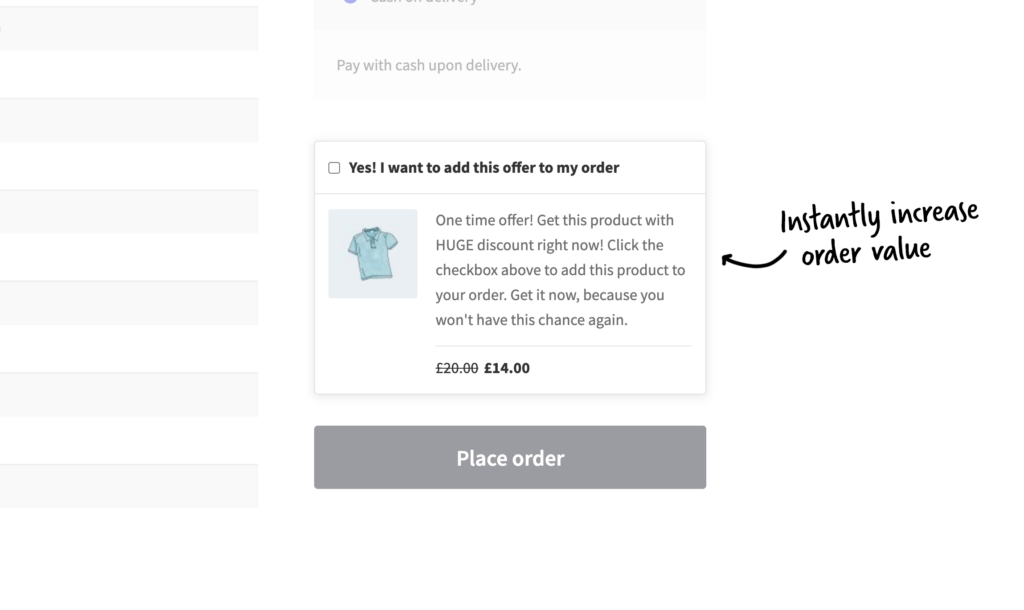
Checkout Order Bumps. Add a one-time offer at checkout to increase AOV. Customize this offer based on cart contents or product categories and add a fixed or percentage discount to sweeten the deal. This feature allows customers to add the item directly from the checkout page.
Post-Purchase Cross-Sell. After checkout, a one-time offer popup can appear, allowing customers to add a suggested product to their order with a single click. This feature gives you control over which items to offer, plus the option to add a discount, making it an ideal way to boost sales even after the initial transaction.
Iconic Sales Booster for WooCommerce
Add cross-selling to your entire WooCommerce store in minutes with Iconic’s WooCommerce cross-sell plugin, Iconic Sales Booster for WooCommerce.
Benefits of cross-sells and upsells
- Increased average order value. By encouraging customers to add more to their cart, you can boost AOV without relying on additional traffic.
- Enhanced customer experience. When cross-sells and up-sells are relevant, they provide real value by making customers aware of products they might have otherwise missed.
- Higher conversion rates. Strategically timed recommendations often lead to more purchases, as they align with the customer’s current interests and needs.
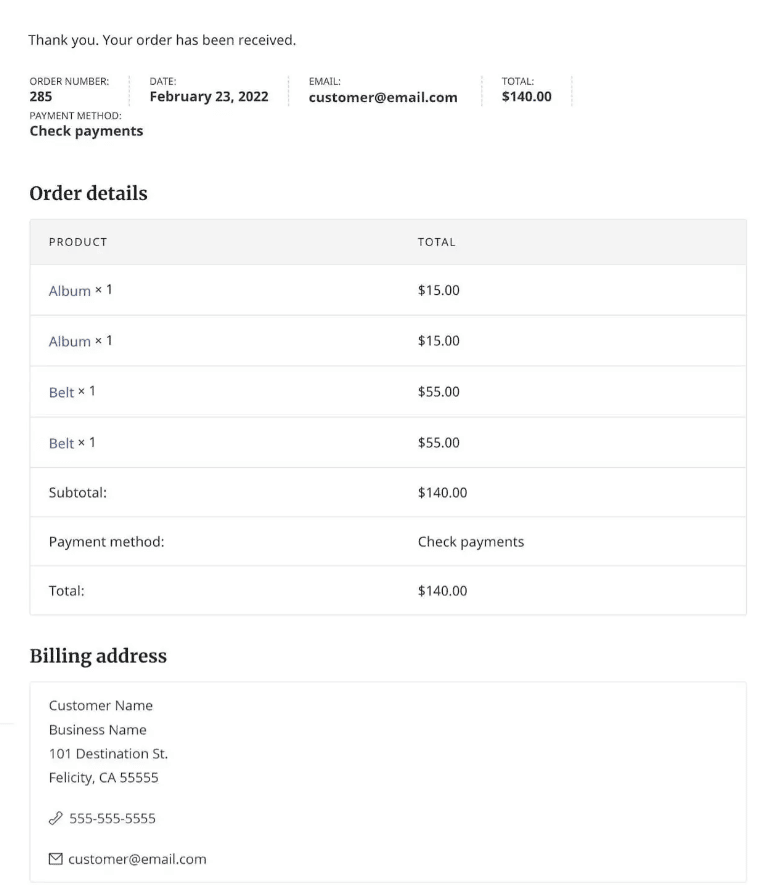
Mistake 3: Not using the Thank You/Order Complete page effectively
Mistake: The thank you page is often overlooked as a prime opportunity to engage customers. Many WooCommerce store owners simply confirm the order, missing a valuable space to encourage return visits, highlight special offers, and recommend additional products.
“One of the mistakes I see a lot of WooCommerce store owners make is not taking full advantage of the thank you page to promote other products that may be of interest, highlight on-sale items, etc.”
Dave Green, Product Manager at Iconic and experienced WooCommerce developer
About Dave: With over a decade of experience in WordPress and WooCommerce development, Dave has built solutions for a wide range of ecommerce businesses. He joined Iconic in 2021 and has led the development of several key plugins, including WooThumbs. Now, as Product Manager, he’s focused on expanding Iconic and Orderable’s growth and effectiveness.
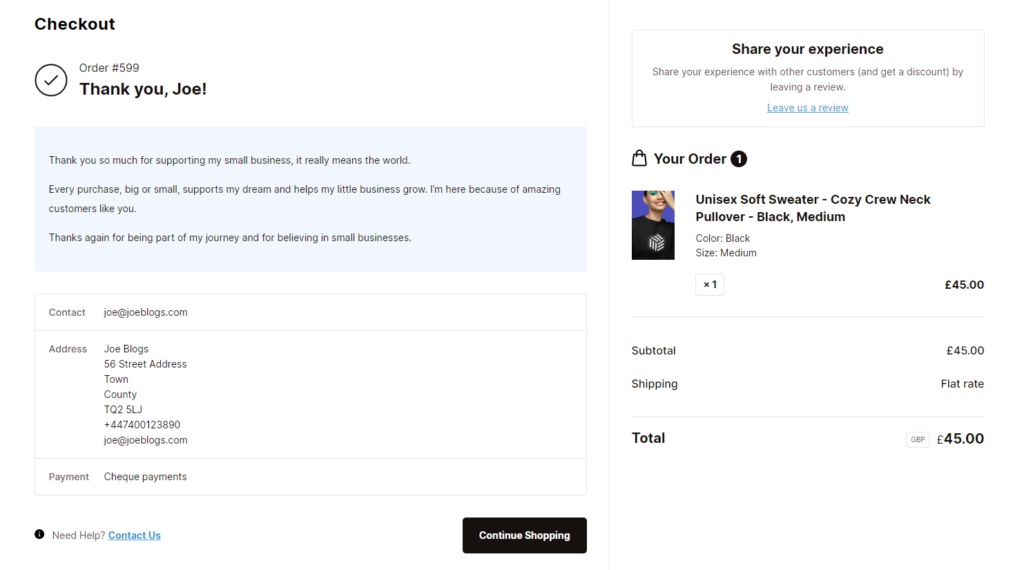
Solution: Customize your Thank You page with Flux Checkout for WooCommerce
With Flux Checkout for WooCommerce, transforming the default WooCommerce thank you page into a powerful marketing tool is easy. Flux Checkout helps you create a checkout experience that not only reduces abandonment rates but also enhances customer engagement on post-purchase pages.
Here’s how Flux Checkout Elements can help you maximize your thank you page:
Display cross-sell offers on the Thank You page. Flux Checkout lets you add customized cross-sell offers directly on the thank you page. By showing relevant products that complement the customer’s recent purchase, you encourage additional sales without requiring customers to re-enter their payment details. This smooth, one-click cross-sell option makes it easy for customers to keep shopping
Promote popular product categories or on-sale items. With Flux Checkout Elements, you can add banners or links to popular product categories, bestsellers, or sale items on the thank you page. This tactic gently nudges customers to continue exploring your store. You can position these links in over 25 different locations, ensuring they appear in the most visible and engaging spot.
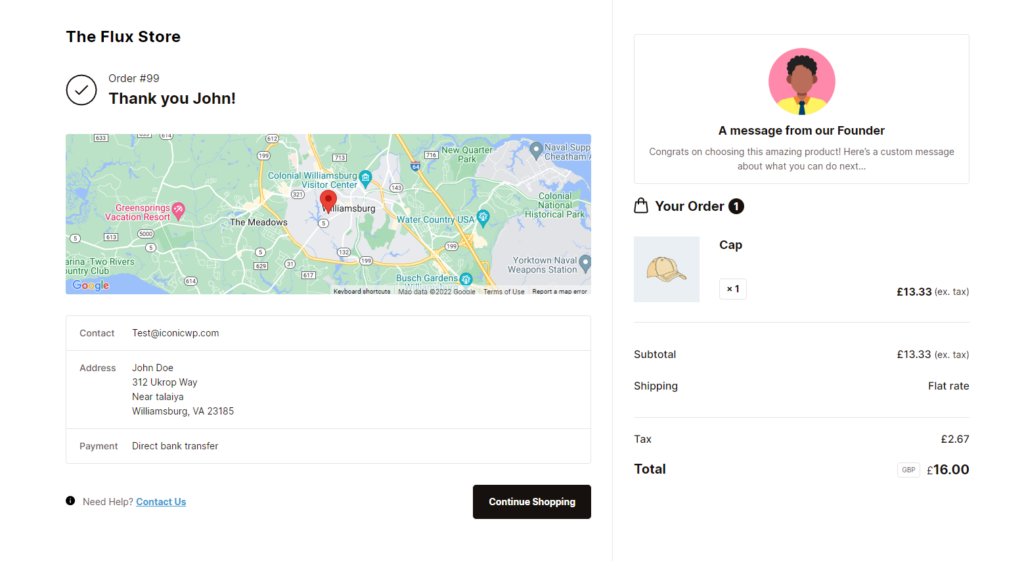
Include a customer location map for confirmation. Add a visual confirmation of the shipping address with a location map feature. This extra detail reassures customers that their order will arrive at the right place and adds a professional touch to your thank you page.
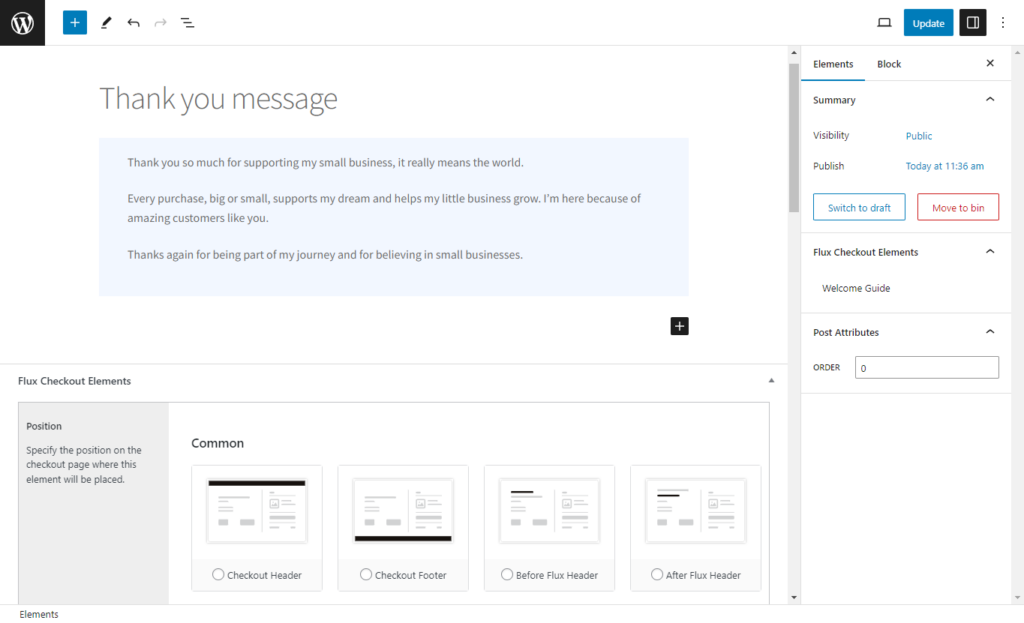
Customize with text, images, and video. Flux Checkout gives you full flexibility to personalize the thank you page using text, images, and even videos. This customization enables you to thank your customers, share brand messages, or provide helpful tips related to their purchase. For instance, a video tutorial on how to use their new product can add value and improve customer satisfaction.
Flux Checkout for WooCommerce
Flux Checkout transforms the default WooCommerce checkout into one that’s lightning-fast, distraction-free, and reduces checkout abandonment.
Mistake 4: Not fully utilizing the short and long description fields
Mistake: Relying on just one description field limits your ability to convey the full value of your product and can impact your store’s SEO performance. Both the short and long description fields serve distinct purposes and, when used together, can significantly enhance product pages.
“The short description is great for capturing attention and making your main pitch, but the long description can be useful to do a deep dive on why your products are so good. Plus, the long description is great for SEO!”
Dave Green, Product Manager at Iconic and experienced WooCommerce developer
Why both description fields matter
The short and long description fields are powerful tools to communicate different aspects of your product’s value:
- Short description. This field is often positioned near the product title and price, making it ideal for a brief, impactful pitch. It’s where you capture the customer’s attention with a few compelling sentences that summarize the product’s main appeal.
- Long description. Located further down the page, the long description allows you to go in-depth. Here, you can discuss product features, benefits, and use cases in detail, which can persuade customers who need more information to make a purchase.
Using both fields gives you the best of both worlds: a quick hook to interest casual browsers and a detailed description to address questions and concerns.
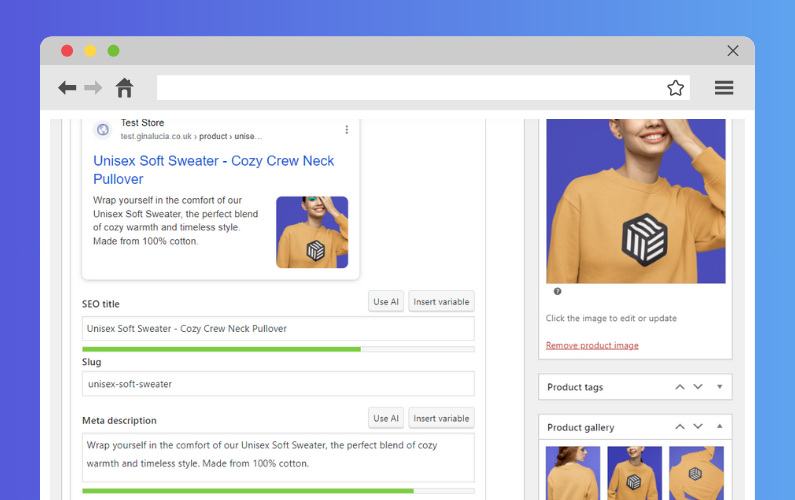
How to effectively use the short and long description fields
- Craft a captivating short description. Use the short description to highlight the product’s key selling points in one or two sentences. Think of it as an elevator pitch: make it clear, concise, and engaging. Include standout features or a unique benefit, like “Perfect for weekend getaways with its lightweight design” or “Organic, sustainably sourced ingredients for conscious consumers.”
- Use the long description to build value. In the long description, you have space to go into detail about why your product stands out. Describe specific features, include use cases, and highlight benefits that add real value for customers.
- Example: If you’re selling outdoor gear, you could discuss how the product performs in different weather conditions, its durability, and any additional features that make it unique.
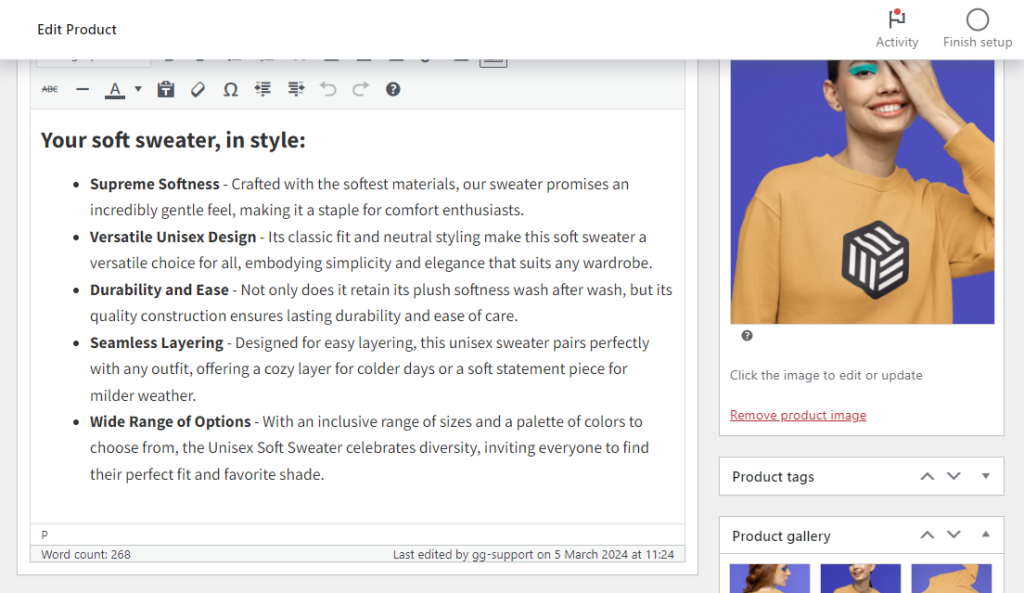
- Optimize for SEO in the long description. The long description is an excellent place to include natural keywords related to your product. Think about terms your customers might search for and integrate them in a way that feels natural, without keyword stuffing. For instance, if you’re selling a backpack, mention related keywords like “lightweight travel backpack,” “outdoor gear,” and “durable material” as part of a comprehensive product description.
- Use formatting to enhance readability. Break up the long description with bullet points, headers, and short paragraphs to make it easy for customers to scan. This makes it more user-friendly and helps customers quickly find the information they care about. Consider adding a “Features” section with bullet points or a “How to Use” section with simple steps.
WooCommerce store owners mistake 5: Missing out on conversion tracking in analytics
Mistake: Running Google Analytics without conversion tracking means you’re missing out on crucial insights into customer behavior and which channels are actually driving your sales. Without this data, it’s difficult to understand what’s working – and what isn’t – in your marketing strategy.
“One of the mistakes I see a lot of WooCommerce store owners make is having site analytics in place but without any form of conversion tracking on the thank you page. You’re missing out on important conversion data that could be used to identify what your best organic and paid funnels are!”
Dave Green, Product Manager at Iconic and experienced WooCommerce developer
Why conversion tracking matters
Conversion tracking is essential for understanding your store’s performance and maximizing your marketing spend. By setting up conversion tracking, you can see exactly how customers move through your site, which channels bring the most valuable visitors, and what specific actions drive conversions.
With this data, you can make informed decisions to optimize your marketing, target high-converting channels, and ultimately increase sales.
How to set up conversion tracking on your Thank You page
- Use Google Analytics conversion tracking. Setting up Google Analytics conversion tracking allows you to track successful transactions and gather insights into which channels drive the most conversions. This tracking usually involves adding a code snippet to your thank you page, where conversions (such as completed purchases) are confirmed.
- Simplify tracking with Google Tag Manager. Google Tag Manager (GTM) makes it easier to implement and manage tags on your site without manually editing the code. With GTM, you can set up conversion tracking on your thank you page by defining specific ‘triggers’ (like a successful purchase) and tracking events in Google Analytics.
- Monitor key metrics. Once conversion tracking is set up, monitor key metrics such as conversion rate, revenue by channel, and average order value (AOV) to gain insights into what’s driving performance. Regular analysis of these metrics will reveal which marketing channels are generating the highest ROI.
WooCommerce store owners mistake 6: Not setting up proper shipping methods
Mistake: Many WooCommerce store owners overlook setting up accurate shipping methods, which can lead to customer frustration at checkout if shipping options don’t match their expectations. This oversight can result in lost sales if customers feel that delivery is inconvenient or unclear.
“One of the mistakes I see a lot of WooCommerce store owners make is not setting up proper shipping methods. I think I see it more frequently because of Orderable 😬.”
Ramon, Senior Developer at Iconic and orderable
About Ramon: As a passionate web developer, Ramon is committed to creating seamless user experiences and has a strong background in open-source contributions. When he’s not coding, you’ll find him enjoying a good book, playing guitar, or unwinding with video games.
Why accurate shipping methods matter
Shipping options play a significant role in a customer’s decision to complete their purchase. Inconsistent or confusing shipping settings can create a poor user experience, leading to higher cart abandonment rates. Clear, reliable shipping options build customer trust and align with their expectations, ensuring a smooth checkout experience.
Properly configured shipping methods also allow you to control costs, meet delivery timelines, and provide flexibility to accommodate different delivery preferences.
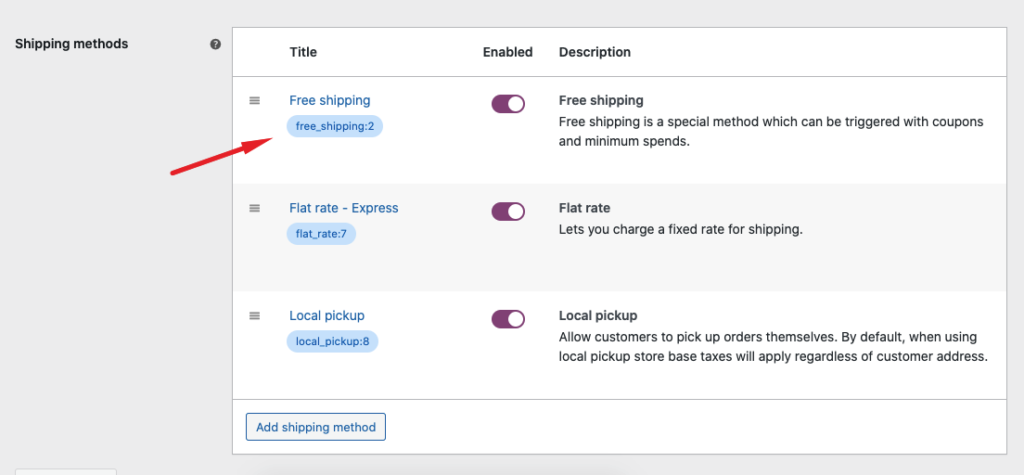
How to set up effective shipping methods
- Define shipping zones. Start by setting up distinct shipping zones within WooCommerce. This setup enables you to provide specific shipping options based on the customer’s location. For instance, you can offer local pickup for customers in nearby zones and only enable national or international shipping for other regions.
- Utilize WooCommerce’s built-in shipping options. WooCommerce provides a range of options like flat rate, free shipping, and local pickup. Choose the options that align best with your business model and customer preferences.
- Flat Rate. Ideal if you want to charge a fixed amount per order or product.
- Free Shipping. Often an incentive for orders above a certain amount, free shipping can help boost cart values.
- Local Pickup. This option is useful for customers who prefer to collect their orders in person, reducing shipping costs.
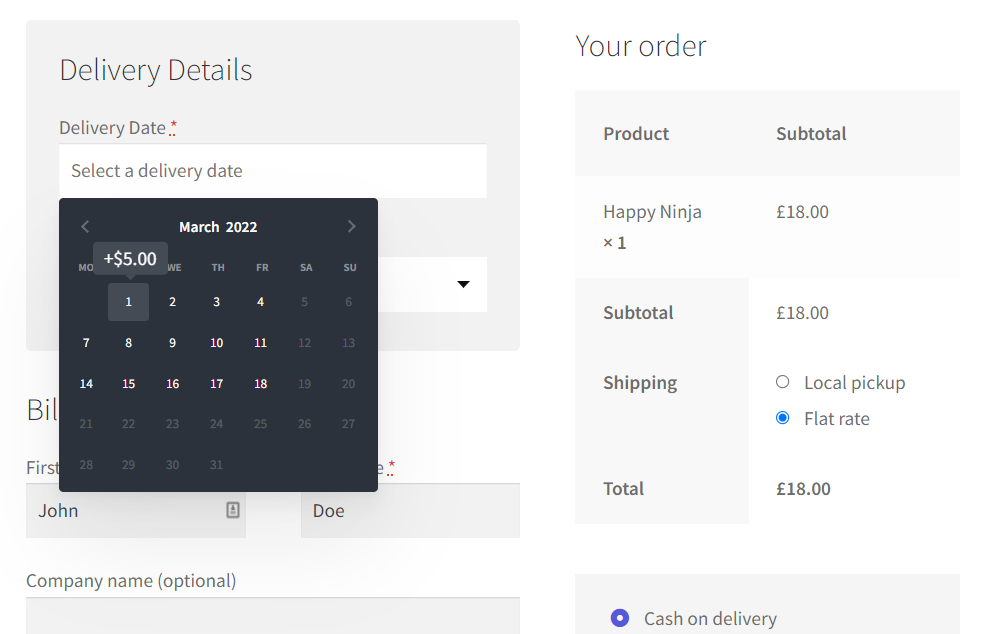
Add flexibility with WooCommerce Delivery Slots. For businesses with unique delivery needs, WooCommerce Delivery Slots provides advanced control over shipping conditions. This plugin lets you offer specific delivery dates and time slots at checkout, creating a personalized, convenient experience for your customers.
- Custom delivery and pickup time slots. WooCommerce Delivery Slots allows customers to select their preferred delivery or pickup date and time at checkout, enhancing convenience and satisfaction. A user-friendly date picker shows available delivery slots, so customers can choose what works best for them.
- Limit orders per slot. Manage your workload by setting a maximum number of orders for each delivery slot. You can also set same-day delivery cutoff times, preventing last-minute orders that may be hard to fulfill.
- Add delivery fees for premium slots. Charge additional fees for certain delivery times, such as same-day or weekend delivery. This feature not only covers the cost of expedited deliveries but also lets customers prioritize convenience.
WooCommerce Delivery Slots
Let customers choose their preferred WooCommerce delivery date and time right from your WooCommerce checkout page. With WooCommerce Delivery Slots, you can set a flexible delivery schedule to suit you and your customers.
WooCommerce store owners mistake 7: Neglecting trust signals on product and checkout pages
Mistake: A lack of visible trust signals on product and checkout pages can reduce customer confidence, leading to lower conversion rates and more abandoned carts. Without these elements, customers may hesitate, unsure about the legitimacy and reliability of your store.
“One of the mistakes I see a lot of WooCommerce store owners make is neglecting to add trust signals on both their product and checkout pages. Elements like a clear money-back guarantee, customer support information, security badges, and any awards or certifications can go a long way in reassuring customers. Additionally, showing that there are real people behind the company—through an About page, team introductions, or contact information—helps build credibility and makes customers more comfortable with their purchase.”
Pramod, Senior Developer at Iconic and orderable
About Pramod: Pramod brings a deep understanding of WordPress to our development team, where he focuses on creating feature-rich solutions and handling technical support. Outside of work, he’s passionate about the outdoors, music, fitness, and reading.
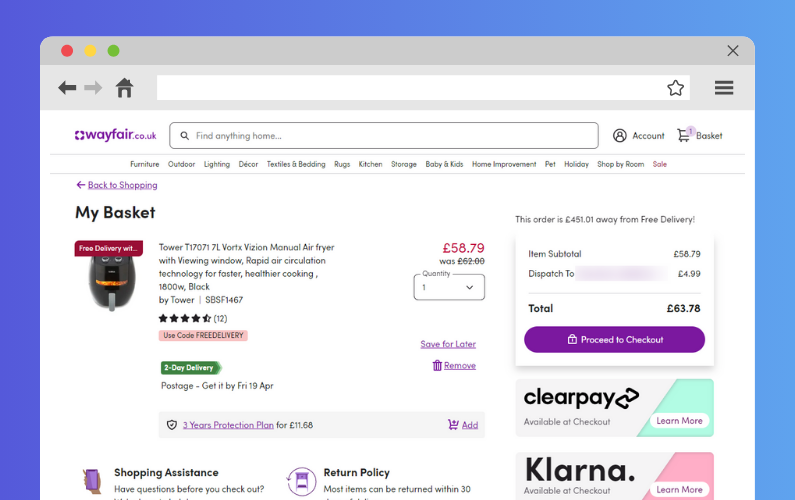
Why trust signals matter
Trust signals are essential for creating a sense of security for customers, especially in ecommerce, where customers can’t physically inspect products. Adding trust signals at critical points in the buying journey – like product and checkout pages – helps reassure customers that they’re making a safe and informed purchase.
Trust elements like security badges, clear return policies, and contact information build credibility, reducing hesitation and increasing conversions.
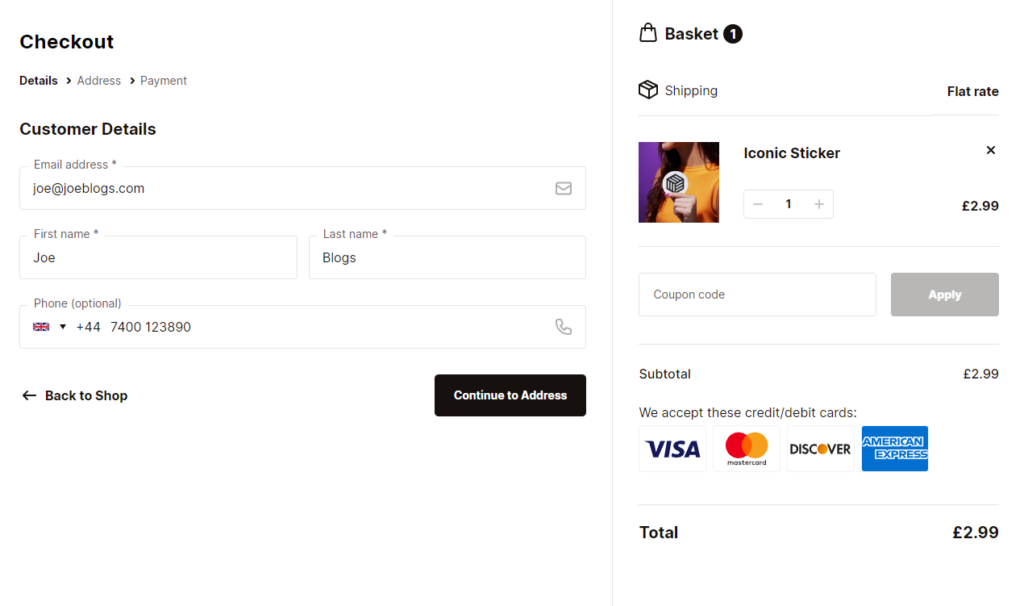
Solution: Add trust signals with Flux Checkout for WooCommerce
With Flux Checkout for WooCommerce, adding trust signals becomes simple and effective, helping you build a secure and customer-friendly checkout experience. Flux Checkout is designed to reduce checkout abandonment and instill confidence in customers as they complete their purchase.
Here’s how Flux Checkout can help you maximize trust on product and checkout pages:
- Add trust badges and money-back guarantees. Flux Checkout allows you to place trust signals, such as security badges and money-back guarantees, in multiple locations throughout the checkout process. This visibility reassures customers that their transaction is secure and risk-free.
- Embed customer support options. With Flux Checkout, you can add custom checkout elements, like banners or interactive blocks. These can be used to display customer support contact details, FAQ sections, or live chat links.
- Showcase trust seals and awards. Use Flux Checkout Elements to create custom blocks that highlight any awards, certifications, or industry accreditations on your checkout page. These visual indicators serve as endorsements of your brand’s quality and reliability.
- Personalize your checkout design. Flux Checkout provides two customizable templates, allowing you to match the checkout page style to your brand and add trust elements where they’re most effective. You can also remove distractions, like headers and footers, ensuring customers stay focused on completing their purchase.
Flux Checkout for WooCommerce
Flux Checkout transforms the default WooCommerce checkout into one that’s lightning-fast, distraction-free, and reduces checkout abandonment.
Learn from these mistakes and optimize your WooCommerce store
For WooCommerce store owners, running a successful online shop is all about creating a seamless, trustworthy, and engaging experience that encourages customers to buy and return.
The most impactful mistakes, from overlooking product photography to neglecting trust signals, can have a huge impact. By addressing these common issues, you can drive growth for your business.
To truly transform your store, explore tools designed to enhance the WooCommerce experience. Plugins like Flux Checkout offer a streamlined, distraction-free checkout process that reduces cart abandonment and improves conversion rates. With Iconic Sales Booster, WooThumbs, WooCommerce Delivery Slots, and other Iconic plugins, you can create a store that looks professional, functions smoothly, and provides an experience customers remember.

Gina Lucia is our in-house Content Manager at Orderable. She writes articles, user guides, technical documentation, and creates videos on everything WooCommerce and Orderable.
Gina has been working in the WordPress/WooCommerce space since 2012 when she developed WordPress websites for clients large and small.
For the past 8 years, she’s been writing about everything WordPress and WooCommerce, becoming an expert in what makes a WooCommerce store succeed.
When not writing, Gina loves to tend to her vegetable garden, read, or travel to mainland Europe.