
If you’re looking to boost your ecommerce site’s credibility and get more sales, adding trust badges is the way to do it.
If you want potential customers to buy from you, they need to trust you. Trust badges can help you build trust with new customers and make them confident in doing business with you.
So, in this article, we’ll show you how to add and use trust badges in your ecommerce store.
We’ll walk you through:
- What trust badges are
- How to add trust badges to your WooCommerce checkout
- Other places to add trust badges in your ecommerce store.
First things first, let’s understand what trust badges are.
What are trust badges?
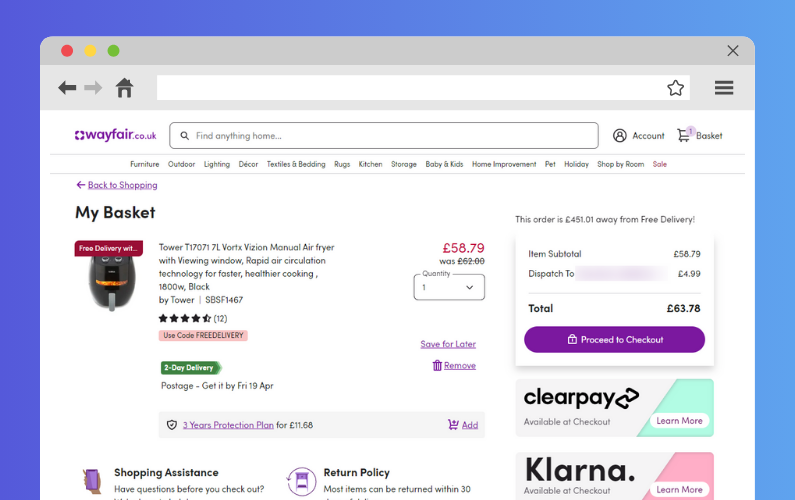
Trust badges (or trust seals) are digital icons displayed on your website to reassure visitors that your brand is secure, legitimate, and trustworthy. They verify to strangers that they can trust you with their personal data and rely on you to deliver your goods and services as promised.
Whether you’re running a new ecommerce business or an established brand, chances are you’ll come across customers who haven’t heard about it before.
With 35% of Americans falling victim to credit card fraud, it makes perfect sense that new customers might have doubts about your services.
They don’t know if their credit card details might be stolen or if the goods or services they pay for may never be delivered. But you know that your business is trustworthy and secure. With trust badges, you can prove this to them.
What are the different types of trust badges?
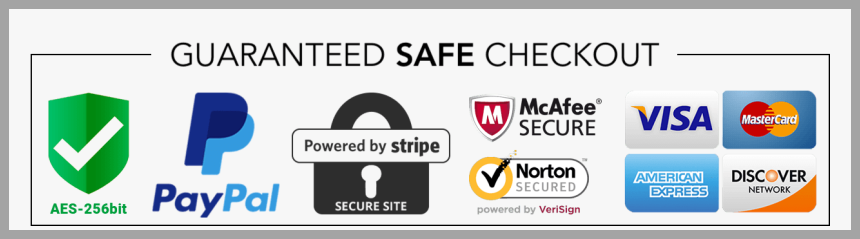
If you’re looking to add trust badges to your ecommerce site, here are the different options to consider.
| Type of badge | Example providers / icons | What it communicates to customers | Free or paid? |
|---|---|---|---|
| Payment badges | Visa, Mastercard, PayPal, Amazon Pay | Your store accepts trusted, well-known payment options. | Free |
| Security / SSL badges | Norton, McAfee, SSL padlock icon | Checkout and data are safe and encrypted. | Usually paid |
| Third-party endorsement | BBB Accredited, Google Certified Store | Your business has been vetted by a trusted organization. | Often paid |
| Policy-specific badges | Free Shipping, Money-back Guarantee | Store policies protect the customer. | Free/custom |
| Customer review badges | TrustPilot, Google Reviews | Other shoppers recommend your business. | Free/paid |
| Industry certification badges | PCI DSS, GDPR, HIPAA, USDA Organic, Fairtrade | You comply with regulations or meet specific standards. | Paid |
| Sustainability / ethical badges | EcoCert, Carbon Neutral, Cruelty-Free | You care about sustainability and ethical practices. | Paid/free |
| App store / platform badges | Shop Pay, Apple Pay, Google Pay | Customers can check out with trusted payment platforms. | Free |
| Awards & recognition badges | G2 Awards, “Best of” awards, industry seals | Your store has been awarded or recognized for excellence. | Paid/free |
| Verified seller badges | eBay Top Rated, Google Trusted Store | You’re a trusted seller with a proven track record. | Usually free |
How can you acquire and use different types of trust seals?
The requirements for displaying trust badges vary depending on the type. Accepted payment badges will typically be free for you to use because doing so markets these payment methods. For security badges, however, you will need to prove your dedication to good security practices to receive them.
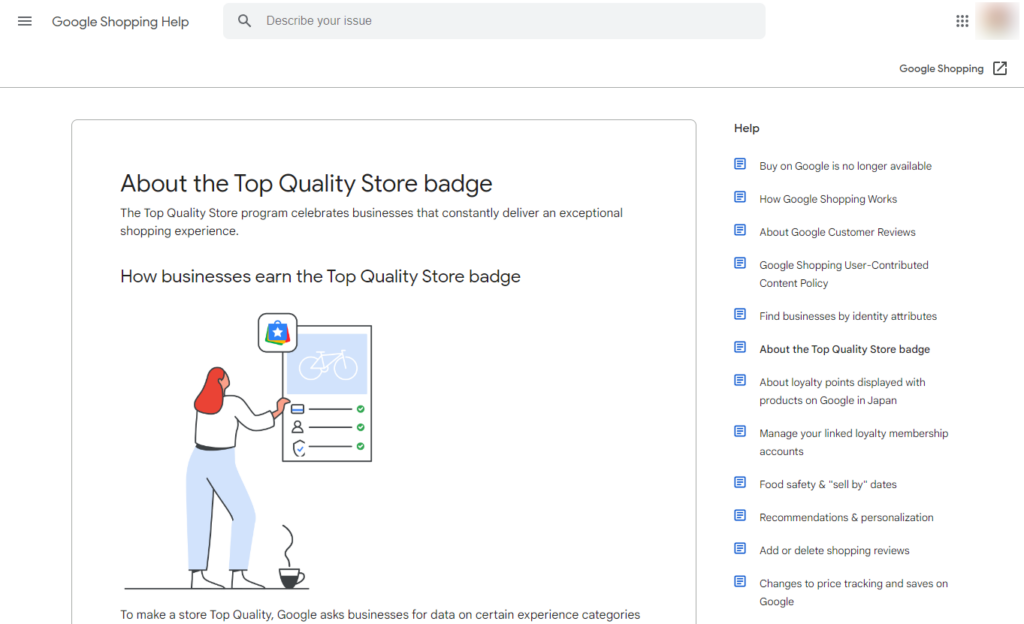
Endorsement seals require you to apply for them and undergo a review period before you get permission to use them. Some seals are available at a fee and subject to renewal after a given period.
With so many trust badges available, which ones should you use, and where should you place them? We’ll address this later in this guide, but first, let’s look at the benefits and understand why we should be using trust seals in the first place.
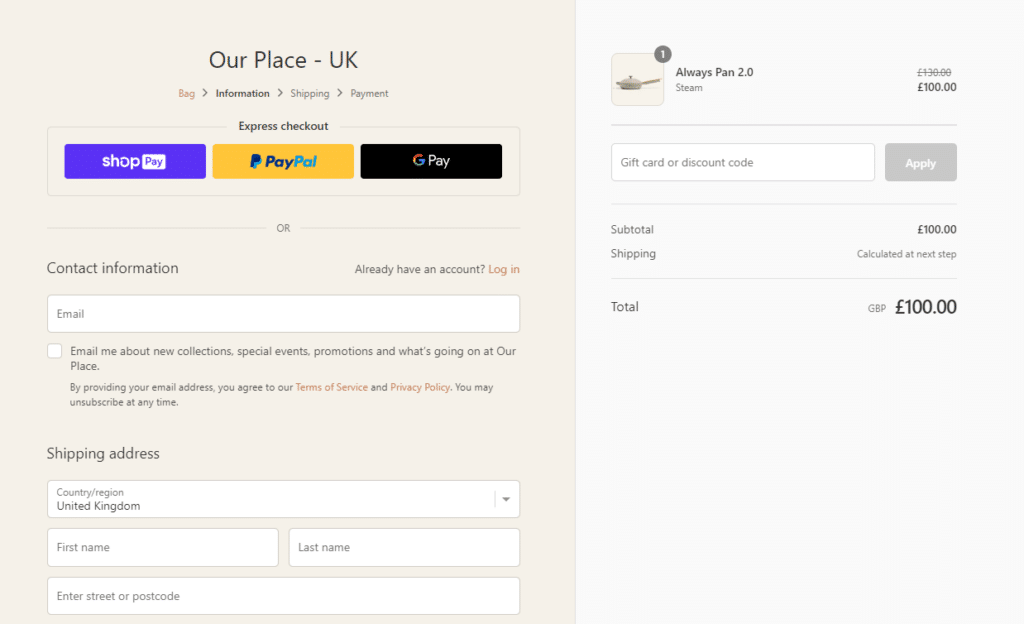
What are the benefits of using trust badges in your ecommerce store?
Trust badges matter most to you as an online retailer. This is because you need customers to trust you with their addresses for deliveries and credit card information for payments. Because of this, displaying trust badges on your ecommerce store has the following benefits for you.
Can trust badges improve ecommerce conversion rates?
Building trust leads to increased sales. Yes, it’s that simple. When customers trust your ecommerce site, they are more likely to proceed with transactions. On the other hand, you may lose sales, even from customers who really need your product, if they don’t trust your site.
A shopping cart abandonment study by the Baymard Institute revealed that 25% of customers abandon their carts when they can’t trust an ecommerce site with their credit card information.
Customers get concerned when they have a gut feeling that you can’t protect their payment information.
Adding an SSL (secure sockets layer) or Norton’s Secured badge helps to alleviate some of these concerns. Knowing their data will be encrypted, they will feel more comfortable providing their payment details and following through with the purchase.
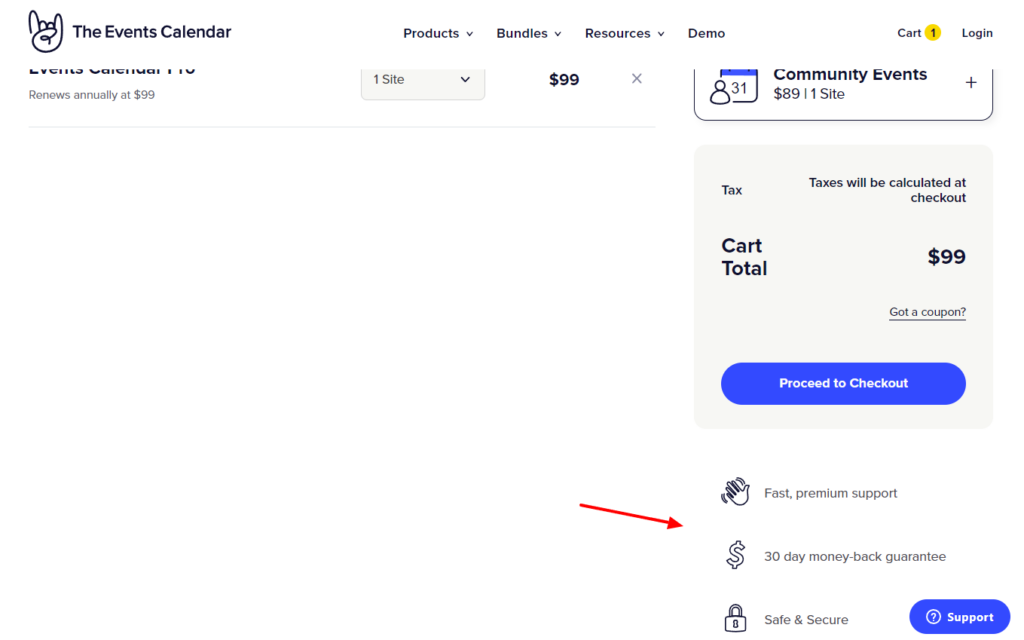
Can ecommerce trust badges help to boost your brand reputation?
As mentioned earlier, new customers might hesitate to work with your brand because they don’t know it. But, if they see that you’re a BBB-accredited business they will be less hesitant about buying from you.
Displaying a BBB badge shows them that you have a reputation for good business practices, including honesty, transparency, and good customer service.
In a recent survey, 78% of the participants revealed that they are more likely to purchase from a business if it displays a BBB Accreditation seal.
This shows that a BBB Accreditation badge can be a powerful selling point.
Can trust badges help to communicate your online store policies?
Policies like free shipping and money-back guarantee are powerful selling points. After all, extra costs, such as shipping, are the leading cause of cart abandonment (48%). A free shipping badge helps to make this incentive clear to them.
Want to learn more about preventing checkout abandonment? Check out our cart abandonment guide.
So by now, you have a pretty good idea of what trust seals are and their benefits. With that in mind, let’s have a look at how you can add them to your ecommerce site.
How can you add trust badges to your ecommerce store?
In this section, we’ll walk you through different ways and places you can add trust badges to your ecommerce store. You can display trust badges in different parts of your ecommerce store depending on the type of badge or its intended purpose.
You can add them to:
- The checkout.
- Your homepage.
- Individual product pages.
- Your about page.
The checkout is at the top of our priority list. Adding trust badges at the checkout aims to address the concerns of online shoppers at the right moment – when they’re ready to buy. So, let’s see how to add trust badges to your checkout process.
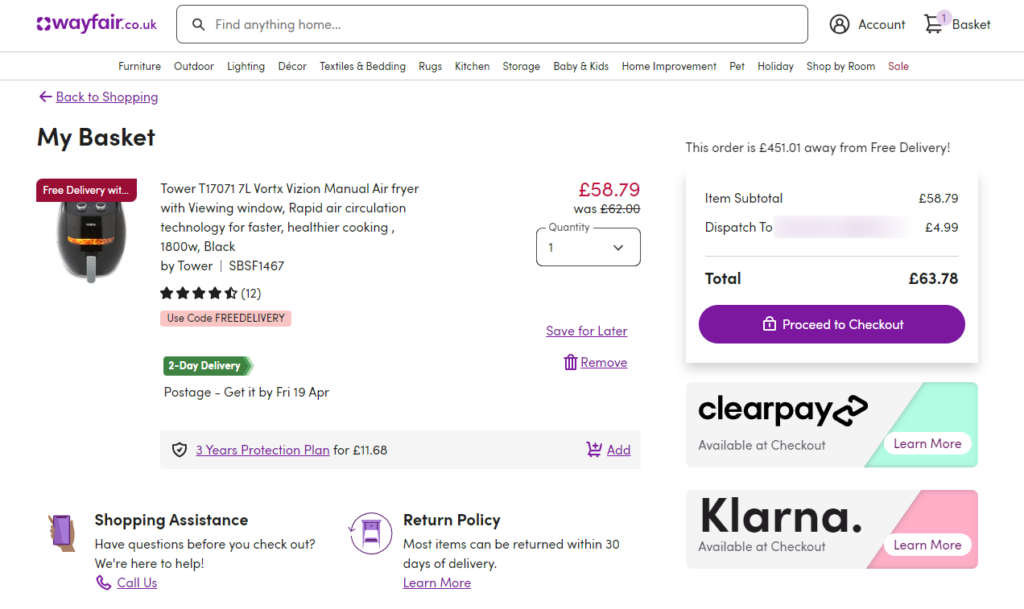
How can you add trust badges to your ecommerce checkout process?
In this section, we’ll walk you through how to add trust badges to your ecommerce checkout. We’ll do it specifically for online stores that are on a WordPress website and use WooCommerce as their ecommerce platform (rather than, say, Shopify).
Here are some of the best trust badges you can display during the checkout to earn your customer’s trust:
- Payment trust badges – so customers know the accepted payment options from the get-go.
- Security badges.
- Policy-specific badges – for instance, money-back guarantee badges, free shipping trust badges, etc.
To do this, you’ll need a plugin because you can’t do it with WooCommerce by default.
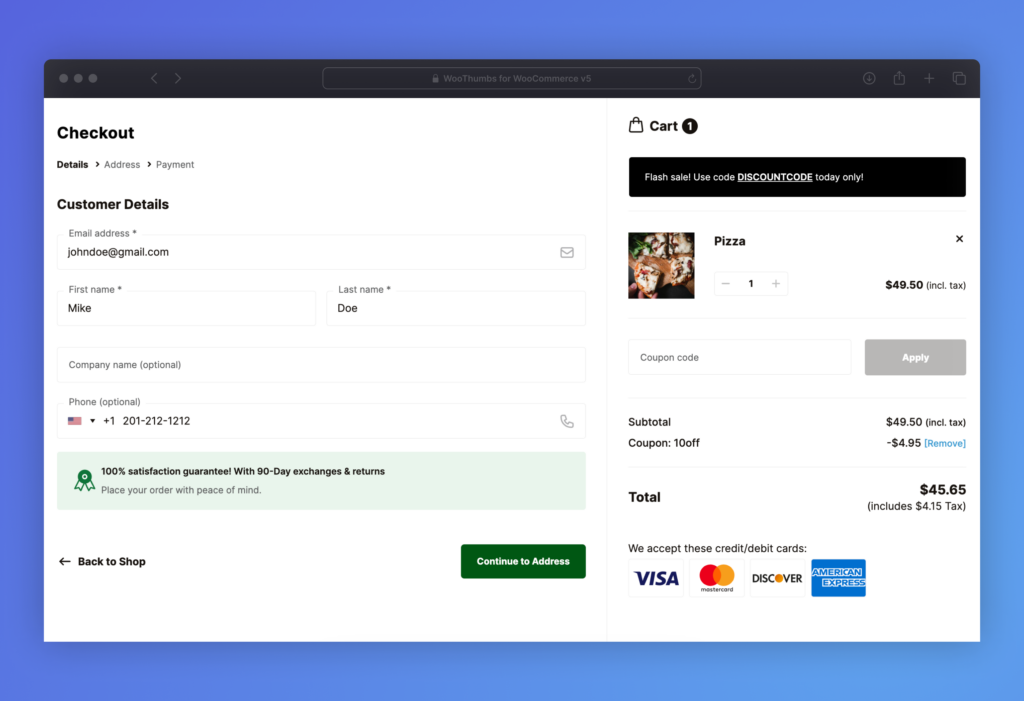
How can you add trust badges with Flux Checkout for WooCommerce?
If you want to add trust badges to your WooCommerce checkout, you can do it with Flux Checkout for WooCommerce.
This is a WooCommerce plugin designed to help you create a fast, modern, and seamless checkout experience for your customers. This plugin can transform the default clunky WordPress checkout into a streamlined multi-step checkout and prevent abandoned carts from piling up.
It does everything possible to make your checkout as simple as it can be, including:
- Reducing the number of unnecessary additional fields, for instance, separate street number and company checkout fields.
- Removing headers, footers, sidebars, and other content that could distract customers.
- Auto-filling address fields for customers. Once a customer starts typing, it will generate suggestions for the closest matches.
This way, customers can focus on one thing only – completing the checkout.
A simple and lightning-fast checkout aside, Flux also allows you to add trust seals to convince potential customers to complete a purchase.
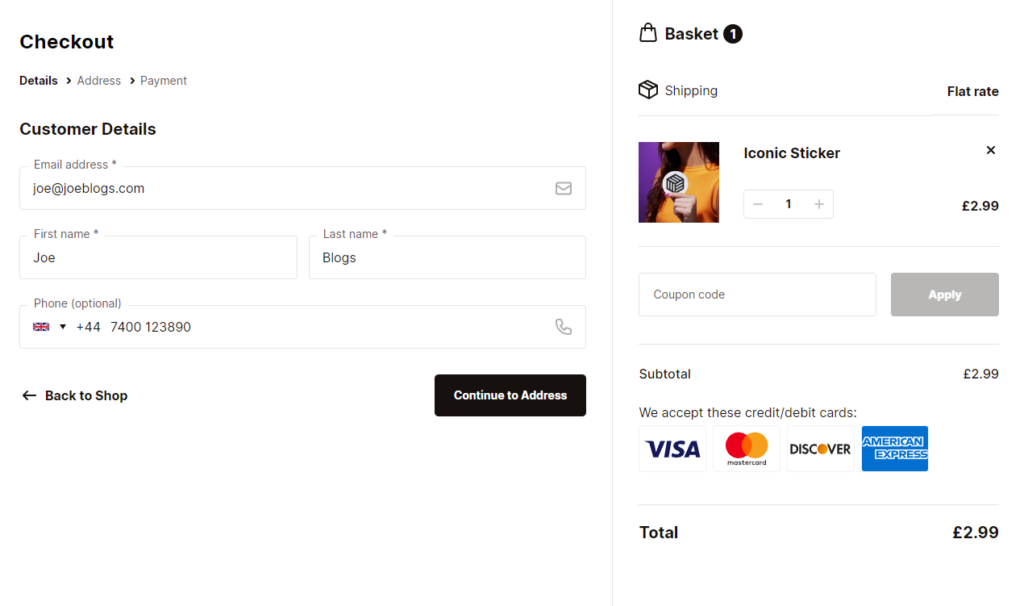
Use Flux Checkout’s Checkout Elements to add trust seals to your checkout
Flux has a set of versatile elements that you can use to create testimonials, FAQs, and, of course, trust badges. These elements are blocks or designs you can create and showcase anywhere on your Flux Checkout page.
You don’t have to start creating trust badges from scratch. For the best experience, Flux provides you with 5+ pre-built templates including payment icons, free shipping, and customer review badges.
You can customize these badges using the WordPress block editor and choose where to display them. No knowledge of HTML or coding is needed. You can also choose to display these badges under specific conditions.
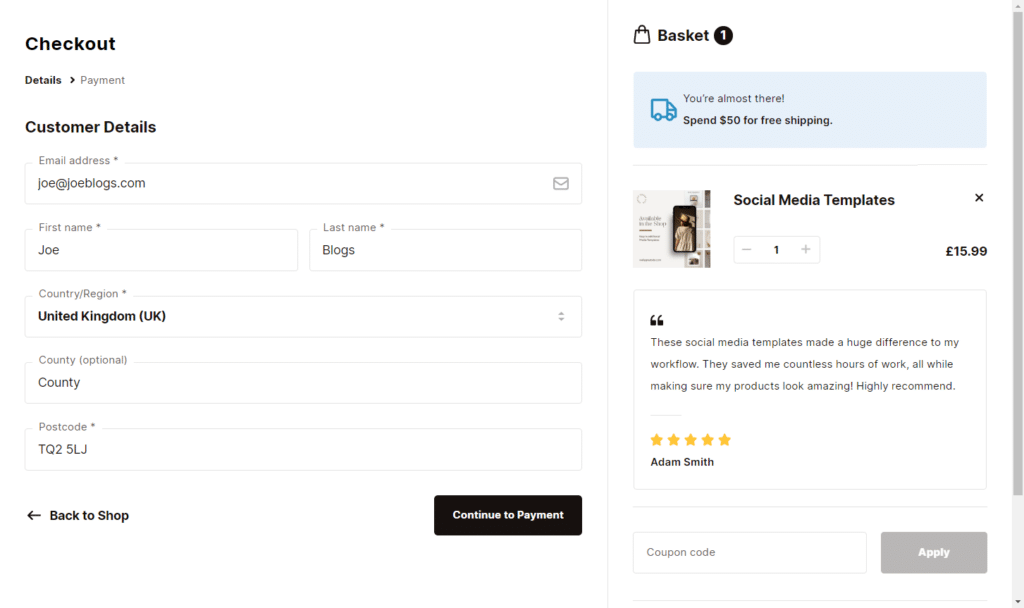
For instance, avoid showing the free shipping badge when customers are logged in as guests. Flux makes the entire process simple, and you can have your badges up and running in minutes.
Apart from creating and displaying trust seals, you can also do the following with Flux Checkout.
Improve your checkout design
Flux Checkout provides you with optimized checkout-style templates that you can import and customize to blend seamlessly with your store. You can select between a modern or classic design in a single click.
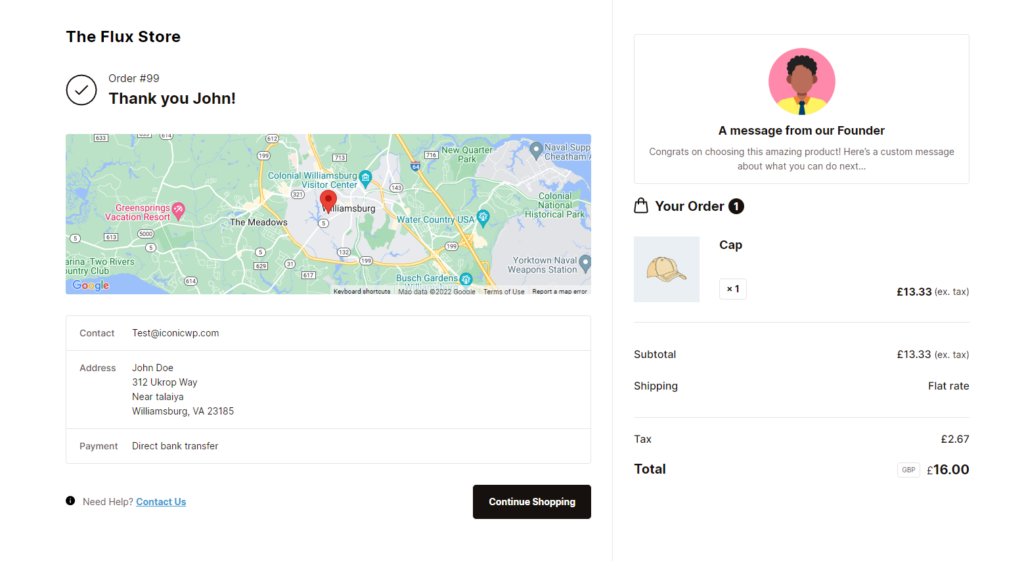
Create a customizable order completion page to inspire customer loyalty
Your WooCommerce order confirmation page can do so much more than simply thanking customers for their purchases.
Flux Checkout allows you to customize this page and add useful content such as:
- A video from the CEO or a behind-the-scenes video of how the products are made.
- A coupon on their next purchase.
- Links to social media accounts and community forums.
This type of content encourages customers to keep engaging with your business and be loyal to your brand.
Now we know what Flux Checkout is and what it can do, it’s time to use it to use it to create and display trust badges in your WooCommerce checkout.
Flux Checkout for WooCommerce
Flux Checkout transforms the default WooCommerce checkout into one that’s lightning-fast, distraction-free, and reduces checkout abandonment.
How to use Flux Checkout to add trust badges to the checkout
First, purchase Flux Checkout for WooCommerce from the Iconic store: iconicwp.com/flux-checkout.
Then follow these simple steps to install it in your WordPress site:
- From your WordPress dashboard, go to Plugins > Add New.
- Click on Upload Plugin and upload the Flux Checkout extension you downloaded.
- Click Install Now and Activate once the installation is complete.
- Upload your license key to verify your purchase.
Now, you’re ready to create your trust badges.
Before you create your trust badges, ask yourself these questions: Could this be a selling point for my brand? Will this impress my customers or make them more confident enough to buy?
This will help you decide which badges to create. After that, you can proceed to create them with Flux Checkout.
Step 1: Create your trust badges
With Flux Checkout, you can create a trust badge as a checkout element by following these steps:
- Log into your WordPress dashboard and go to Flux Checkout > Elements.
- Next, click the Add New Element button at the top. This will send you to the WordPress Block Editor where you can design your trust seal.
You can choose to create it from scratch using the Block Editor like you would for any element on a page. Or select a pre-built trust seal (customer review/testimonial, payments, etc.) and customize it to suit you.
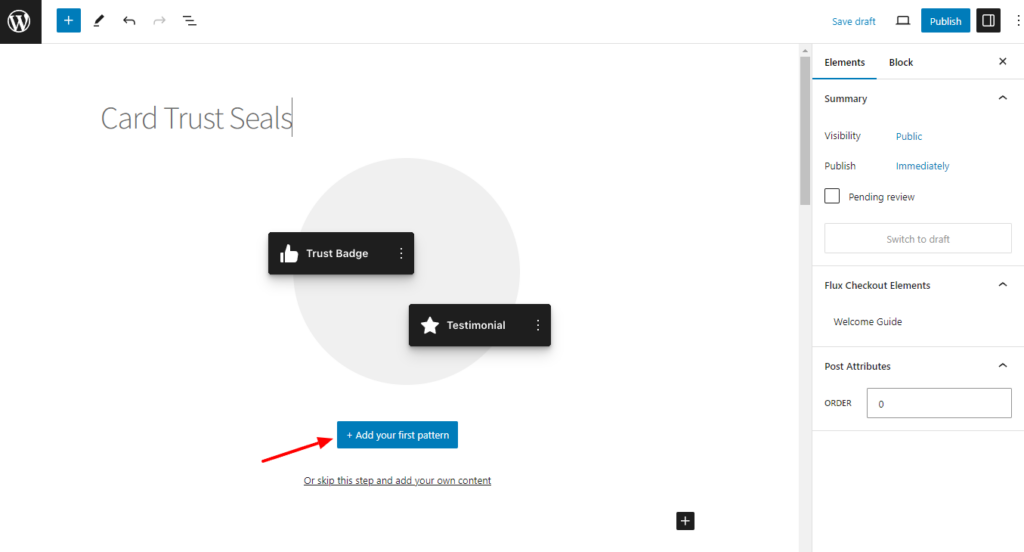
- To find the pre-built badges, click on the Plus (+) icon to add a new element.
- Click on the Patterns tab in the popup on your left. You’ll find a list of these pre-built badges. Click on any pattern to import it onto your page.
- Alternatively, when creating a fresh document, you can just click the Add your first pattern button.
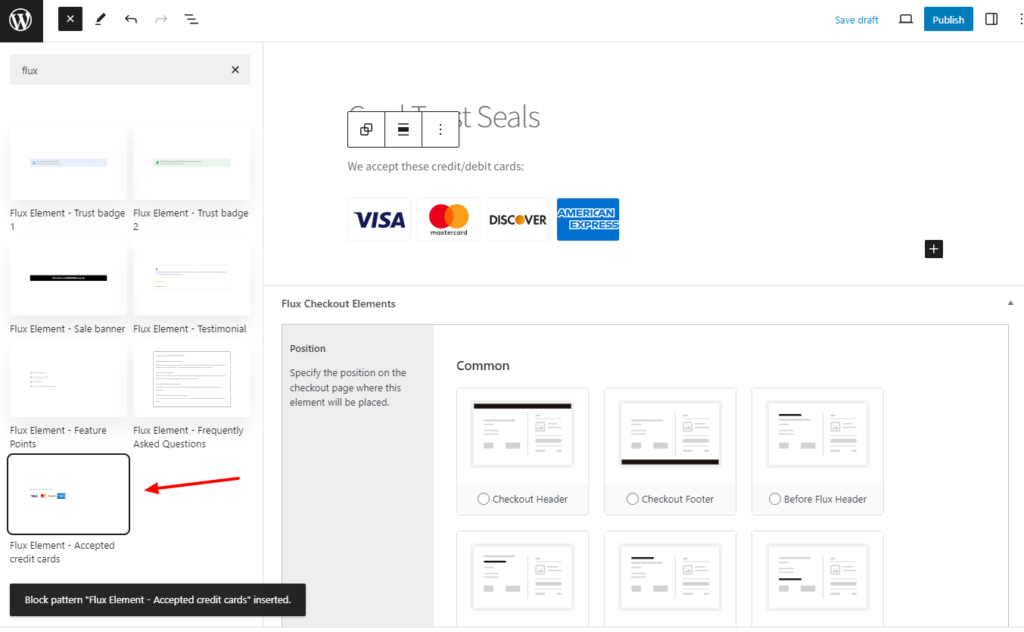
Great! Now you’re ready to choose where the badge will be displayed on the checkout page.
Step 2: Decide where they’ll sit on the checkout page
This is a simple one-step process. Scroll down to the Position section on the Flux Checkout Elements page.
Here’s where you’ll pick your trust seal’s position. You can pick from several different positions, including the checkout header, footer, before or after all fields, and so on. The choice is yours.
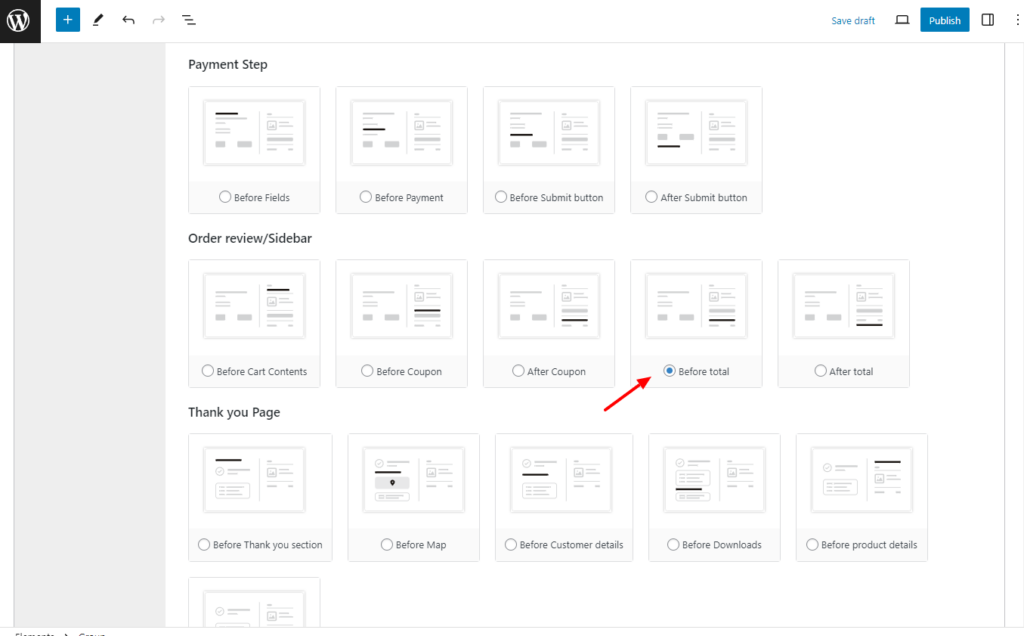
After that, you’ll want to disable or enable conditional display and set up the rules that govern conditional display.
Step 3: Decide if you want your trust seals to be conditional or not
If you want the trust badges to display only under certain conditions, you’ll need to enable the conditional display option.
While you’re on the Flux Checkout Elements page, here’s what you need to do:
- Scroll to the Enable Conditional Display option and click the toggle switch to activate this option.
- Below this, you’ll see the All rules must match section. Click on this toggle switch if you only want the trust seal to display when all the conditions you set are true. Otherwise, you can leave it at No.
- Just after this, you’ll see the Conditional Display Rules section. This is where you create specific rules to determine when the trust seal will be visible to customers.
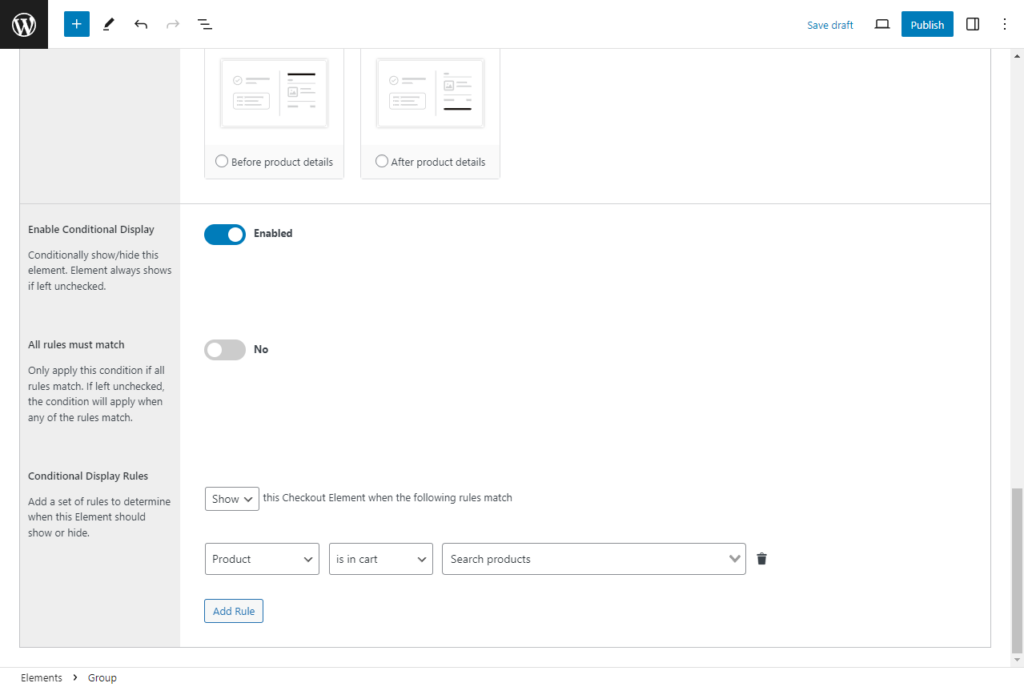
To add a rule:
- First, select whether to Show or Hide your trust badge from the first dropdown.
- Use the 3 dropdowns in the next row to craft your first rule. For instance, choose a condition from the first, an operator in the second, and a value that must be matched. It might look something like this: User Role (condition) is/is not (operator) Guest (value).
This rule, for instance, will show a trust badge if customers are logged in as guests.
- If you want to add more conditions, click Add Rule.
Step 4: Test and view your trust badges
After adding your rules, click on Publish or Save to update your progress on the front end of your website. Remember to test your checkout page after setting up the elements to ensure everything displays as expected.
You can explore your checkout page under different conditions to see if the trust badges show up under the conditions you’ve set.
Flux Checkout for WooCommerce
Flux Checkout transforms the default WooCommerce checkout into one that’s lightning-fast, distraction-free, and reduces checkout abandonment.
Where can you add trust seals to your ecommerce store (other than the checkout)?
The checkout is the most beneficial part of your ecommerce store to add trust badges. However, other places throughout your store would also benefit from these seals.
| Location | Why add them here? | Best badge types to use |
|---|---|---|
| Checkout page | Customers need the most reassurance before payment. | SSL/security, payment icons, policy badges |
| Homepage | First impressions matter; establishes credibility immediately. | SSL/security, BBB, review badges |
| Product pages | Reinforces trust at the decision point. | Policy-specific (warranty, returns), reviews |
| Site footer | Passive reassurance, visible on every page. | SSL/security, PCI DSS, payment icons |
| About page | Shows legitimacy and reputation of your business. | Third-party endorsements, awards, review seals |
Here are some of the areas in your ecommerce site where trust badges can have a great impact in a little more detail.
1. The homepage or landing page
First impressions matter, and potential customers will judge your website after simply glancing at it.
Studies show that users take about 50 milliseconds to form an opinion about your website. Because of this, you want to show your best look.
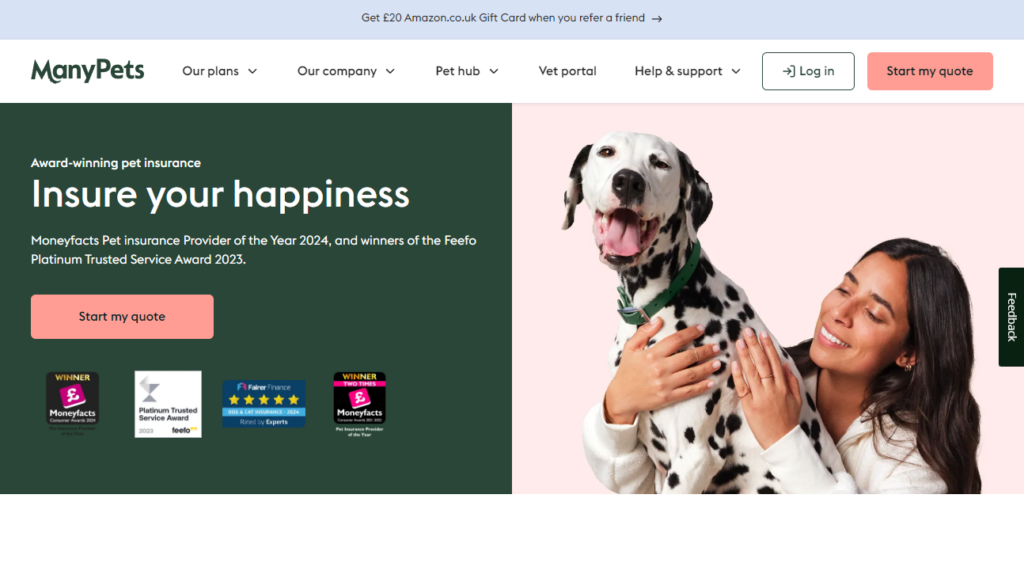
Adding trust badges to your homepage makes it look more professional and reliable to potential customers. Imagine a new customer visiting your site and seeing an SSL badge, a BBB Accredited Business logo, and a high customer rating score from Trust Pilot.
They are more likely to trust your business right off the bat compared to another business owner who lacks these seals. These badges communicate your commitment to security, good business practices, and customer service. The three main things customers look for from their sellers.
2. Individual product pages
Customers visit product pages to learn more about the products they’re interested in and decide whether to buy them. By displaying trust seals on these pages, you can give them a gentle nudge toward this decision.
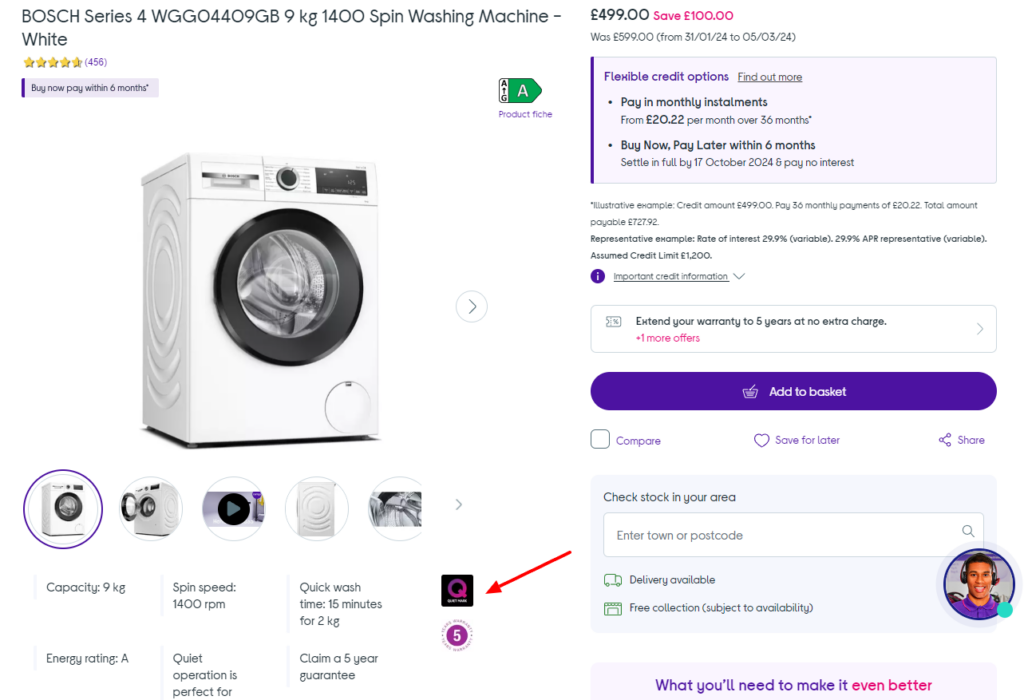
Here you can include policy badges like ‘30-Day Money-Back Guarantee’ or ‘Free 6-Months Warranty’. Place them right below the “Add to Cart” button, where they are easily visible.
These badges will boost your customers’ confidence in their purchases. They show that you believe in your products and assure them of their quality.
3. Your ecommerce site footer
Trust badges in your ecommerce site footer might seem like a small detail, but they can have a huge impact. The footer is a common location for displaying trust badges because it doesn’t get in the way of customers’ ecommerce journey.
It can be a great option if you want users to see the trust seal without taking their attention away from other elements of your site’s pages. It passively reassures them of your business’s credibility.
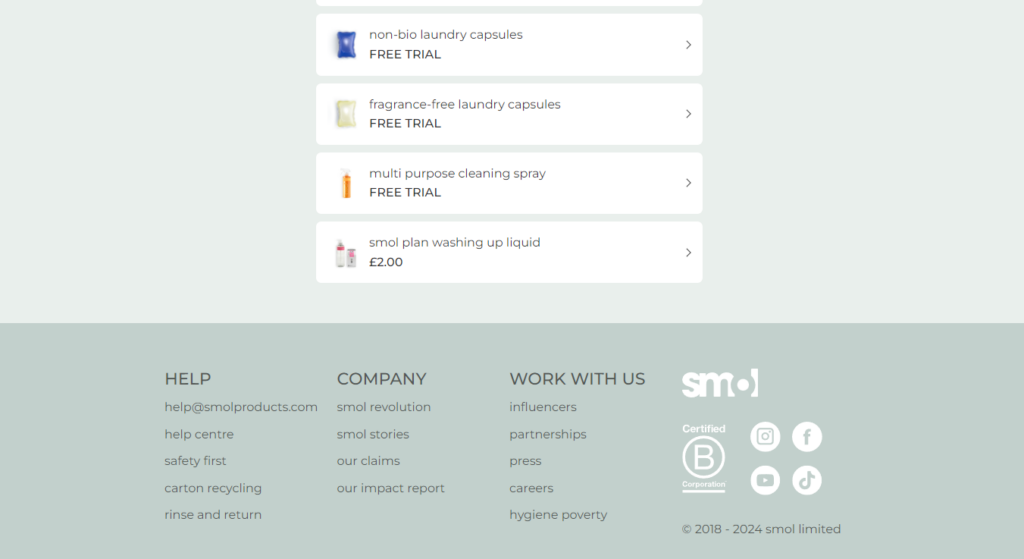
Your site’s footer is present throughout your website. If you already have trust badges on your homepage and product pages, footer trust badges can solidify that positive impression.
Here, you can add different types of trust badges, including security badges (Norton Secured Seal) and policy-specific badges. You can also add industry-specific badges, for example, PCI DSS Compliance for businesses dealing with credit card information.
4. Your about page
When customers visit this page, they want to learn more about your business. Why not take this opportunity to show them how trustworthy your business is? You can make use of the available white space on this page to display your trust badges.
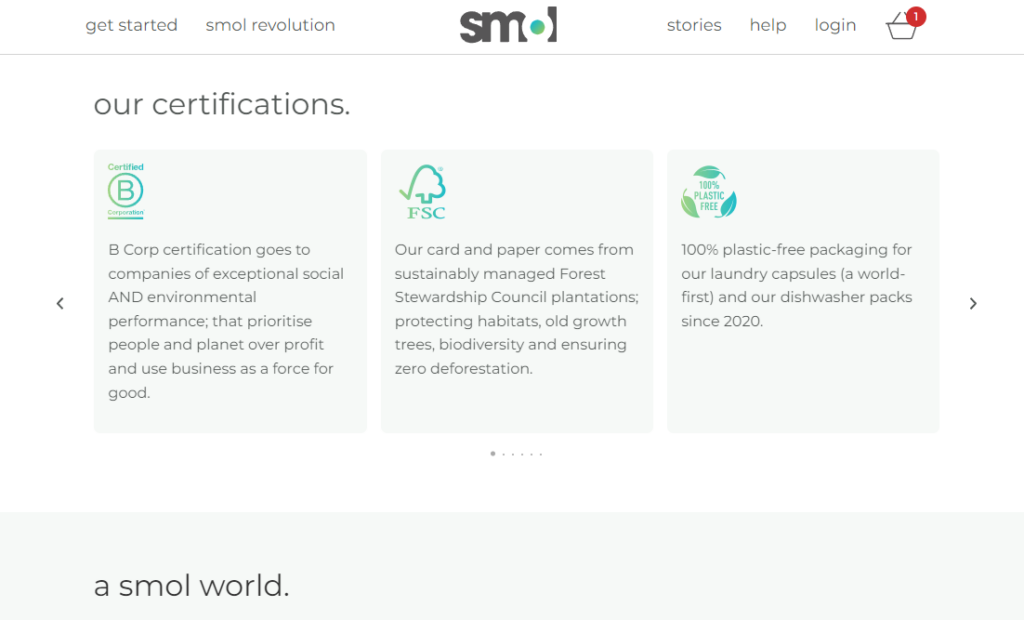
The best part is that you’re free to display any badge you want. From SSL certificates from Norton and McAfee, customer ratings from Google or Yelp, and third-party endorsements, to industry association badges. Also, if you’ve won some industry-related awards, for instance, Cloud Fest (for cloud practitioner companies), this is a great place to showcase them.
Customers visit these pages to verify if your business is legitimate and credible. Trust seals on your About page might just give them the assurance they need to purchase from your ecommerce store comfortably.
Frequently asked questions about trust badges
The most important trust badge for ecommerce stores is a security or SSL badge. It shows customers that their personal and payment details are encrypted, making them feel safe entering sensitive information during checkout.
Yes, multiple studies show that trust badges can boost conversion rates. For example, Baymard Institute found that 25% of shoppers abandon carts if they don’t trust a site with their credit card details. Adding visible trust badges helps reduce this hesitation.
The checkout page is the most effective place to display trust badges because that’s where customers need the most reassurance. You can also place them on product pages, your homepage, the site footer, and the About page to reinforce credibility throughout the shopping journey.
You can add trust badges in WooCommerce with plugins like Flux Checkout for WooCommerce. It allows you to insert pre-built or custom trust badge elements directly into your checkout design without coding.
Some trust badges are free, such as payment provider icons (Visa, PayPal, Mastercard). Others, like SSL seals or BBB accreditation, may require a subscription, certification, or ongoing renewal fee.
Add trust badges to your ecommerce site today
Trust seals on your ecommerce website convince potential customers that buying from you is a good, safe decision. They help to address customer concerns about site security, payment processing, and the reliability of your ecommerce business, making them more confident about working with your brand.
With the help of the Flux Checkout for WooCommerce plugin, you can easily add these trust badges where it matters most – your checkout. You’ll be able to give first-time customers and repeat buyers the assurance they need to make a purchase. Use Flux Checkout to add trust badges to your WooCommerce checkout, and watch your sales go up!
Flux Checkout for WooCommerce
Flux Checkout transforms the default WooCommerce checkout into one that’s lightning-fast, distraction-free, and reduces checkout abandonment.

Gina Lucia is our in-house Content Manager at Orderable. She writes articles, user guides, technical documentation, and creates videos on everything WooCommerce and Orderable.
Gina has been working in the WordPress/WooCommerce space since 2012 when she developed WordPress websites for clients large and small.
For the past 8 years, she’s been writing about everything WordPress and WooCommerce, becoming an expert in what makes a WooCommerce store succeed.
When not writing, Gina loves to tend to her vegetable garden, read, or travel to mainland Europe.