
If you’re looking to understand what related products are and how to use them on your online store, this guide is for you.
Related products are one of the most successful sales-boosting strategies in ecommerce. Amazon, an industry-leading ecommerce store, owes 35% of its sales to suggesting related products to customers. So, it’s no surprise you want to add this must-have feature to your online store.
👋 In this guide, we’ll walk you through everything you need to know to get started with and make the most of related products in your online store.
To break it down, here’s what we’ll cover:
- What are related products (with examples)?
- Why you should show related products in WooCommerce and Shopify.
- How to show related products in WooCommerce and Shopify.
Let’s kick it off on the same page by first understanding what related products are.
Iconic Sales Booster for WooCommerce
Add cross-selling to your entire WooCommerce store in minutes with Iconic’s WooCommerce cross-sell plugin, Iconic Sales Booster for WooCommerce.
What are related products?
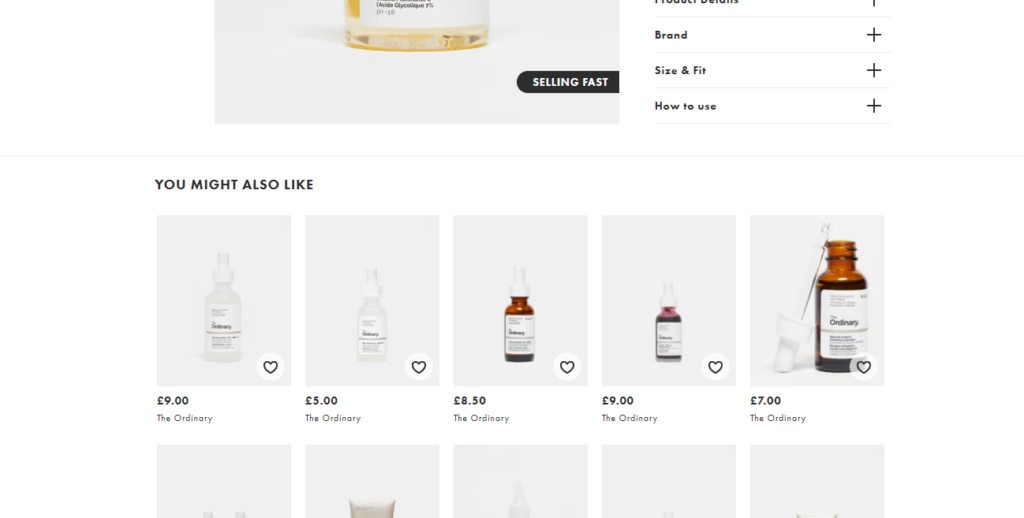
Related products are exactly what the name suggests – products similar to the product a customer is viewing or has added to their cart.
These could be products that:
- Complement what a customer is interested in, i.e., they’re used together with it.
- Can substitute it (similar products).
- Upgrade the product a customer is viewing. Let’s say a more expensive version with more features.
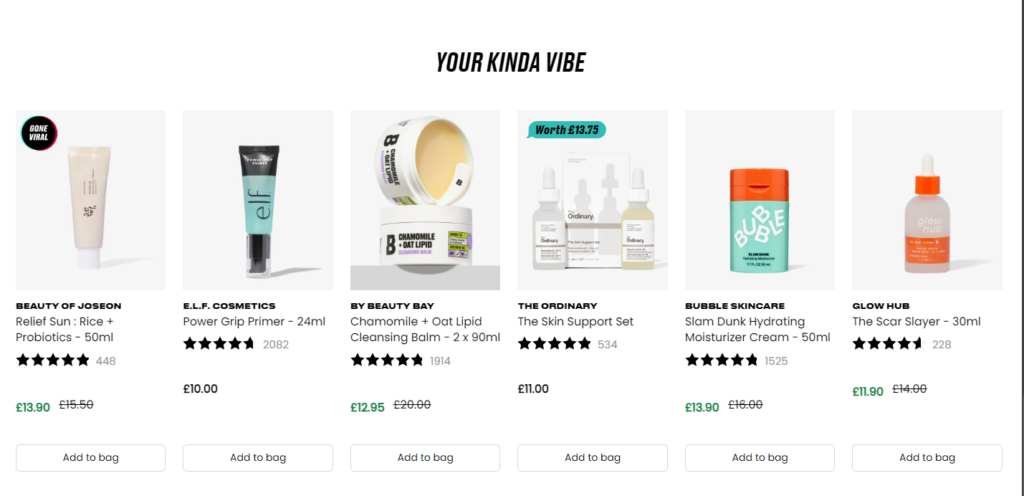
Related products are meant to be bought together with or instead of the product a customer is interested in. As an online store owner, you will use related products to nudge customers to buy more products or higher-priced items.
While you see related products as a sales and revenue-boosting tool, customers see them as an added service that helps them find products they might like. In other words, suggesting related products is a win-win for you and your customers.
Now, let’s look at some examples to better understand what related products might look like in your online store.
What are some examples of related products in ecommerce?
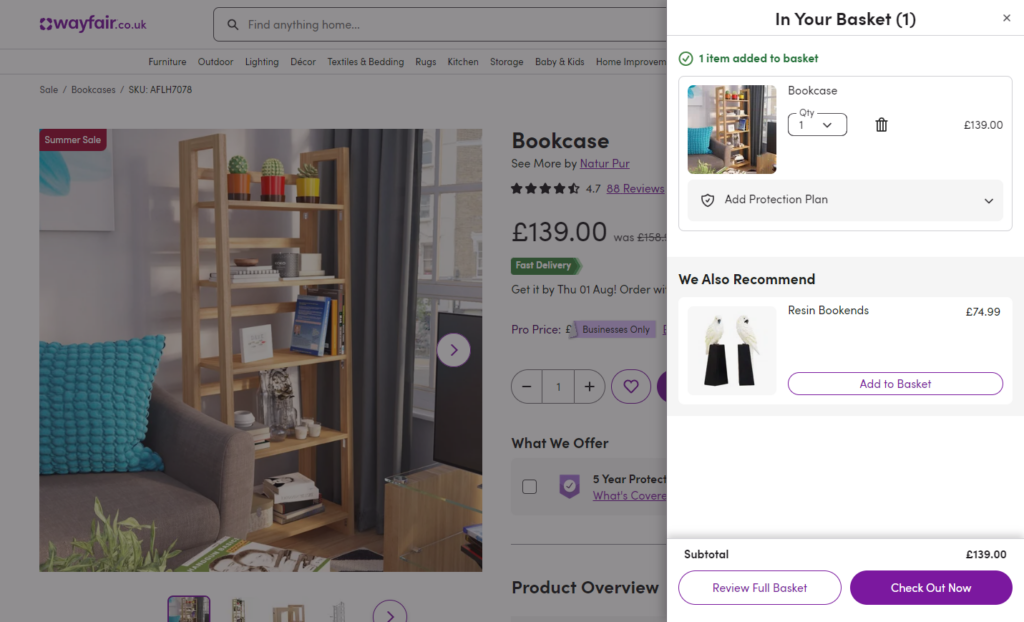
Using related products in your online store is all about selecting products to be displayed when a customer views a specific product or adds it to their cart. We can look at it as a form of product recommendation, like the way sales reps do it in a physical store.
📈 Related products are not new to ecommerce. In fact, their usage accounts for 31% of ecommerce revenues (Barilliance, 2023). As you can see, many ecommerce stores use them to boost their revenue.
If you’re looking to do the same, here are some examples of how you can present similar products in your ecommerce store.
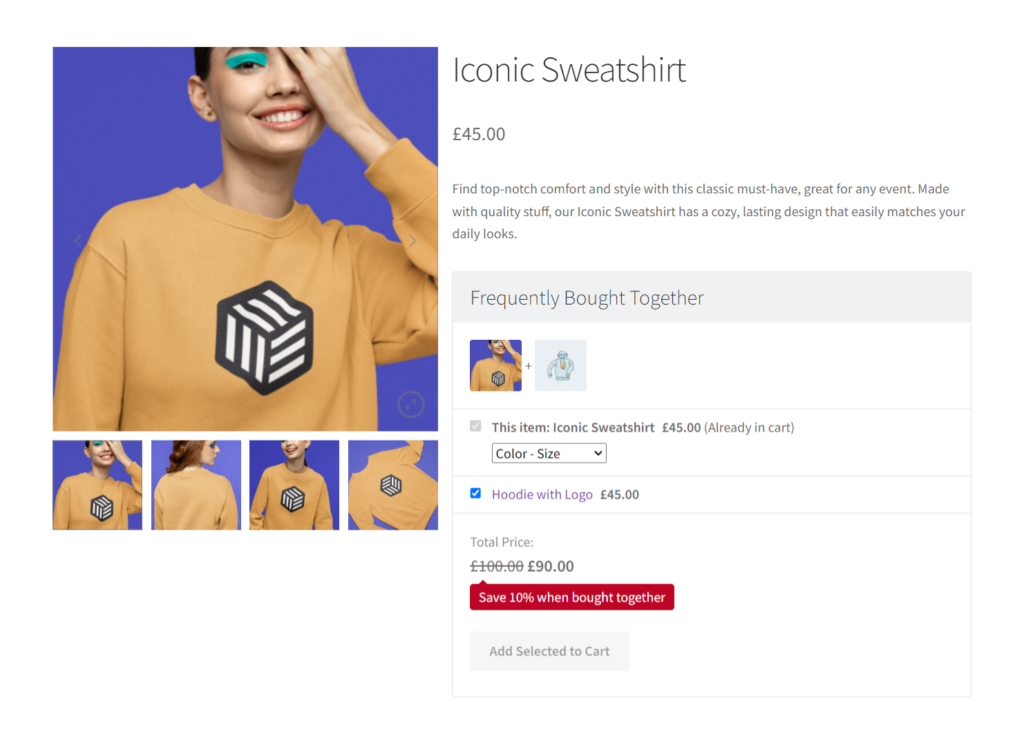
Frequently bought together
When products are often bought together, it means they’re usually used together. So if a customer is viewing one product, it makes a lot of sense to show another one, frequently bought together with it.
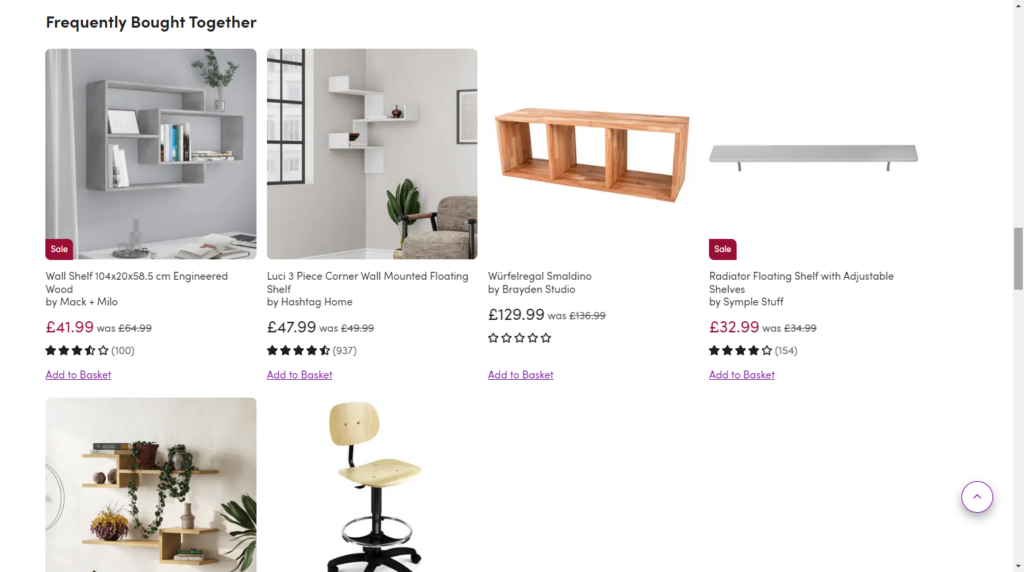
For example, if a customer is viewing a flashlight, you can suggest batteries as a related product. Flashlights need batteries to work, and who wants to be left high and dry without batteries for their flashlight? Other great examples are pillows and pillow casings, sofas and cushions, and dog food and feeding bowls.
If you’re thinking about which products to include in the related products section, this is a great reference point. In case you didn’t already know, ‘Frequently Bought Together’ is a proven sales technique used by nearly all large ecommerce brands, including Amazon.
You will likely see this section somewhere on their product pages.
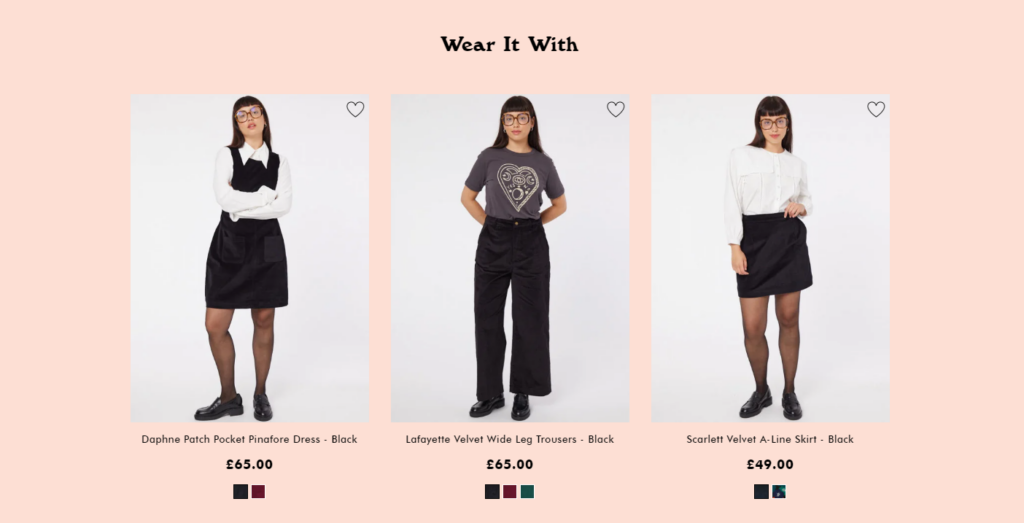
Items frequently bought together seasonally
Some items are only frequently bought together during specific seasons or times of the year. For example, a jacket and scarf or beanie during the cold seasons. During the warmer seasons, the scarf won’t be as frequently bought together with the jacket.
Alternatively, you can also have products frequently bought together during the holiday season. For example, gift cards and Christmas-themed sweaters and mugs during the Christmas holiday.
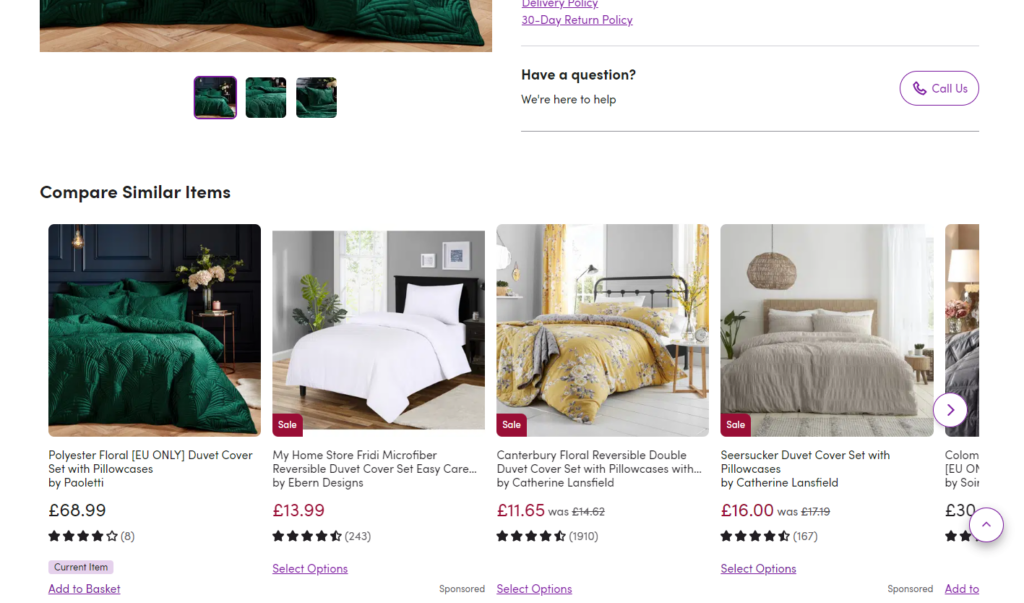
Similar products
These are items with similar characteristics that customers can replace with each other. They have a similar purpose and can be used interchangeably. A good example is a pair of sneakers of the same color/size from different brands, such as New Balance, Adidas, or Nike.
If you’re selling breakfast food, you can suggest a store-brand cereal as an alternative to a more expensive brand.
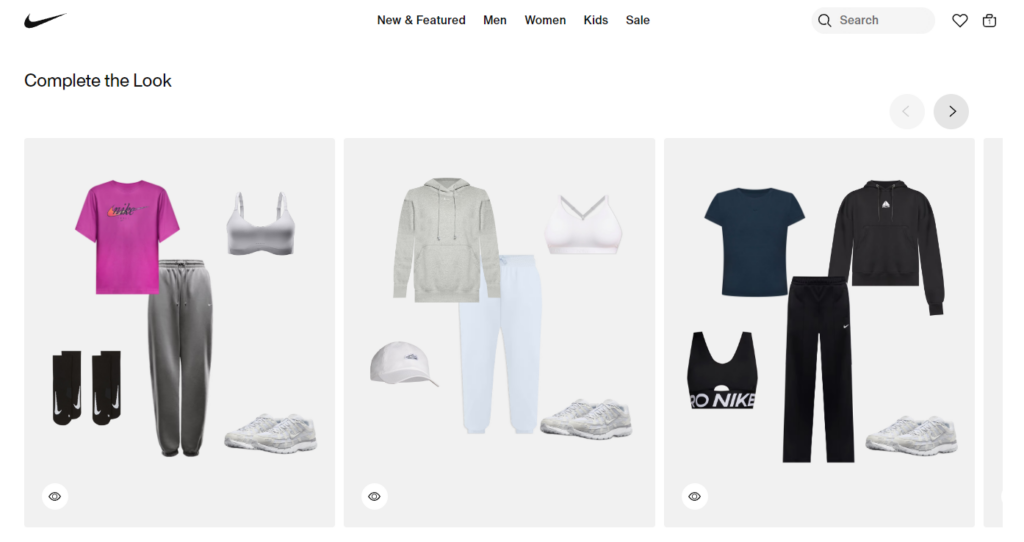
Complete the look or set
This is a cross-sell that presents similar items if the product a customer is viewing is part of a matched set. Here you can suggest the products customers can buy to complete the set or look.
- Complete the set. This is common for the following product categories: home decor, furniture, toys, etc. Let’s say a customer is looking at a specific dinner plate. You can suggest matching salad, dessert, and appetizer plates to complete the set.
- Complete the look. If you’ve shopped at a big fashion brand before, chances are that you’ve come across this. Taking Adidas as an example, you’ll see a ‘Complete the Look’ section just below the product description of the product you’re viewing.
If you’re viewing an Adidas Samba, you’ll see matching socks, a hoodie, striped pants, and a baseball cap.
Customers also bought
This is a type of related product that customers who bought the item customers are interested in also purchasing. It is quite similar to ‘Frequently Bought Together’.
The subtle difference is that with ‘Customers Also Bought’, the related products aren’t necessarily bought together in a single transaction. For example, if you’re selling pet toys and a customer buys a cat scratching post, you can include catnip or grooming brushes in the ‘Customers Also Bought’ section.
Catnip and a cat scratching post aren’t products that are often bought together in a single purchase. However, a customer who buys a scratching post will likely be interested in catnip.
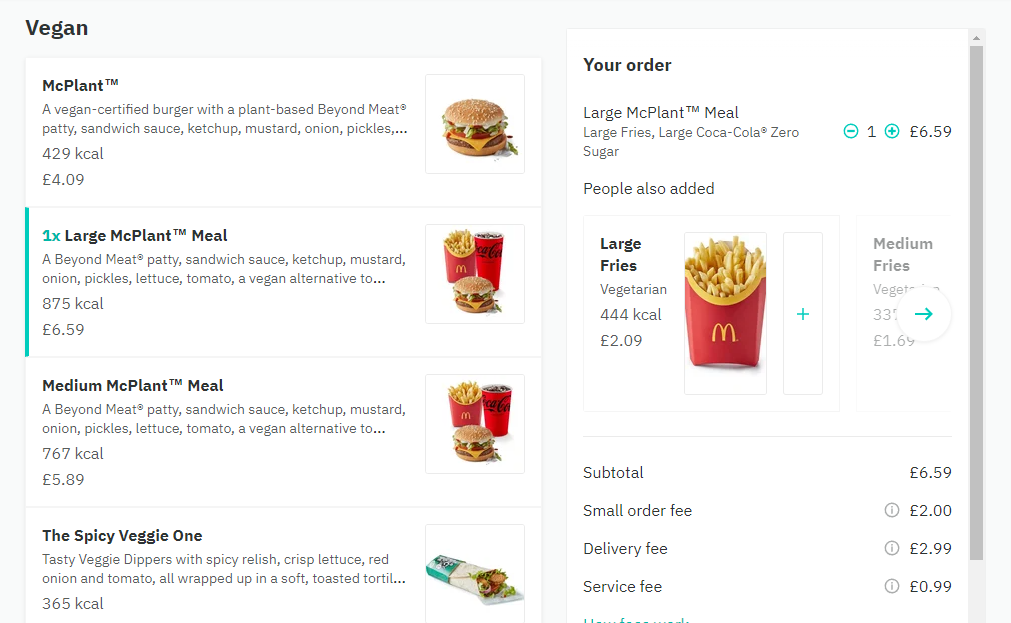
Product bundles
This is where you group related products together and sell them together, usually at a discounted price. For instance, if you deal in office supplies, you can group pens, pencils, paper, and notebooks in one bundle. Or if you’re in the health and beauty industry, you can bundle shampoo, conditioner, and body lotion in one offering.
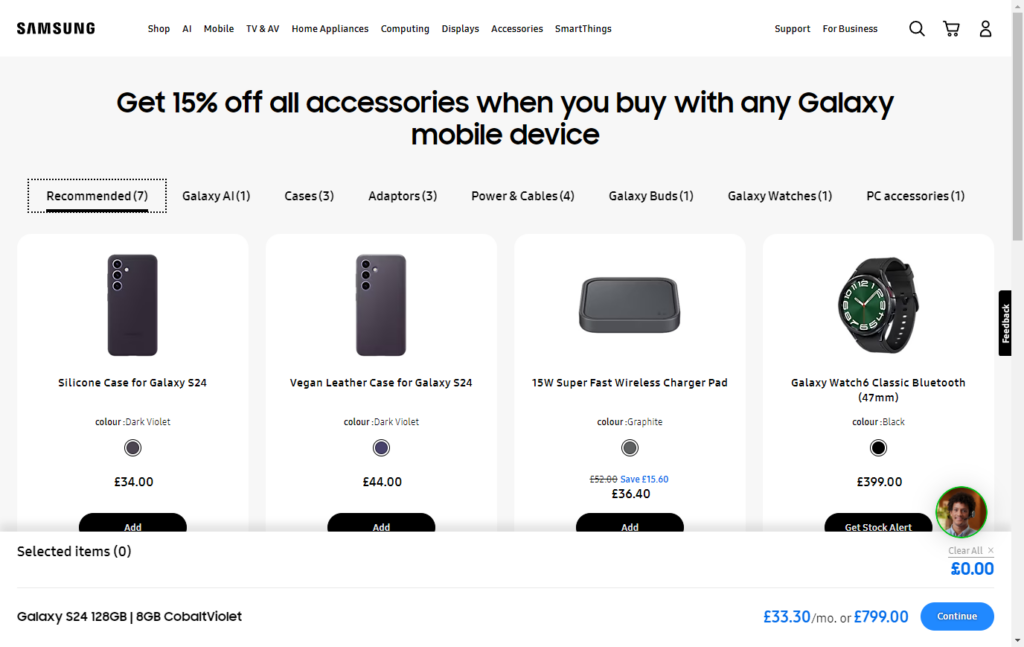
Accessories
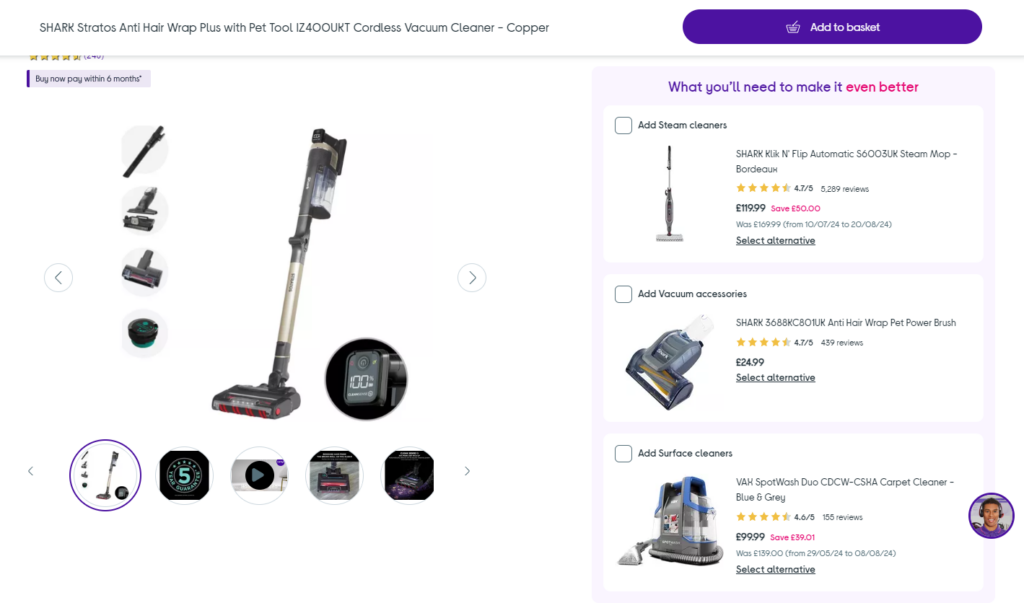
Most products, mainly electronics, have accessories that improve a customer’s experience with products. For instance, a DSLR camera can have a tripod stand, filters, and memory cards as accessories.
Most ecommerce retailers suggest these accessories under the ‘Frequently Bought Together’ section. But, you can go out of your way and label them as ‘Accessories’ so customers know exactly what they want to buy.
Note: You’ll find that most online retailers prefer to suggest related products on the product page alone. But, you don’t have to limit yourself to the product page alone, you can do it throughout your store.
💡 If you would like to dive deeper and find out where you can display related product recommendations, take time to go through our Ecommerce Product Recommendations guide.
So, with a pretty good idea of what similar products are with some examples, let’s move on to how to use them in your ecommerce store.
How to use them in your ecommerce store
How you set up and use related products in your online store depends on the ecommerce platform you’ve built it on. In this section, we’ll explore different techniques for adding them to your online store in WooCommerce (built on a WordPress website) and Shopify. Even if you’ve set up your ecommerce
Let’s start with WooCommerce, and to kick it off, let’s first go over why you should show related products in your WooCommerce store.
Why should you show related products in your WooCommerce store?
You should show related products in your WooCommerce store because they’ll boost your chances of being successful with it. Apart from creating a stunning product page, a seamless checkout process, and a comprehensive catalog, you should also include related product sections across your online store.
The benefits of showing them in your WooCommerce store
But why should you go through all this trouble? After all, you’ll have to select products to appear in this section, configure their design, and decide where to display these products. Well, the benefits will give you several reasons to do it.
So, let’s look at some of these benefits.
They boost sales
Suggesting related products is a cross-selling strategy. It invites customers to buy additional products to go with the products they’re originally interested in. So, instead of leaving your WooCommerce store after buying one item, they can do so after buying multiple items.
Looking back at our Adidas Samba example, by suggesting a ‘Complete the Look’, you invite customers to buy an entire outfit instead of just a shoe.
📈 We’ve already seen how related products account for about 35% of Amazon’s sales. So, if you’re looking for a quick and easy way to boost sales in your WooCommerce store, using related products is the way to go.
Increased average order value
Related products allow you to increase your WooCommerce shop’s average order value through:
- Cross-selling. Suggesting products that go well with the product a customer is interested in, like a phone and a phone case.
- Upselling. Suggesting higher-priced, better quality related products or those with more features to replace what they want to buy. For example, a higher-tier subscription service with more perks.
When customers buy the recommended products, they spend more per order, increasing your average order value.
SEO benefits
Displaying related products is a great way to create internal links in your ecommerce website. With WooCommerce, this is easier since you can link related products using tags. Internal links enable search engines to understand your site’s content better, which can translate to a higher SEO ranking.
This means more customers will be able to find your ecommerce site or products by simply searching on their browsers.
They improve your customer’s shopping experience
Customers who come to your store intending to buy more than one product will have a great shopping experience. By suggesting related products, you’ll help them to find what they might like easily.
They won’t have to scour through your catalog or product pages looking for items to go with the products they’re viewing. They can get them right from the product or cart page.
Improved conversion rates
📈 What is the result of a seamless shopping experience for your customers? More conversions. Did you know that online retailers that prioritize positive customer experiences see a 10 – 15% increase in conversion rates?
When customers have an easy time finding products, they will spend less time searching and more time purchasing.
The benefits of showing related products on your WooCommerce store are endless. But, these should be enough to show you just how important related products will be for your store. With that in mind, we’re ready to dive into how to show related products in your WooCommerce store.
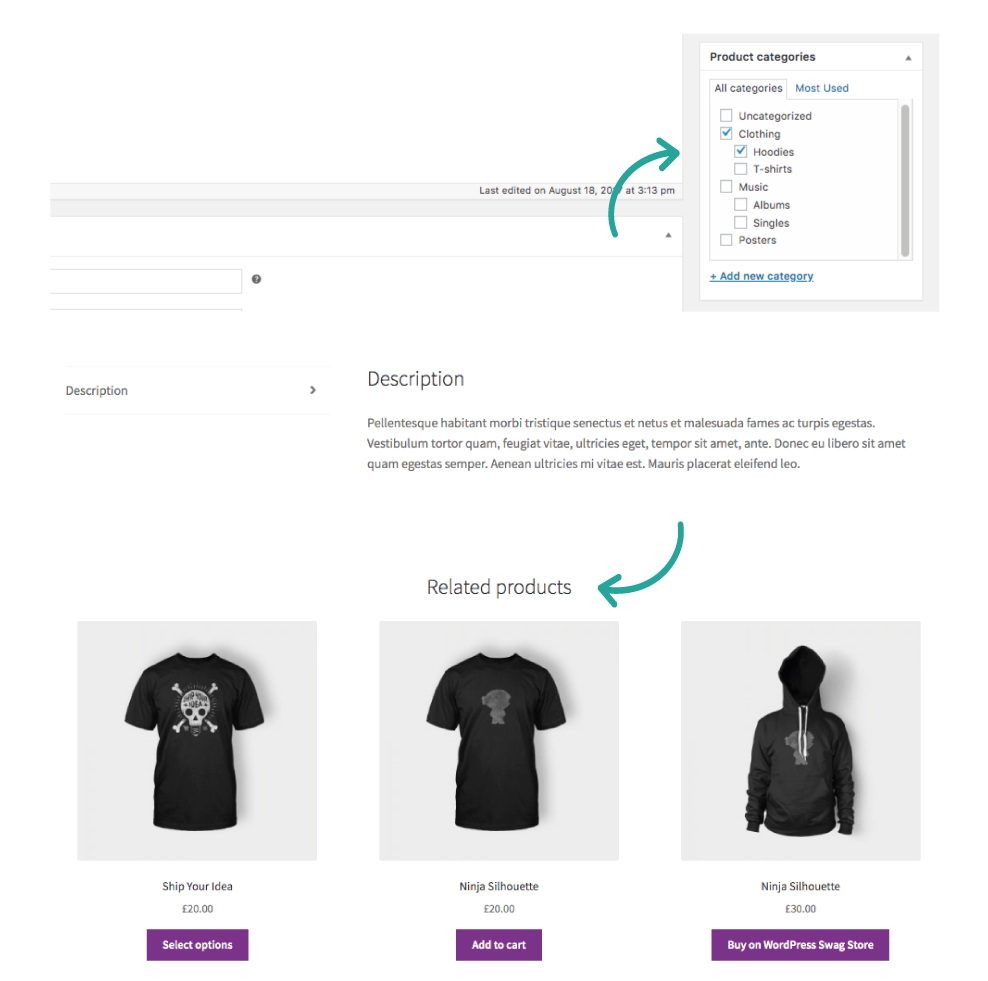
How to show related products in WooCommerce (using the default settings)
WooCommerce has built-in settings for displaying similar products on the product page.
By default, products in WooCommerce can be related to each other in 3 ways:
- Upsells.
- Cross-sells.
- Products with the same tag.
Assuming you know how to create products in WooCommerce, this process is pretty simple.
Here’s how you can do it:
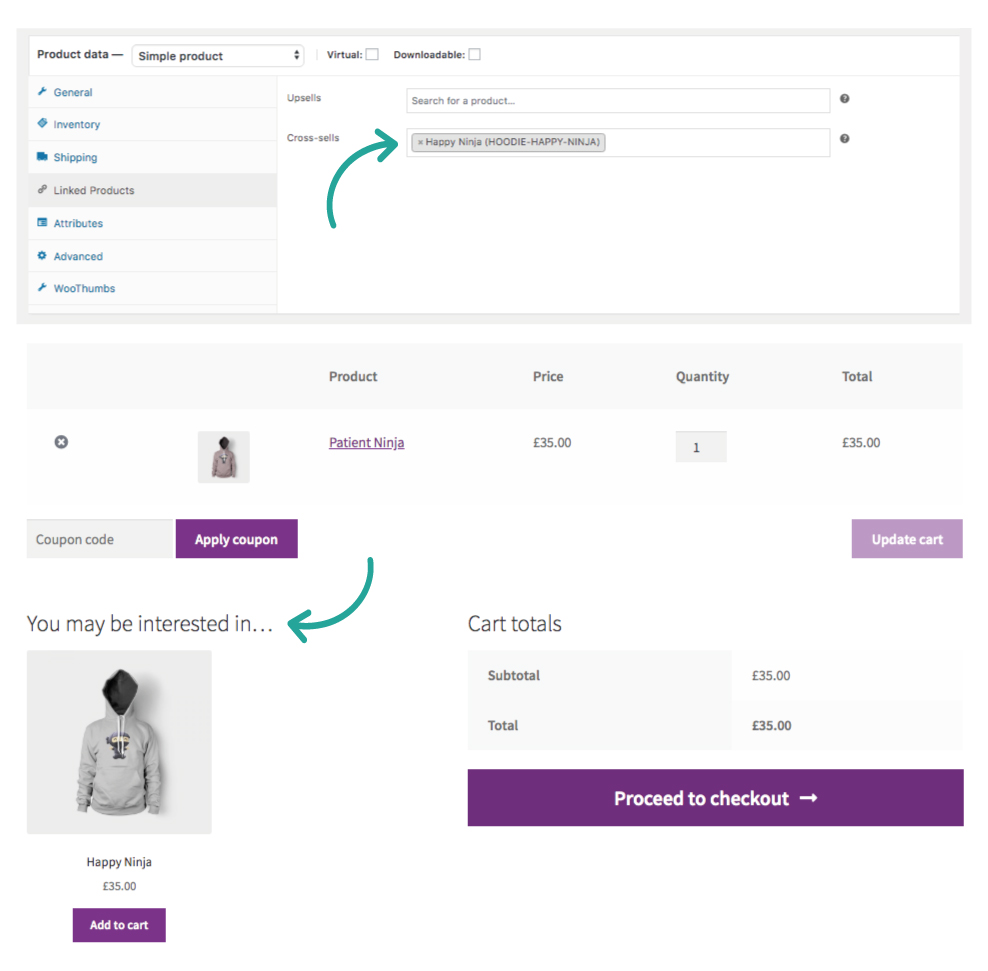
- From your WordPress dashboard, go to Products. Hover over the product you want to link to others and click on Edit. This will lead you to the Edit Product page, where you can customize related product settings.
- You can also click on Add New Product if you haven’t created it.
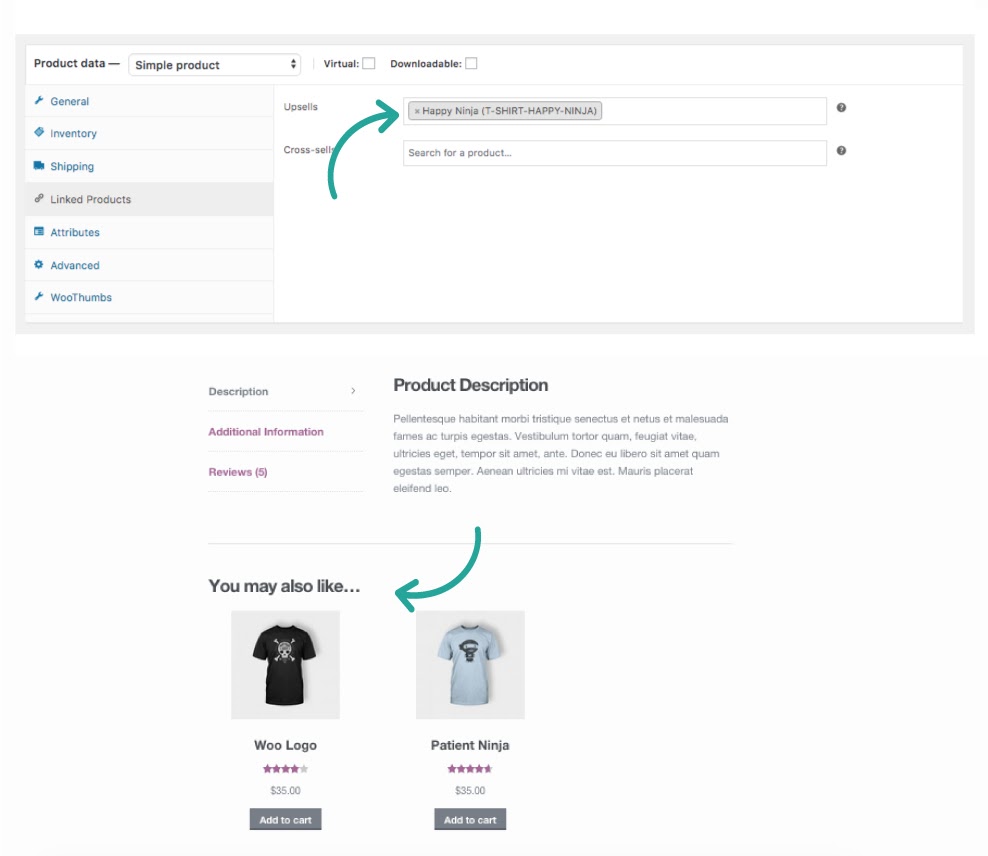
- Scroll down to the product data section. You’ll see the Linked Products tab before the Product Attributes tab. Click on it.
- Here, you can add your cross-sells and upsells in their respective input boxes. WooCommerce allows you to add as many as you want. You can also change the number of related products by clicking the x button on each upsell/cross-sell.
- Once done, click on the Update button on the top right.
If you want to link products with tags, go to the Edit Product page like we’ve discussed. You’ll see the product tags on the right-side panel. Add the tags the product will share with others and do the same for the related products.
What will customers see on the front end?
When customers visit your product page, they will see upsells displayed under ‘You may also like’ and cross-sells under a generic ‘Related Products’ section. If customers are interested in a related product, they can click on ‘Add to Cart’ and add it to their purchase.
In the default WooCommerce setup, you can display these related products on the single product page only. You’re also limited in what you can do to design your related products section depending on the theme you’re using.
One thing is for sure, the default WooCommerce related products offering doesn’t do enough for you to maximize sales and revenue from your related products. Fortunately, you can upgrade your related products experience with the help of a plugin.
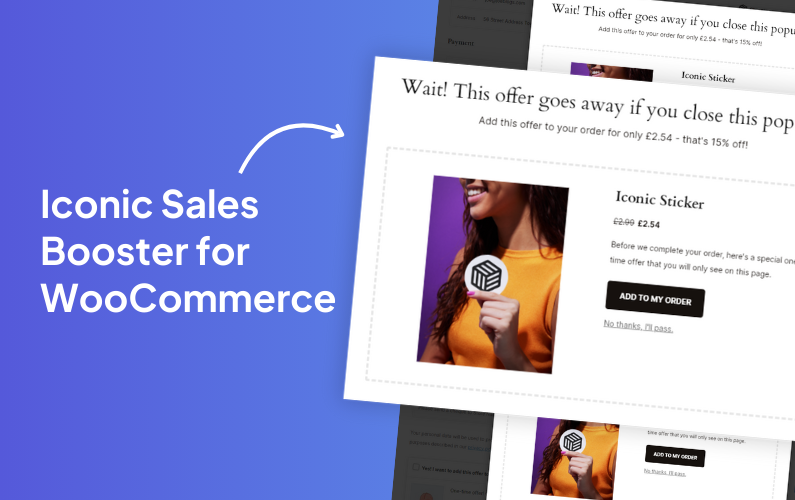
Improve product recommendations with the Iconic Sales Booster plugin
When you’re just starting, the generic WooCommerce ‘You may also like’ and ‘Related products’ are fine. But if you really want to boost sales, you’ll need more and better ways to display your related products.
Iconic Sales Booster for WooCommerce is the plugin that enables you to do this. With this plugin, you can display related products on your WooCommerce store in an Amazon-type fashion. It allows you to leverage industry-proven cross-selling techniques such as:
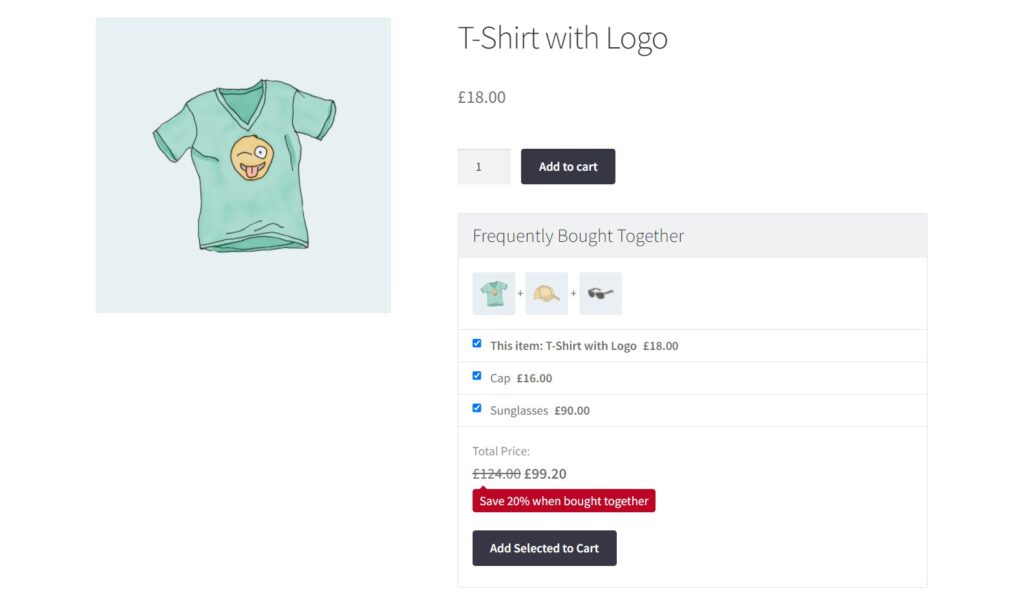
Frequently bought together
You can replace the generic ‘Related Products’ section on the product page with a ‘Frequently bought together’ section. This is where you’ll show customers products that complement what they’ve set out to buy, which is usually bought in a single purchase.
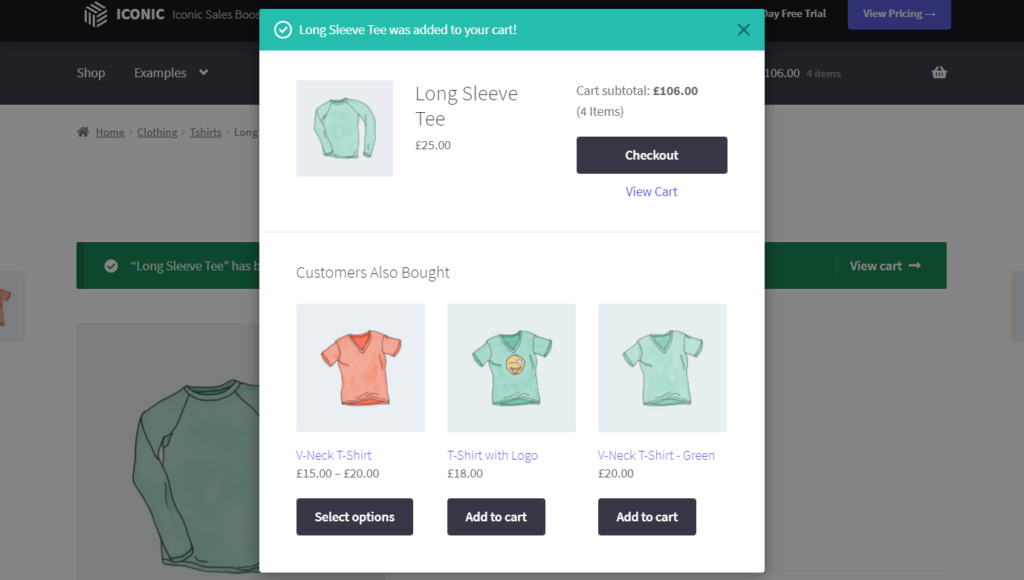
Customers also bought
Sales Booster allows you to create a popup with related products to be displayed once a customer clicks ‘Add to Cart’. You can put products that complement a customer’s product of interest but are not necessarily bought in a single purchase in this popup.
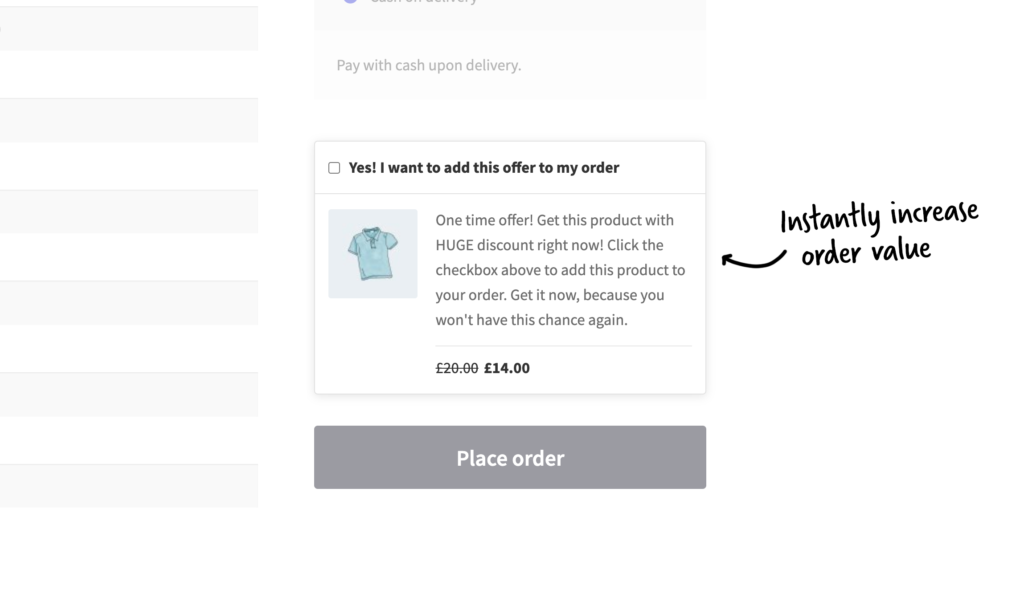
Order bumps at checkout
With Sales Booster, cross-selling doesn’t end when customers leave the product and cart pages. You can add another similar products popup when customers are checking out. Customers’ buying intent is at its highest when they reach the checkout page. Because of this, you can promote impulse purchases by suggesting related products here.
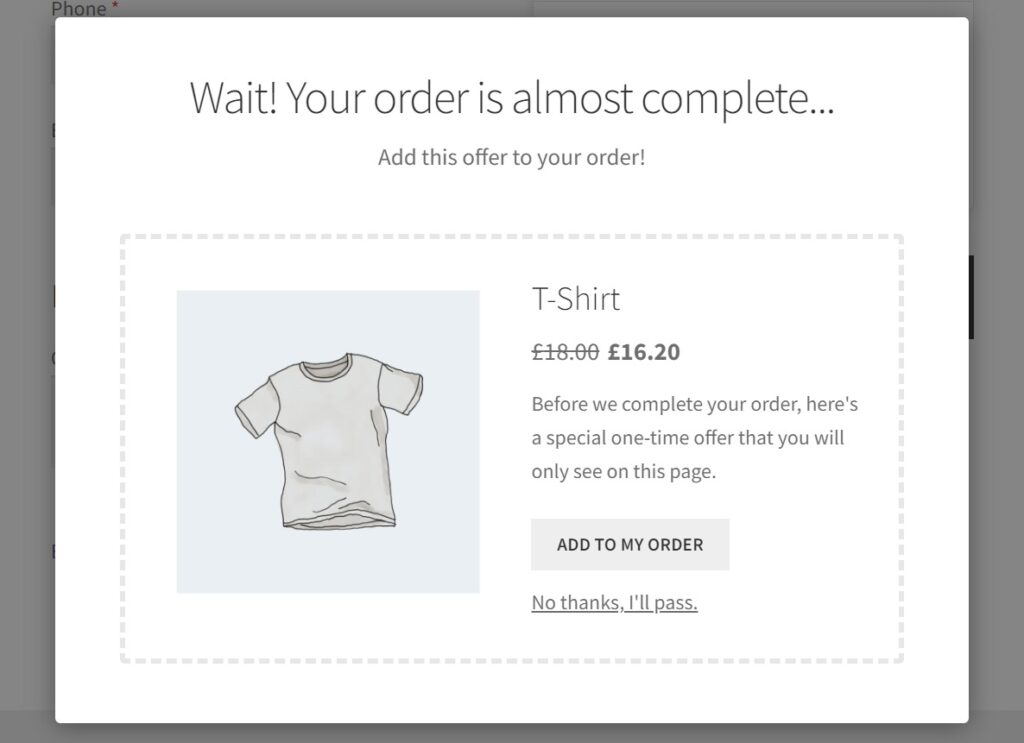
One-click cross-sell after checkout
You can launch a last-ditch effort to get an extra sale by suggesting a product customers can add to their purchases.
📈 After all, about 60 – 80% of customers will likely never buy from you again. So you want to maximize sales on the customers you already have.
With Iconic Sales Booster, you’ll have complete control over the related product display. It provides you with popup templates – you can customize their appearance (borders, product images, etc.)and sales text to appeal to customers.
Regardless of where you present these cross-sells, Sales Booster allows customers to add them directly to their purchases without needing to re-enter their payment details. This creates a smooth shopping experience for them.
Iconic Sales Booster for WooCommerce
Add cross-selling to your entire WooCommerce store in minutes with Iconic’s WooCommerce cross-sell plugin, Iconic Sales Booster for WooCommerce.
That’s about it for WooCommerce. Now let’s see how to show related products in Shopify.
Why are related products essential for my Shopify store?
The reasons for adding related products to your Shopify store are more or less the same as doing it for WooCommerce.
These are to:
- Boost sales. By inviting customers to buy more products related to what they’re interested in.
- Increase your average order value. When you suggest upsells and cross-sells that customers add to their purchases.
- Improve SEO. By internally linking related products to each other.
- Enhance customer shopping experience. By saving customer’s time and effort when looking for related products.
Although the reasons for doing this are the same, the methods are different. With that in mind, let’s see how you can add related products to your Shopify store.
How do I add them to my product page on Shopify?
Adding related products to your Shopify store by default largely depends on the theme you’re using. First things first, you should use a theme that has a complementary products or product recommendations section.
Here are some examples of these themes:
- Woodstock – Suitable for selling electronics (smartphones, smartwatches, etc).
- Sense – Perfect for selling beauty and skincare products.
- Local – Best for selling organic products.
These themes allow you to add related product sections on your product and cart pages under headings like ‘You may also like’ or ‘Often bought together’.
You can customize these sections with the Shopify Search and Discovery app. This is a native app built to enable Shopify store owners to improve how customers discover products in their online stores. It has settings for adding and removing related products, showcasing new products, etc. You can use it to customize your related product sections.
Using Shopify apps
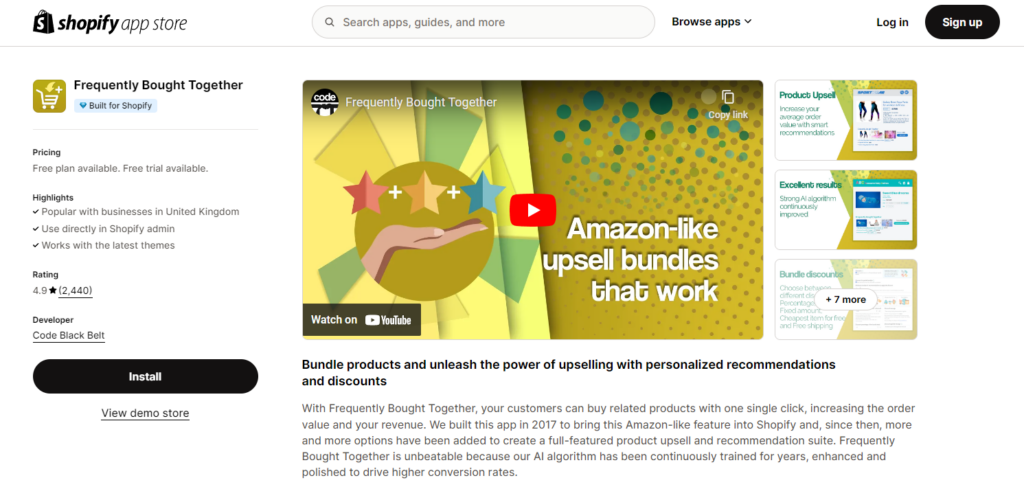
A quick and easy way to add similar products to your Shopify store is using Shopify apps. You can get these apps from the Shopify App Store. All you have to do is search for ‘related products’ or ‘product recommendations’. There are tons of such apps and you’ll have to pick the best one for your online store.
Here are some examples: Wiser, Glood, and Frequently Bought Together.
Prioritize the add-ons with a Built for Shopify badge – these outrank others in excellence. You’ll also realize that most of these apps use AI (machine learning algorithms) to decide which related products to suggest to customers.
This is great because it takes most of the work off your hands. But, for newer product lines or products related to each other in a complex way, you would rather manually link these products.
Add similar products to your ecommerce store today
Recommending related products to your customers as they shop in your online store is one of the surest ways to boost your sales, revenue, and average order value. It is important to note that the results you get from your related products are strongly linked to how effectively you use them on your online store.
By default, WooCommerce gives you a basic way to display them on the product page in your online store. But you can take this further and maximize your sales and average order value with the help of the Iconic Sales Booster for WooCommerce plugin.
With this plugin, you can give your customers the complete related product experience by displaying them from the product page to after the checkout. It gives you complete control over the design and the content of your related product offers.
This way, you can craft them to best suit your customers and maximize sales on related products.
Iconic Sales Booster for WooCommerce
Add cross-selling to your entire WooCommerce store in minutes with Iconic’s WooCommerce cross-sell plugin, Iconic Sales Booster for WooCommerce.

Gina Lucia is our in-house Content Manager at Orderable. She writes articles, user guides, technical documentation, and creates videos on everything WooCommerce and Orderable.
Gina has been working in the WordPress/WooCommerce space since 2012 when she developed WordPress websites for clients large and small.
For the past 8 years, she’s been writing about everything WordPress and WooCommerce, becoming an expert in what makes a WooCommerce store succeed.
When not writing, Gina loves to tend to her vegetable garden, read, or travel to mainland Europe.