

Want to add WooCommerce product video to your ecommerce store but unsure how? This guide is here to help.
In this guide we’ll show you:
- Why you should add WooCommerce product video to your gallery.
- How to add product video to your gallery.
- How to add product video to your product description.
- Best video formats and sizes to use.
- WooCommerce product video troubleshooting and FAQs.
Why should you add videos to the WooCommerce Product Gallery?
? In a Wyzowl report, 79% of people said a brand’s video convinced them to buy software or an app. In general, 68% of people said they’d prefer to learn about a new product or service by watching a short video.
So, with these statistics in mind, what makes video so effective when it comes to sales?
- Video condenses key pieces of information your customer needs to know quickly.
- High-quality video builds trust by showing the product is real and tangible.
- Video helps with SEO and ranking with Google.
- Video keeps people on your product page for longer, increasing the likelihood they will buy.
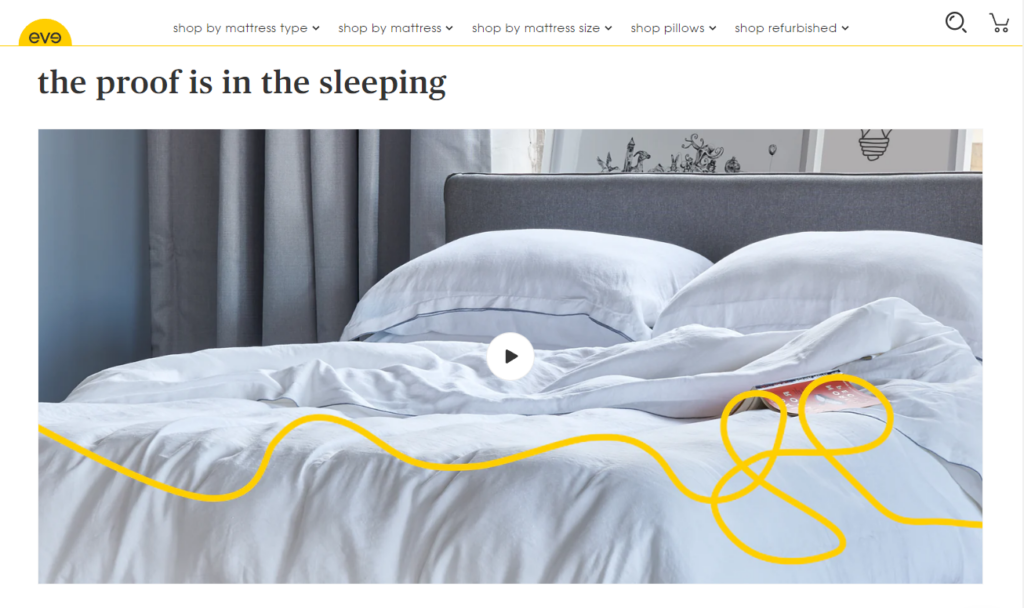
? According to an estimate made by Search Engine Land, videos make up 14% of search engine results. Also, over 90% of the probable consumers watch videos at least once every week, so you could, in turn, lose this large chunk of the potential market to tap into.
When it comes to increasing your ecommerce conversion rate, adding a video to your WooCommerce product gallery is an excellent technique to implement with a great return on investment.
So now we’ve explored why adding video to your WooCommerce store is beneficial. The next section of this article will explain how to add a video to your WooCommerce product page gallery.
Can you add videos to WooCommerce products?
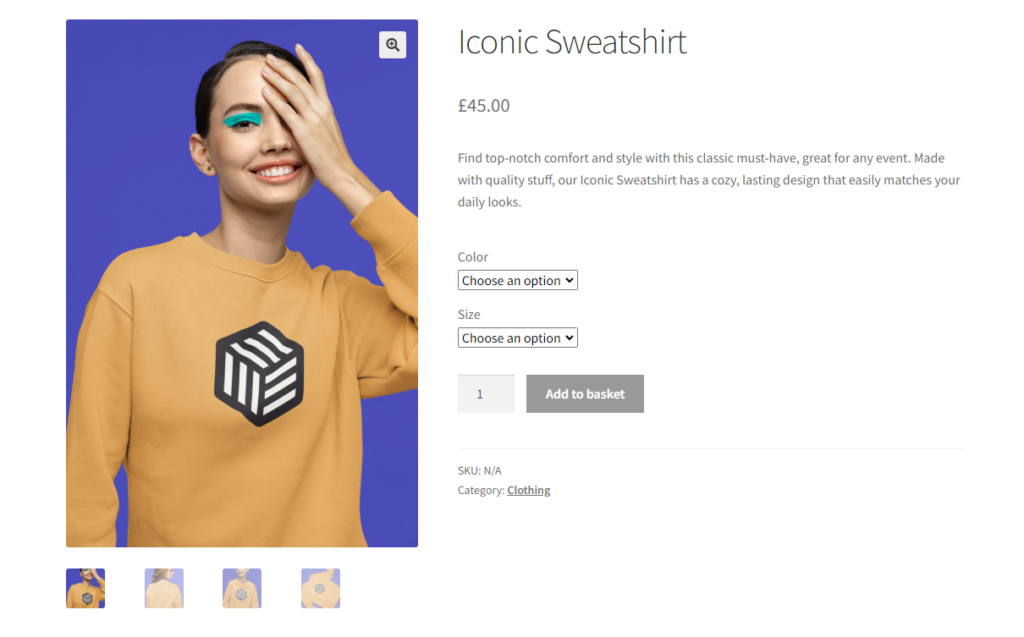
By default, WooCommerce doesn’t allow you to add a product video to your product video gallery. Instead, if you want to upload your own product video or embed one from YouTube or Vimeo, you’ll need a plugin.
In short, here’s how to add a video to a WooCommerce product using the plugin WooThumbs for WooCommerce:
- Copy the URL of the video you want to use.
- Edit the product you want to add the video to and click ‘Add product gallery images’.
- Upload a thumbnail image for the video and paste the video URL in the URL field.
- Save or Update your product.
Below, we’ll go through each of these steps in detail. But first, let us introduce you to the plugin that will help you make this possible: WooThumbs for WooCommerce.
Visual learner? Learn how to add a video to your product page gallery with our YouTube video:
What plugin allows adding video to a WooCommerce product gallery?
WooThumbs for WooCommerce allows you to add and embed video content into your gallery from YouTube, Vimeo, Daily Motion, and other platforms. You can also manually upload self-hosted video (MP4) files to your image gallery.
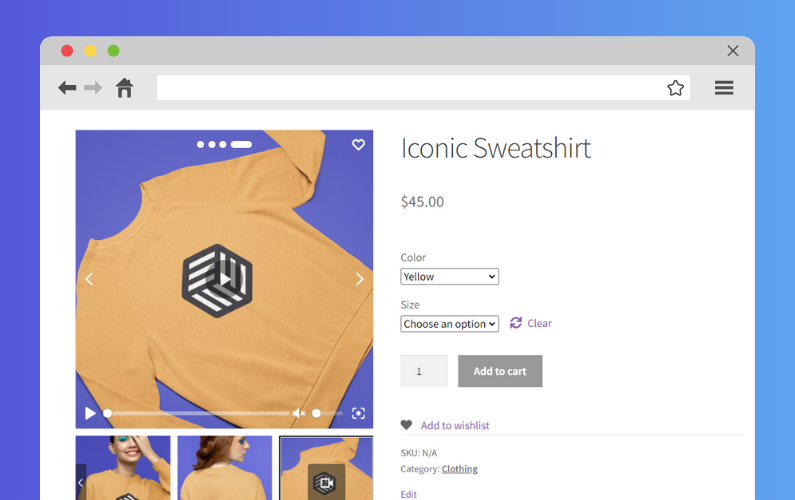
With WooThumbs installed, you’ll also be able to completely customize your product gallery with everything from:
- Changing the position and spacing of the product thumbnail images.
- Enable sliding thumbnails for a better user experience.
- Improving and changing the image zoom style to suit you.
- Adding additional images for your product variations.
- Update the product gallery image when a customer selects an attribute.
- And so much more.
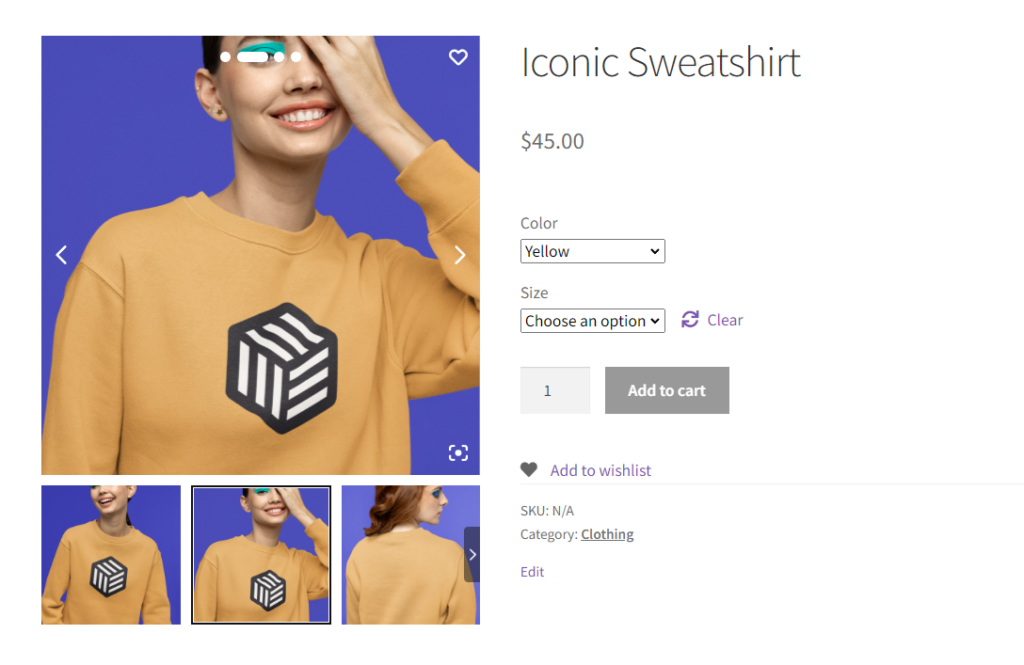
Plus, WooThumbs for WooCommerce comes with its own video player. So, no matter the source of your video, they’ll look modern and clean to fit in with your site (no matter what page builder (like Elementor), theme, or template you’re using).
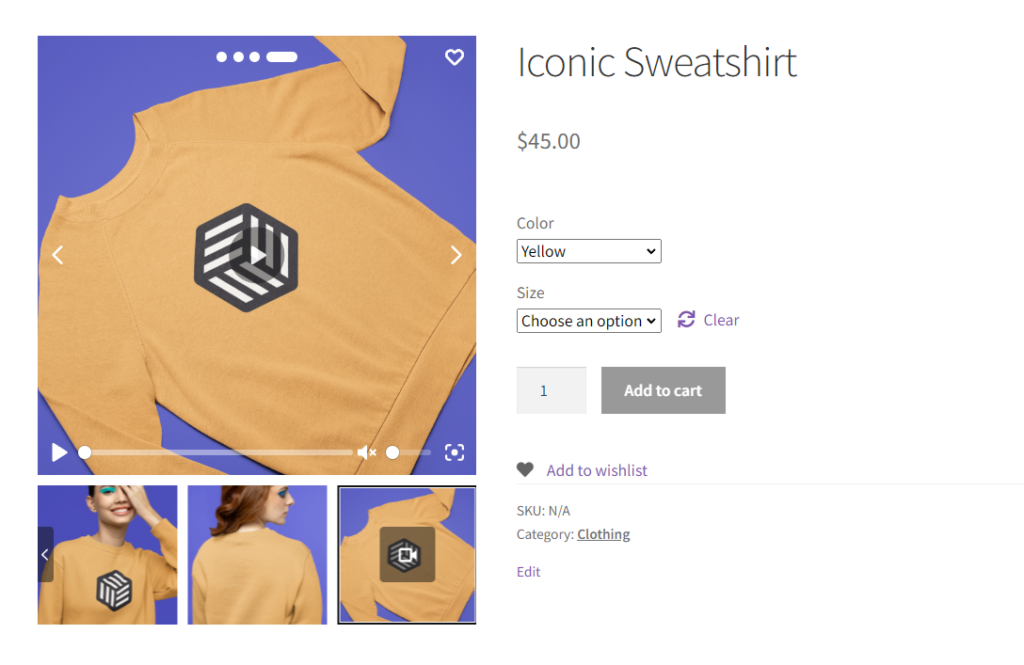
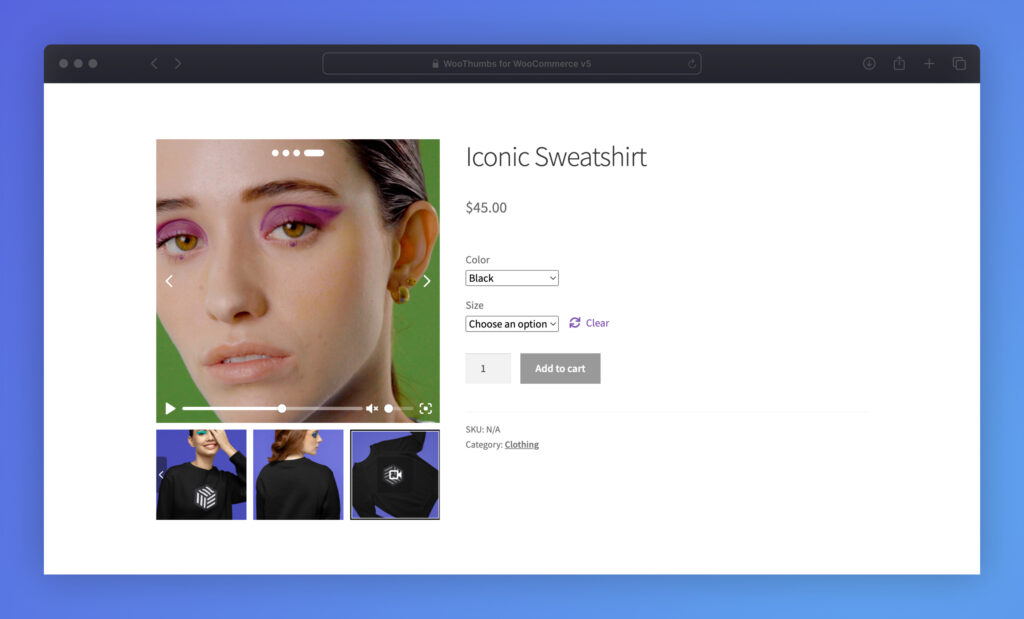
Customers can browse your upgraded product gallery and play videos from within it. Or, enter fullscreen mode and watch your product video on a larger scale.
So now we know the benefits of adding video to your product gallery. Here’s how to do it with the WooCommerce product gallery plugin, WooThumbs for WooCommerce.
How to add a video to WooCommerce product gallery?
So now we know the benefits of adding video to your product gallery. Here’s how to do it with the WooCommerce product gallery plugin, WooThumbs for WooCommerce.
Step 1: Install WooThumbs for WooCommerce
To get started, purchase the WooThumbs for WooCommerce WordPress plugin from the Iconic store: iconicwp.com/products/woothumbs
WooThumbs for WooCommerce
Customize your WooCommerce product image gallery in minutes with a new layout, embedded video, multiple images per variation, and more.
Then follow these steps:
- Go to Plugins > Add New > Upload Plugin.
- Choose the zip file you downloaded, upload it, and then click Activate.
- Once activated, you’ll need to enter your license key.
Now we have WooThumbs for WooCommerce installed. We can move on to adding a featured video to your product gallery.
Step 2: Add your video to the product gallery
If you’re using a video from Vimeo or YouTube, take the following steps:
Note: If you’d like to upload self-hosted videos or media, you can follow our self-hosted guide.
- Copy the URL of the Vimeo video or YouTube video you want to show in your product gallery (save this because we’ll need it later).
- From your WordPress admin dashboard, go to Products > All Products.
- Select the product you want to add the video to.
- Navigate down to the ‘Product gallery’ module on the product page.
- Click the ‘Add product gallery images’ link.
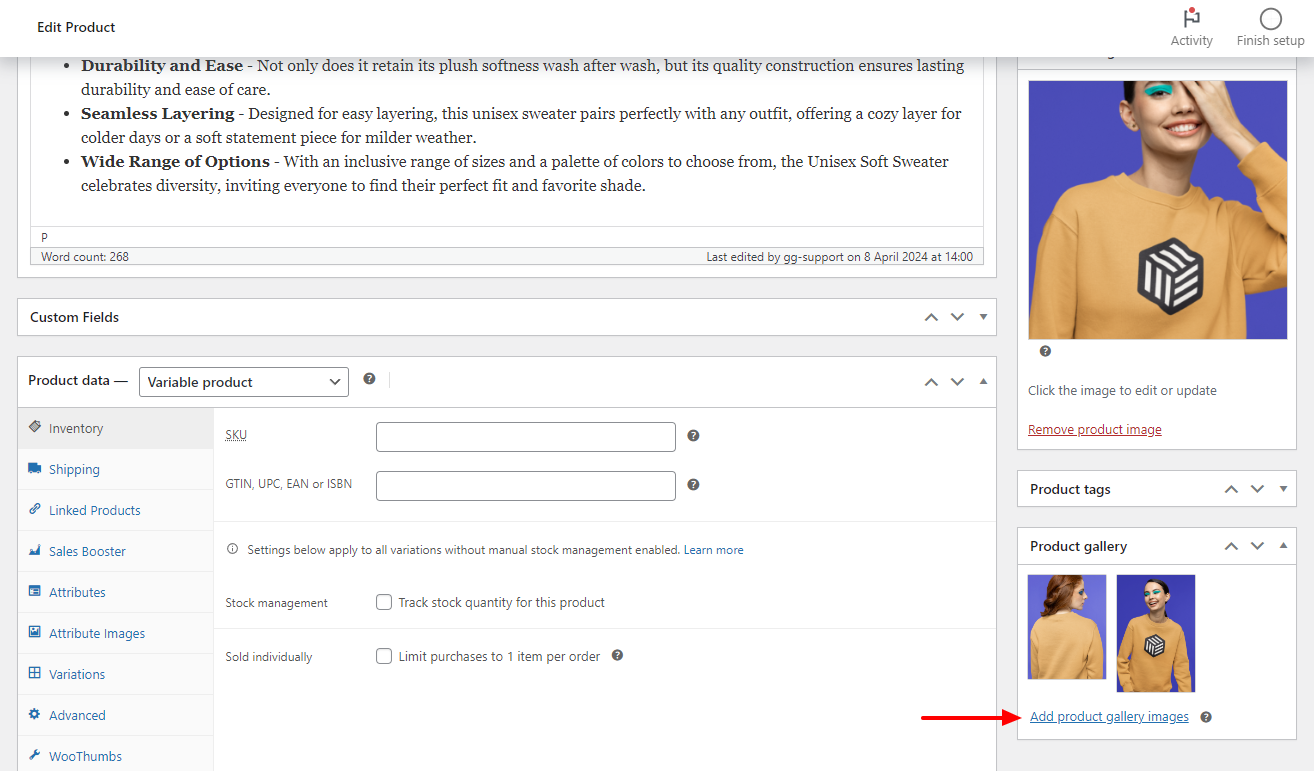
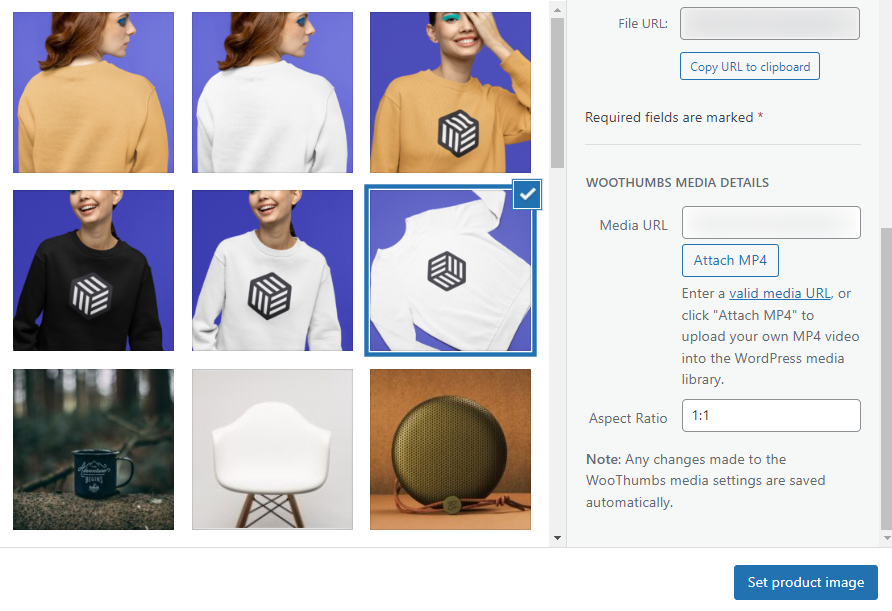
You’ll need to upload a gallery thumbnail image of the video you want to show as the featured image, or you can use an existing image in your media gallery.
This will act as a preview image in your WooCommerce product image gallery, but when clicked will show only the embedded video in your video gallery.
Note: The size of this image depends on your theme settings.
- Upload your image.
- In the URL field of your uploaded image, paste the URL from YouTube that you copied earlier, as shown in the screenshot below.
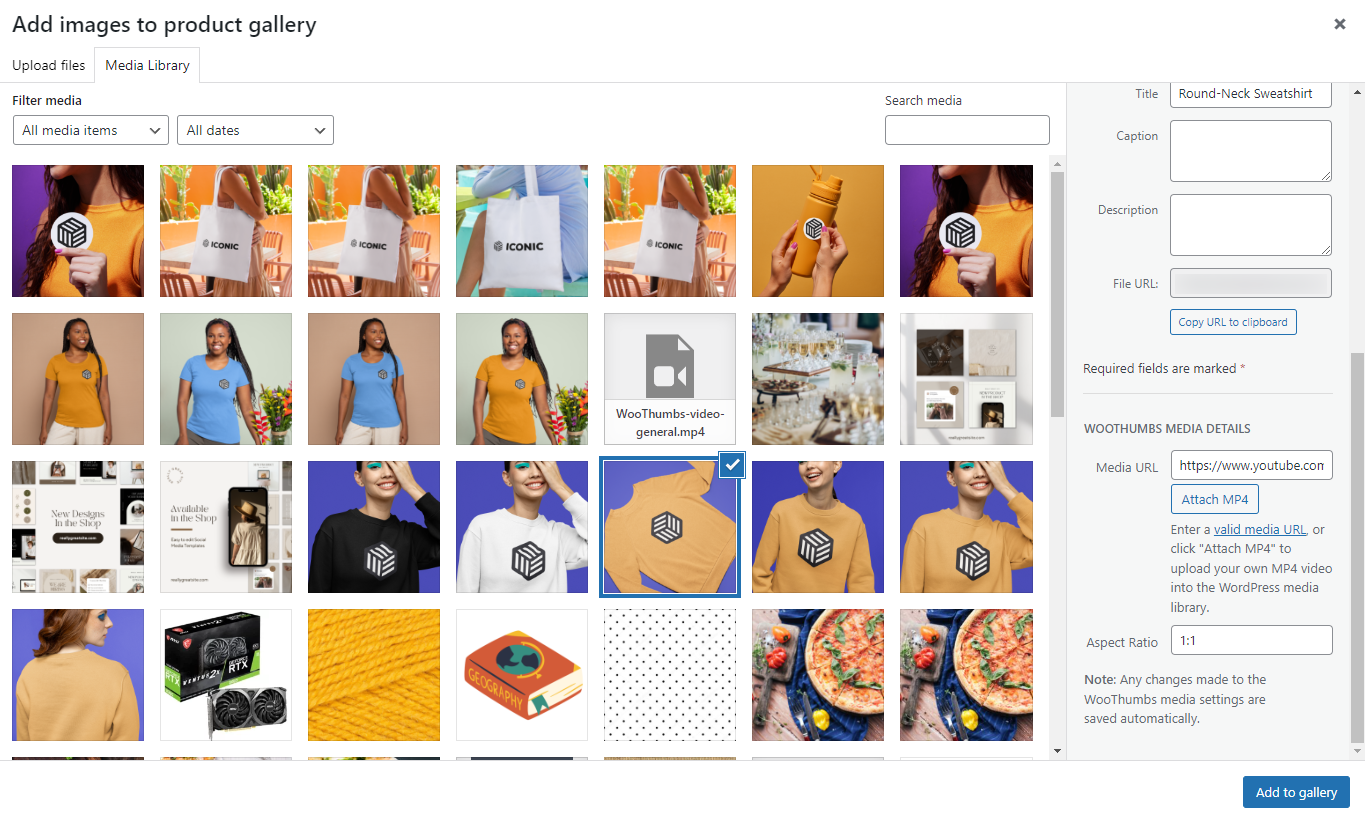
- Then, set your aspect ratio. Most gallery images are square, so usually, 1:1 works well. Many videos these days are 16:9 to allow full-screen, but it depends entirely on what suits your online store.
- Click Add to Product Gallery to add your video to your product gallery.
- Now Update or Publish your product.
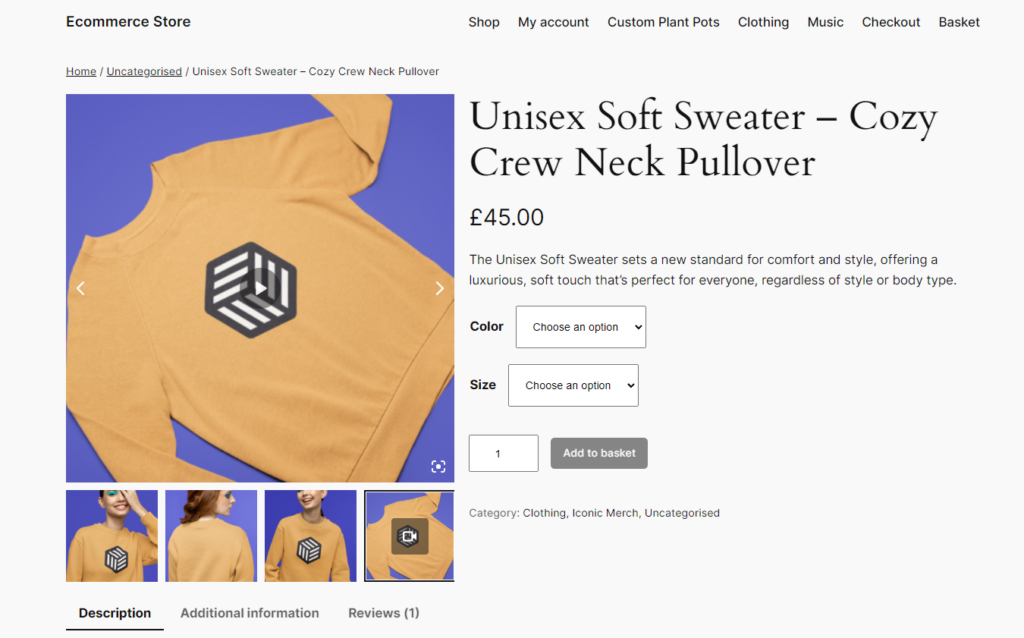
Now when you go to the shop page of the product you’ve been editing, you’ll see the video you’ve just uploaded displaying in the WooCommerce product gallery with default video controls.
Step 3: Customize your WooCommerce product video player
In this step, we’ll show you how to customize the video player that comes with WooThumbs for WooCommerce.
- From your WordPress dashboard, go to WooCommerce > WooThumbs and click on the Video tab/link at the top of the page.
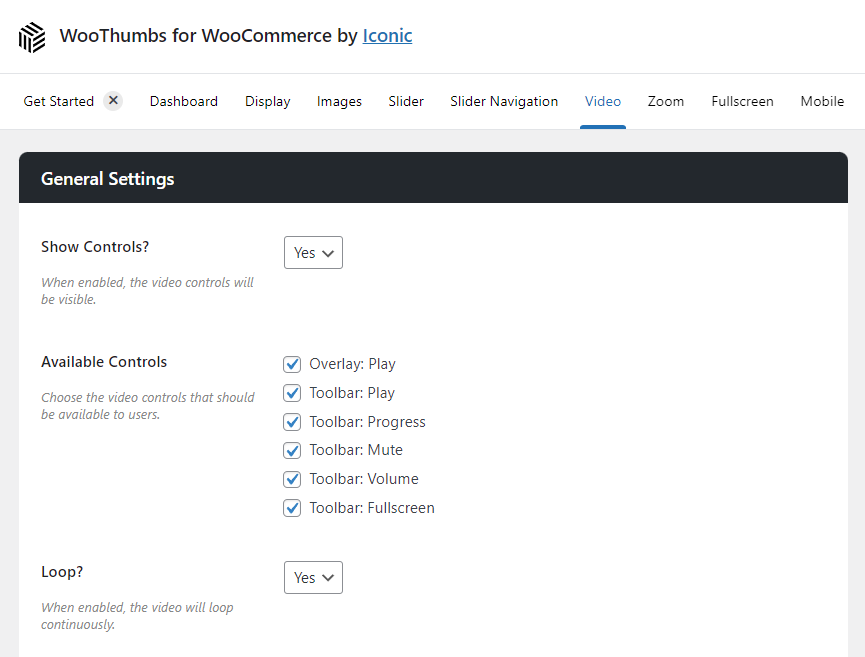
- This page contains all the settings for the video player. We’ll go through each below:
- Show Controls? allows you to turn on or off the video controls of your player. This includes controls that allow customers to play and pause the video, mute video, and more.
- Available Controls allows you to turn on or off specific controls. So if you’d like customers to be able to play and pause the video but not be able to fullscreen video, you can customize that here.
- Loop? and Autoplay? allow you to control how you display videos (if they loop on their own or play on their own).
- Enable Poster Images? allows you to use gallery images as the poster image for iFrame and MP4 videos.
- Scroll down the page, and you’ll see the MP4 Settings section. If you’ve uploaded a video yourself, turning on the Lazyload MP4 videos setting will help reduce page load time.
- Once you’re happy with your changes, scroll up or down the page and click the blue Save Changes button.
There you have it. Your store will now have click-worthy WooCommerce product videos displayed in your single product page galleries in a pop-up lightbox or in full-screen.
How do I embed a YouTube video into a WooCommerce product description?
If you want to embed a YouTube video into your WooCommerce product description, here’s how you do it:
- Go to YouTube and copy the URL of the video you want to include in your product description.
- Go to WooCommerce > Products and click on the product you want to edit.
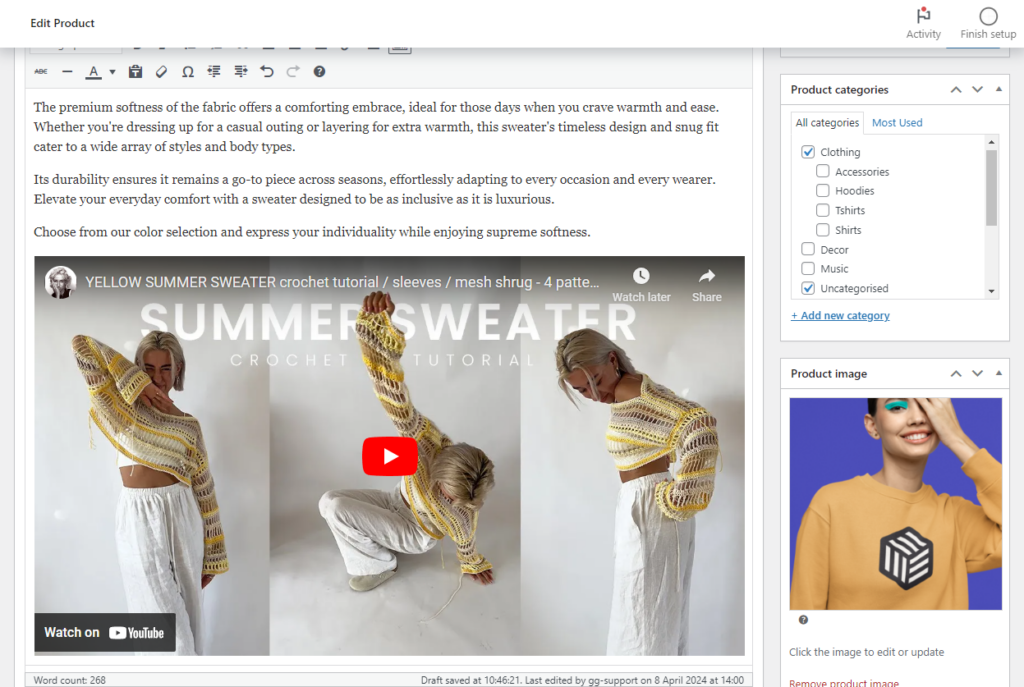
- In the description, paste your video URL. This will automatically embed it, and you should see a preview right there in the editor.
What is the best video format to use for WooCommerce product videos?
There are two main approaches to consider for WooCommerce product videos and their format:
Here’s a quick breakdown:
- Uploading video: Use MP4 (H.264 codec) for best compatibility and file size.
- Embedding video: Use popular hosting platforms like YouTube or Vimeo (using the plugin WooThumbs for WooCommerce).
Uploading the video directly to your WooCommerce store
In this case, MP4 (H.264 video codec) is the recommended format for the best balance of compatibility and video file size. Most devices and browsers widely support it, and it offers good compression for manageable file sizes.
Embedding a video from a hosting platform like YouTube or Vimeo
This can be a good option to avoid straining your store’s bandwidth. The WooCommerce product video plugin WooThumbs for WooCommerce supports embedding from popular platforms like YouTube and Vimeo.
WooCommerce product video frequently asked questions
Can you add videos to WooCommerce products?
If you have WooCommerce installed on your site, there’s no way for you to add a product video to your product page gallery without the help of a plugin.
With the WooComerce plugin, WooThumbs for WooCommerce, you can add a video to your WooCommerce products in just a few minutes.
If you want to add a video to your product description, copy and paste the video URL.

How do I replace product image with video in WooCommerce?
If you want to replace your product image with a video in WooCommerce, you’ll need the help of a product video plugin.
WooThumbs for WooCommerce allows you to add video to your WooCommerce gallery. Once added, you can set this as your main featured image.
Note: On the category page, your product will show an uploaded video thumbnail image rather than a video.
How do I add a YouTube video to the WooCommerce product gallery?
If you’d like to add a YouTube video to your WooCommerce product gallery, you can do so with WooThumbs for WooCommerce. Follow this tutorial for instructions.
Create a video-like product gallery on the category page
The product page isn’t the only place your product gallery should be improved, though. The category and shop pages are the perfect place to apply a similar technique to boost sales.
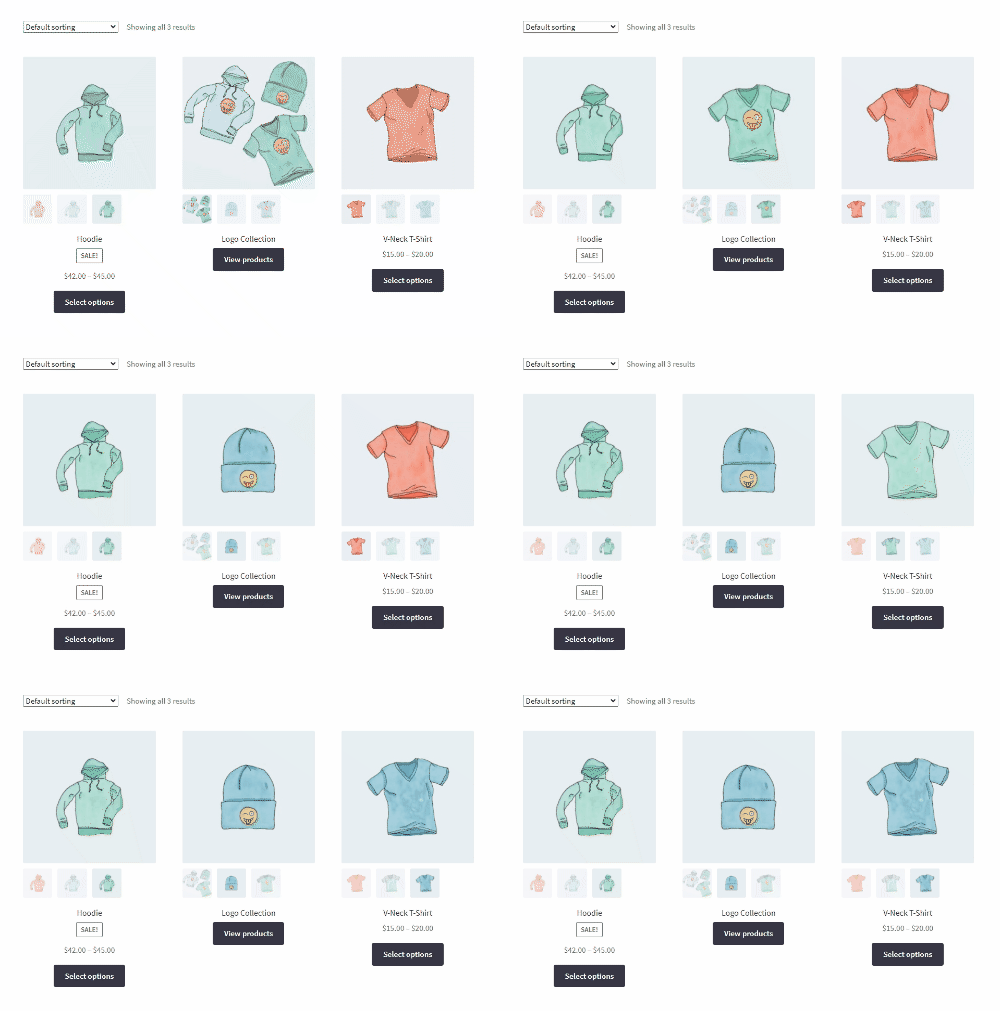
While there’s currently no way to add a video to the shop or category page, you can have them slide, change, and zoom on hover with the help of a plugin.
With the Image Swap for WooCommerce plugin, you can add additional images, add a hovering effect that allows customers to zoom in on images, or essentially create a product gallery on the shop/category page.
By allowing your customers to hover over images or flip product images, you’re making the shopping experience more seamless by reducing the number of clicks.
Add a video to your WooCommerce product gallery today
This guide taught you why you should use videos in your WooCommerce product gallery. You’ve also had step-by-step instructions for adding a video to your product pages using a WooCommerce product video plugin.
When used well, video can be a massive game-changer when selling products online. Adding them to your product pages quickly and efficiently with WooThumbs for WooCommerce makes the whole process easier.
Plugins featured in this guide:
- WooThumbs for WooCommerce – The product video plugin helps customers make a buying decision by adding embedded video into your product video gallery from YouTube, Vimeo, or video upload.
- Image Swap for WooCommerce – Encourage shoppers to purchase your products in fewer clicks with shop/category page image swap effects. WooThumbs for WooCommerce
Enable zoom, sliders, video, fullscreen, multiple images per variation, and customizable layout options for your product imagery.
WooThumbs for WooCommerce
Customize your WooCommerce product image gallery in minutes with a new layout, embedded video, multiple images per variation, and more.

Gina Lucia is our in-house Content Manager at Orderable. She writes articles, user guides, technical documentation, and creates videos on everything WooCommerce and Orderable.
Gina has been working in the WordPress/WooCommerce space since 2012 when she developed WordPress websites for clients large and small.
For the past 8 years, she’s been writing about everything WordPress and WooCommerce, becoming an expert in what makes a WooCommerce store succeed.
When not writing, Gina loves to tend to her vegetable garden, read, or travel to mainland Europe.