

If you sell variable or customizable products, it makes sense to use a WooCommerce measurement price calculator to determine what to charge customers.
Customers can input their exact requirements and the calculator will show the final product price based on what the customer entered.
In this detailed guide, we’ll show you how to add a custom price calculator to your site using the powerful WooCommerce Product Options plugin.

The best part? It takes less than 10 minutes to set it up from start to finish. Let’s get started.
What is a measurement price calculator in WooCommerce?
A measurement price calculator is a tool that allows customers to buy products based on specific measurements — such as length, width, or volume — rather than a fixed quantity. It’s particularly useful for WooCommerce stores that sell customizable or variable products. Think: fabrics, carpets, or liquids sold by volume.

For example, let’s say you run an online store that sells custom-sized tiles. With a measurement price calculator, customers can input the dimensions of their floors, such as length and width, and the calculator will automatically determine the final product price based on these measurements.
This tool simplifies the purchasing process for both the customer and the store admins. It gives customers the flexibility to order precisely what they need and ensures they get the right amount of product without overbuying or underbuying. And since it’s all automated, store admins don’t have to manually calculate prices for each customer.
Popular use cases for WooCommerce measurement price calculators
Products that are best sold using a measurement price calculator typically involve customizable or variable dimensions.
Here are some common examples:
- Custom furniture: Stores that offer customized furniture pieces like countertops, tabletops, or shelves may benefit from measurement price calculators. Customers can input dimensions and select materials to get accurate pricing for their orders.
- Custom furnishing: Companies that sell custom blinds or curtains use measurement price calculators to enable customers to enter window dimensions and select fabric options. This ensures customers get the right size and material for their windows.
- Custom fabrics: Businesses that sell fabrics by the yard or meter often use measurement price calculators to allow shoppers to specify the exact length of fabric they need for their project, whether it’s for sewing clothes, curtains, or upholstery.
- Flooring materials: Stores that offer carpets, tiles, laminate, and other flooring materials often use measurement price calculators to allow customers to input the dimensions of their rooms or areas to calculate the precise amount of material needed for installation.
- Liquids sold by volume: Businesses that sell liquids like paint, oil, or cleaning solutions typically use measurement price calculators to enable customers to input the desired volume they need. The calculator will determine the corresponding price based on the selected product.
Introducing the best WooCommerce measurement price calculator plugin
WooCommerce Product Options is a powerful plugin that lets you add custom calculators with both simple and complex price formulas to your online store’s product detail pages.
It’s super easy to use on the backend. And you can configure the calculator with operators for addition, subtraction, division, multiplication, brackets, etc. in minutes. Plus, it has built-in conditional logic to control how the price calculator functions on the front end of your site.

If customers update the content in the input fields, the plugin automatically updates the total price on the individual product page as well as the cart and checkout pages. This ensures that customers are always charged the correct amount.
WooCommerce Product Options plays nice with all Iconic plugins. For instance, you can use it with WooCommerce Attribute Swatches to showcase color and image variation swatches for products. Also, you can pair it with Flux Checkout for WooCommerce to add a conversion-optimized, distraction-free multi-step checkout to your store.
Flux Checkout for WooCommerce
Flux Checkout transforms the default WooCommerce checkout into one that’s lightning-fast, distraction-free, and reduces checkout abandonment.
A quick note: WooCommerce Product Options is a comprehensive product options plugin. This means it allows you to add checkboxes, image swatches, date pickers, dropdown menus, and more, to your product detail pages, in addition to the measurement price calculator. Check here for its complete feature list.
How to create a WooCommerce measurement price calculator
Adding the custom price calculator to your WooCommerce site is pretty straightforward. Follow these steps.
1. Create a new product options group or edit an existing one
- Get WooCommerce Product Options and add the plugin to your site. You’ll need to enter a license key to activate it.
- In your site’s admin, go to Products > Product Options.
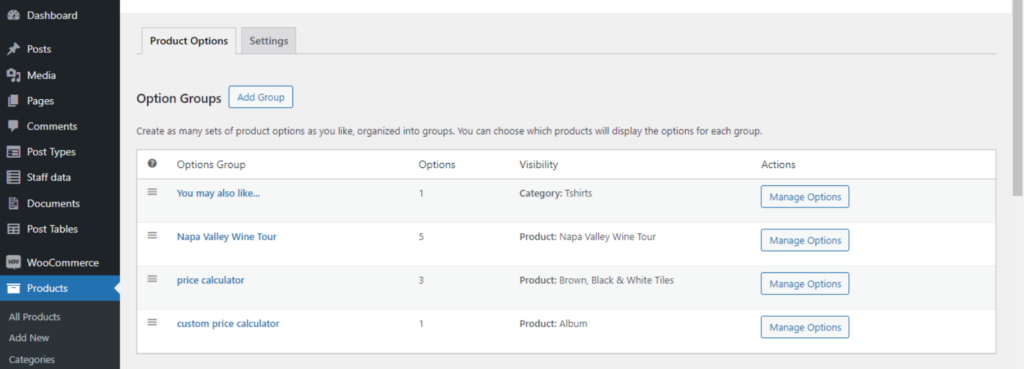
- When you install the plugin on your site, it adds a product options group by default. Press Add Group or hover over the default group to edit or delete it.
- Give the product options group a name. Tick the Display checkbox if you want this to be visible on the product page. Otherwise, leave it blank.
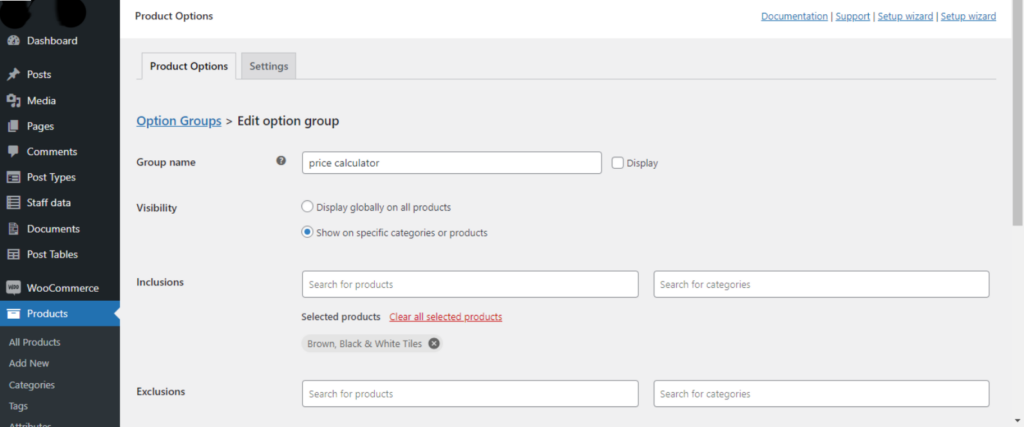
- The Visibility options let you decide which product detail pages to add the custom price calculator to. You can choose to:
- Showcase it storewide on all product pages.
- Showcase it only on particular products or product categories.
- Exclude the custom calculator from product detail pages of specific products or categories.
2. Add input boxes
- Press Add Option.
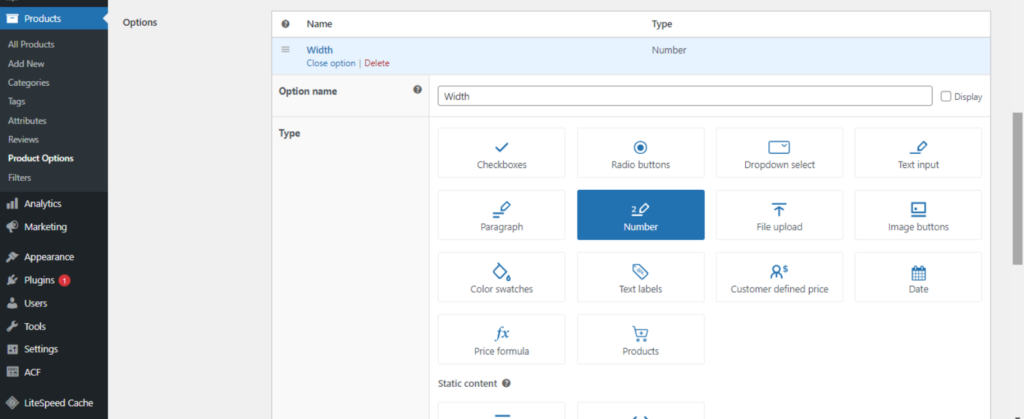
- Give the option a name and choose the Number field to create an input box. You can create input boxes for shoppers to enter the dimensions related to the product they want to purchase, such as length, width, weight, quantity, etc.

- Enter the name in the label field under the choice section, for example, “Length (cm)”.
- Select No cost in the Price Type field. You’ll enter the formula at a later step in the Price Formula field.
- Optional: Enter a short description for this input box.
- Tick the Required checkbox to force customers to add the necessary values to the price calculator.
- Press Save changes to save the input field.
- Repeat the steps to add the required Number fields to capture other dimensions of the product, such as depth or width.
3. Add the formula for the WooCommerce measurement price calculator
- Press Add Option.
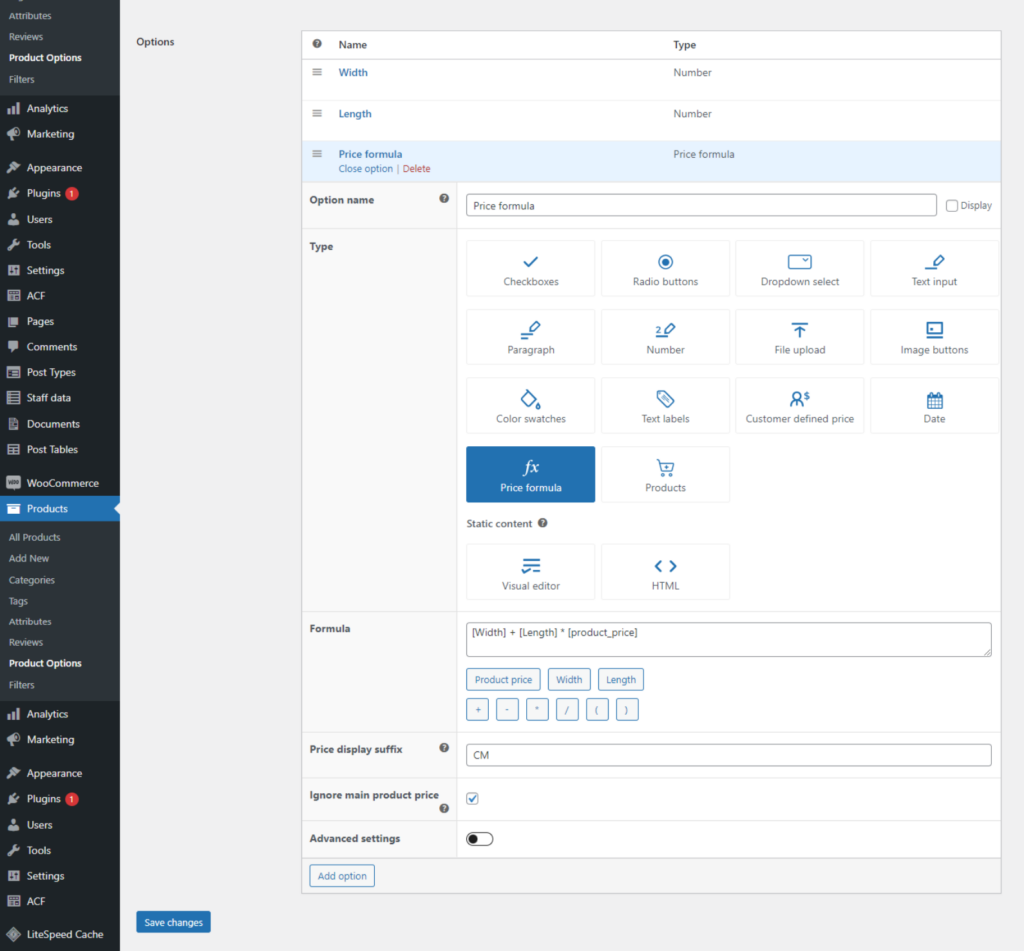
- Give the option a name and pick the Price formula field. The price formula field will input the values from the Number fields you created earlier and apply the custom formula you’ll set up in the next step to calculate the total product price for each customer.
- Now, enter the custom formula to calculate the price. Use the values from the Number field you created earlier together with the relevant operators — addition, subtraction, multiplication, and division. Feel free to select the appropriate buttons underneath the formula field.
- Add custom text to be shown next to the price on the product detail pages in the Price display suffix field. Continuing with the curtain example from above, you can add something apt like “Per centimeter” as the suffix.
- Tick the Ignore main product price if you wish to prevent the main product price from being added to the formula’s calculated price.
- Save the settings.
4. Optional: Advanced settings and extra product options
WooCommere Product Options lets you add more advanced options like number limits, conditional logic, and extra product option fields to each product.
Add conditional logic to the WooCommerce measurement price calculator
Let’s say you sell standard curtain sizes in addition to custom-sized versions. You can decide to hide the price calculator on the product detail page by default.
This avoids cluttering up the page for customers who want standard-sized curtains. Customers who want custom-sized curtains can select an option to reveal the price calculator fields and enter custom dimensions for their order.
Here’s how to add conditional logic to each measurement price calculator:
- Access the Edit page for the price calculator.
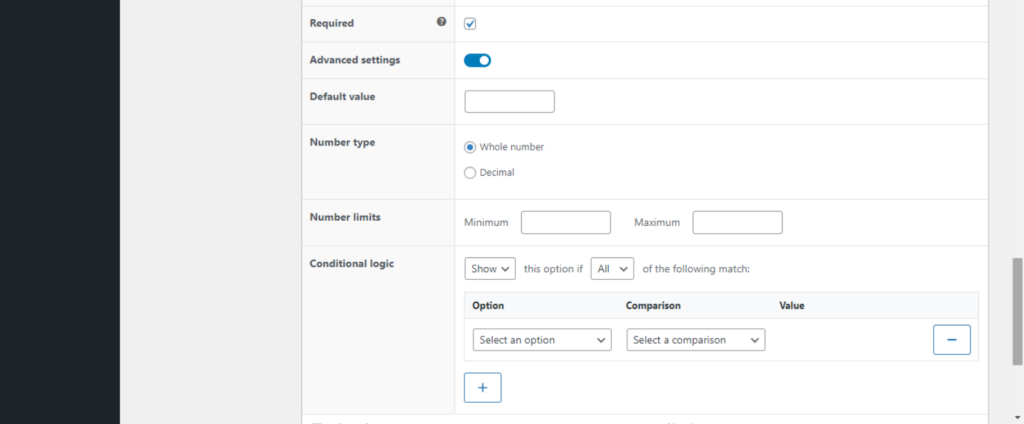
- Select Advanced settings to reveal the conditional logic options.
- Configure the options.
- Save the settings once done.
Add extra product options in addition to the WooCommerce measurement price calculator
You can add additional product options like text labels, text input fields, checkboxes, dropdown menus, radio buttons, file uploads, date pickers, clickable image buttons, etc., together with the price calculator to product detail pages.
You can even set fixed prices for the additional product options. Customers who select them will be charged the extra rates on top of the total price from the price calculator.
Here’s how to add extra product options to each measurement price calculator:
- Press the Add Option button.
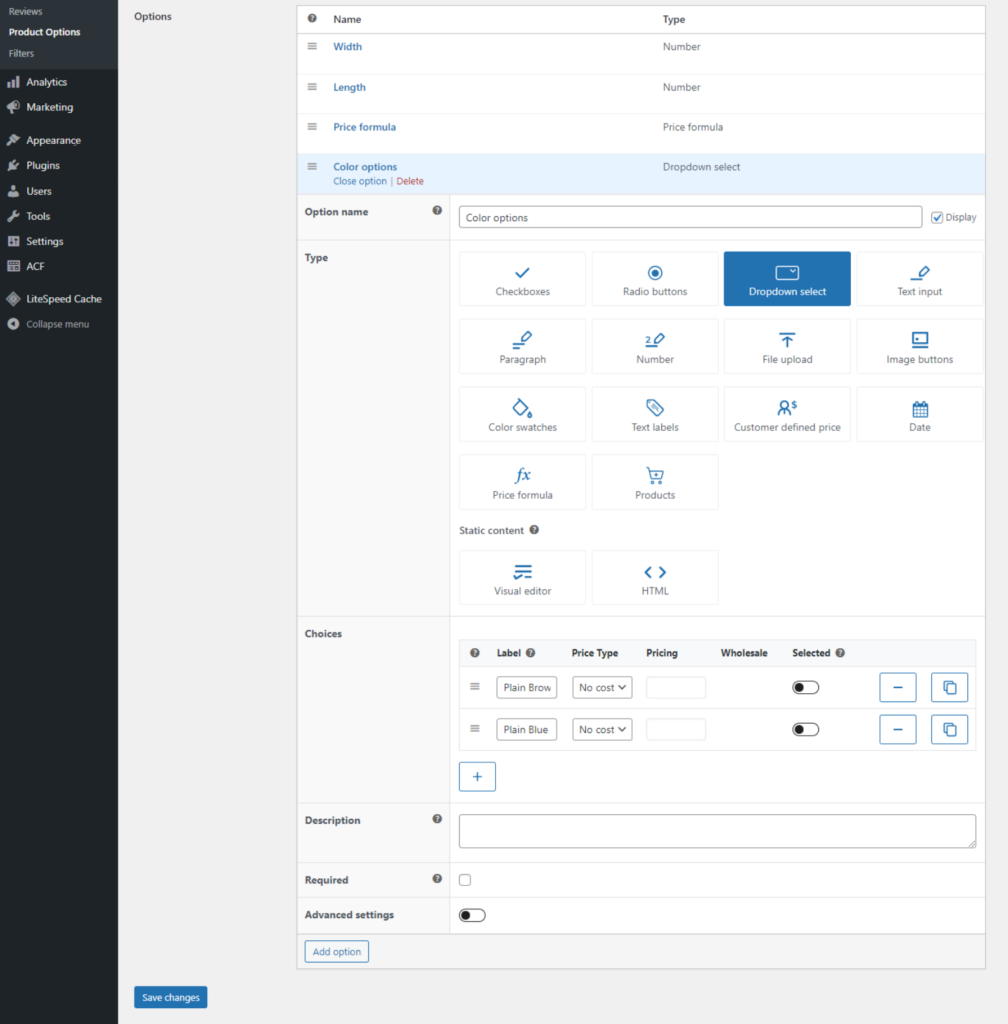
- Give the option a name and pick the appropriate field type.
- Add as many choices as required and set prices: a flat rate, quantity-based, a percentage increase, or a percentage decrease.
- Save the settings once done.
5. Publish and test your measurement price calculator
Once you’ve saved the product options group you created, it should appear as an option group in Product > Product Options.
To make sure everything works as expected, head to your site’s front end and take the price calculator for a spin before real customers begin to use it. Enter a couple of test values to confirm that the total product price it calculates is accurate.
Ready to create your WooCommerce measurement price calculator?
Adding a custom calculator to your site is a no-brainer if you sell products that need to be customized or products with a lot of variations.
WooCommerce Product Options is the best WooCommerce measurement price calculator plugin. It makes it super easy to add custom calculators with basic and advanced price formulas to your site’s product pages.
You can customize the calculators with operators for subtraction, addition, multiplication, division, and brackets, and add advanced settings like number limits and conditional logic.
Get started with WooCommerce Product Options and create custom measurement price calculators today!

Katie is CEO and founder of Barn2 Plugins. A high profile figure in the WordPress community, she loves teaching website owners how to get the most out of their sites.
Katie’s story has been told in numerous WordPress and tech industry publications. As well as speaking at WordCamp conferences, her passion for sharing her knowledge and experience has also led her to co-host two podcasts – WP Product Talk and Woo BizChat at Do the Woo – where she discusses a wide range of topics related to selling WordPress products and WooCommerce extensions.