

In this detailed guide, we’ll show you how to set up WooCommerce dynamic pricing rules using the powerful WooCommerce Discount Manager plugin.
Here’s what we’ll cover:
- An overview of dynamic pricing strategies.
- Popular types of dynamic pricing rules and example use cases.
- A detailed walkthrough (with accompanying screenshots) to demonstrate how to add dynamic pricing rules to WooCommerce.
- Lots more.

Ready? Let’s get started.
What is WooCommerce dynamic pricing?
In WooCommerce, dynamic pricing is a strategy where you set up flexible pricing rules based on various conditions. These rules automatically adjust the prices of products in customers’ shopping carts based on factors like quantity, user roles, or specific product attributes.
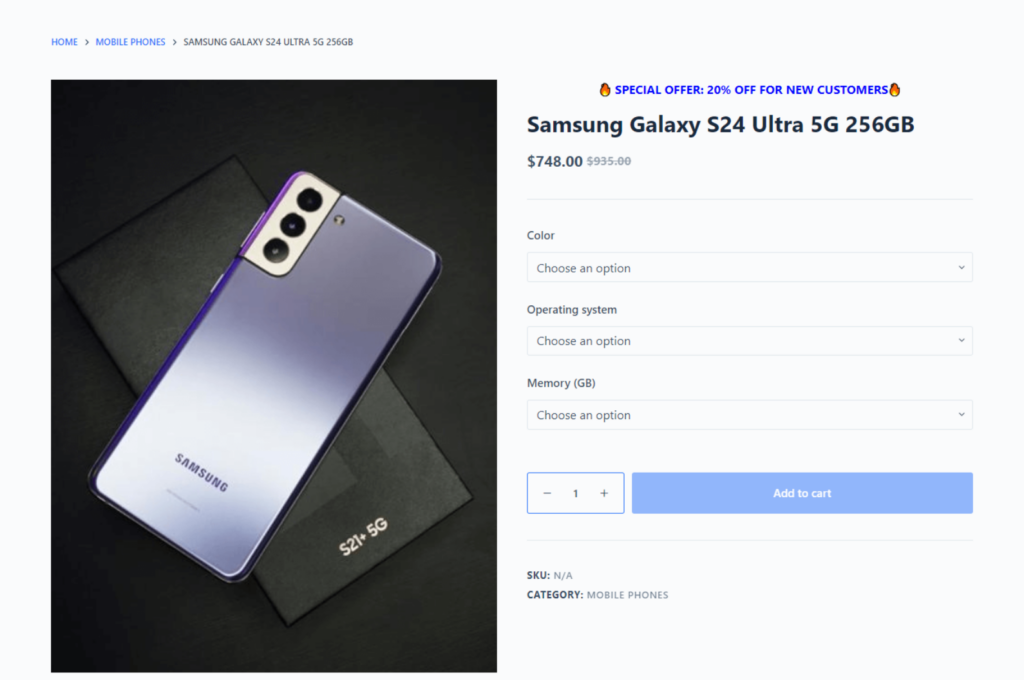
For example, let’s say you run a WooCommerce store that sells various kinds of electronic items. You can create a WooCommerce dynamic pricing rule that offers a 20% discount to first time customers.
Dynamic pricing is a popular marketing strategy that entices customers to buy more, promotes specific products or product categories, and ultimately boosts sales in a WooCommerce store.
Types of WooCommerce dynamic pricing rules
There are tons of ways to offer dynamic pricing promotions in your online store. Here are the most popular ones.
- Quantity-based or tiered pricing: This strategy adjusts product prices based on the quantity purchased by the customer. Customers who buy more pay less per product. For instance, if sell pens, you can offer them at the following prices: 1-10 pens for $2 each; 11-20 pens for $1.75 each; 21+ pens for $1.50 each…and so on.
- Role-based pricing: With role-based pricing, you can offer different prices to different customer types based on the roles or membership level they hold on your site. For example, let’s say you run a hybrid wholesale store that sells to both wholesale and retail buyers. You can offer a 40% discount on all products to wholesale buyers and charge retail customers full prices. So, while retail customers are charged $15 for a product, wholesale buyers will be charged $9 for the same product.
- Category-based pricing: With this strategy, you adjust prices for an entire product category. For instance, an online store that sells various kinds of electronics can offer discounts on all air conditioners during a summer sale, and while prices of other product categories remain the same.
- Product-based pricing: This strategy adjusts prices based on individual products and without changing the price of other items. For example, if you sell various types of stationery items, you can offer a fixed 10% discount on pens.
Additional dynamic pricing rules
- Time-based pricing: Here, you adjust prices according to specific periods or events. The most popular examples of these types of dynamic pricing rules are seasonal sales, holiday promotions, or flash sales.
- Product bundling: Product bundling involves offering multiple products together as a package deal at a reduced price compared to when customers buy each item individually.
- Based on cart total: This adjusts prices based on the total value of the items in each customer’s shopping cart. For example, an online shoe store might offer a 10% discount for orders over $100. So if a customer adds items worth $120 to their carts, a $12 discount will be automatically applied at checkout.
- Free products: Here, you offer extra products for free when specific conditions are met. Common examples of this strategy are buy one get one free and buy two get two free promotions.
An overview of the best WooCommerce dynamic pricing plugin
WooCommerce’s default capability for setting up dynamic pricing rules is pretty limited. Here’s what we mean:
- While it can set up basic rules, it’s not suitable for complex pricing scenarios that involve multiple conditions.
- It lacks advanced options like role-based pricing (to offer different prices to different customer tiers), time-based pricing (to schedule promotions), and more.
- You have to manage dynamic pricing rules for individual products. If your store offers a large number of products, this can quickly get cumbersome and time-consuming.
That’s where WooCommerce Discount Manager comes in. Discount Manager is the best WooCommerce discount plugin used to offer various kinds of deals and dynamic pricing in your online store. It can manage pretty much any type of dynamic pricing rule you can think of — from basic percentage-based and fixed amount discounts to tiered, role-based discounts, and more.

Plus, you don’t have to manually apply the rules to each product. Simply set up discount rules and apply them storewide or to particular products and product categories in a few steps.
One thing that sets WooCommerce Discount Manager apart from most of the other plugins in its range is that it includes the option to promote the discount offer on your site’s front end — on product detail pages and in the cart. And to ensure you don’t lose money on each order, it only ever applies one discount pricing rule at a time.
Here’s an in-depth look at its top features.
Key features of WooCommerce Discount Manager
- It allows you to choose from a wide range of pricing rules: fixed price, percentage-based, quantity discounts, role-based discounts, cart total discounts, extra free products, buy X products for a set amount, buy X get Y free (BOGO), and more.
- This WooCommerce discount plugin auto-applies the appropriate pricing rules to customers’ carts. No need for them to manually enter coupon codes to apply the rules.
- It allows you to add a start date and end date for each discount rule, so you can schedule the offer.
- You can easily set up bulk price offers and quantity discounts and present them on tiered pricing tables on your site’s product detail pages.
- You can enforce the WooCommerce discount rules storewide, i.e., to your entire product catalog, to specific products, or to select categories. Also, you can exclude particular products and product categories from the pricing rules.
How do the dynamic pricing rules work with Iconic plugins?
WooCommerce Discount Manager is compatible with all Iconic plugins. For instance, you can combine it with:
- Flux Checkout to optimize the checkout page for more conversions. The discounted price and promotional message will appear correctly.
- WooCommerce Attribute Swatches to enhance how product variations are presented, regardless of whether they are eligible for a dynamic discount rule.
Flux Checkout for WooCommerce
Flux Checkout transforms the default WooCommerce checkout into one that’s lightning-fast, distraction-free, and reduces checkout abandonment.
How to add dynamic pricing to WooCommerce – Setup tutorial
Follow these steps to configure WooCommerce Discounts Manager and offer dynamic pricing in your online store.
1. Create a new WooCommerce dynamic pricing rule
The first step is to specify the type of dynamic pricing rule you want to offer for that specific promotional campaign. Follow these steps.
- Get the WooCommerce Discount Manager plugin and add it to your website.
- In your site’s admin, navigate to the newly created Discounts section in Marketing > Discounts.
- Press Add New to add a new dynamic pricing rule.
- Give the dynamic pricing rule a name.
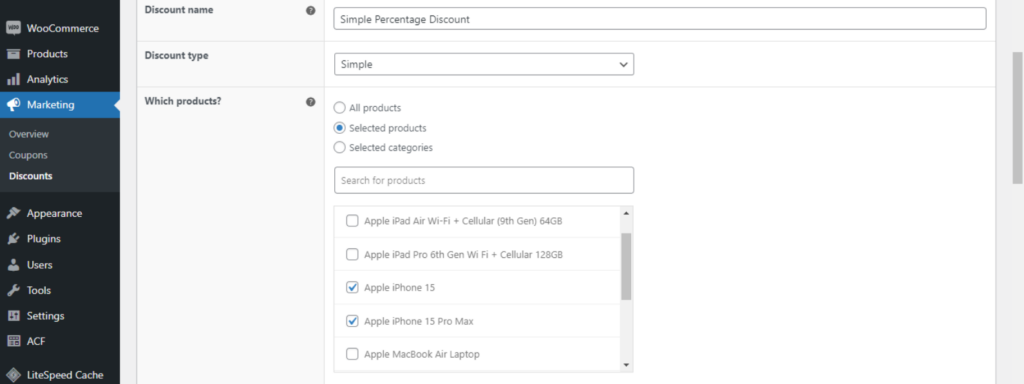
- Next, pick the desired pricing rule from the dropdown list in the modal window. Here are the types of WooCommerce dynamic pricing rules you can set:
- Simple discount: To give shoppers a basic fixed percentage or amount off.
- Based on total spend: To define a threshold spend that customers must reach in order to qualify for the dynamic pricing offer.
- Free products: Customers must add a minimum number of eligible products to qualify for a specific number of extra free products. (The extra free product(s) must either be of the same value or the lowest value of all the items in customers’ carts).
- Buy X products for a fixed price: To bundle up several products for a fixed value. For example, a “buy 3 hoodies for $100” promotion.
- Buy X products for Y discount: To provide shoppers either a fixed price or a fixed percentage off a portion of the total cart amount.
- Bulk discounts: To provide customers a fixed percentage or a fixed price off specific items in their carts or their entire cart total.
2. Add conditions to the WooCommerce dynamic pricing rule
Next, it’s time to add conditions to define which products the rule applies to, the logic to control how the rule is applied, and more.
- The Which products? field is where you can specify the products the dynamic pricing rule should apply to. Select ‘All products’ if you wish to apply the discount rule globally, i.e., to every product in your online store. Don’t worry, you’ll still be able to set up exclusions for particular products and product categories so that this rule doesn’t apply to them in a later step.
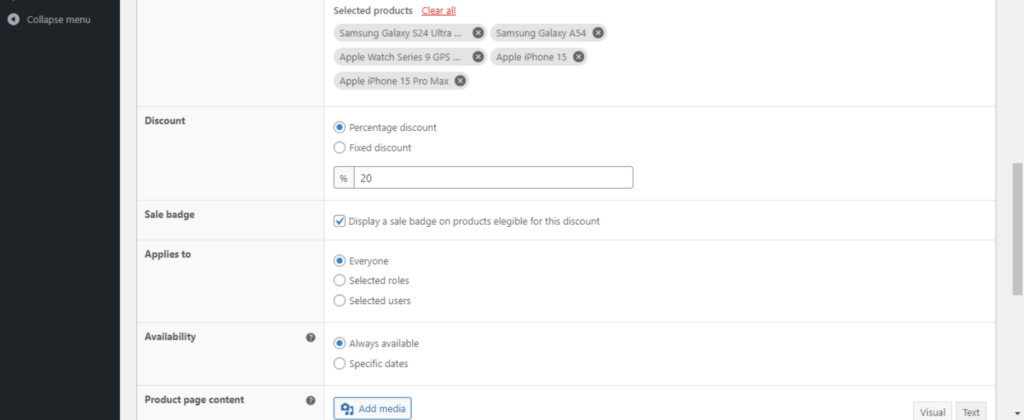
- Next, define the logic to control how the dynamic pricing rule is applied. For example, if you created a Based on total spend discount rule in the previous step, you can now define the minimum amount customers must spend per order for the discount to apply.
- The next step is to specify whether you want to offer a fixed amount or percentage discount.
- Enable the sale badge to add the default WooCommerce “sale” label to products that are included in the dynamic pricing rule.
- Next, specify the customer roles that are eligible for this rule in the Applies to field. The options are every customer, specific user roles, and specific users.
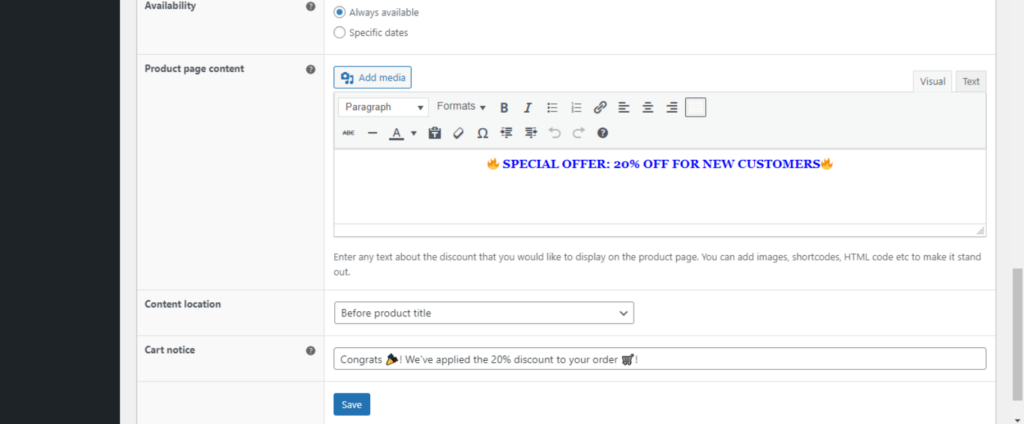
- In the Availability field, specify the timeframe for which the dynamic discount rule will be available. Setting it to Always available provides it indefinitely and Specific dates lets you specify start and end dates.
3. Promoting the WooCommerce dynamic pricing rule on the front end
WooCommerce Discount Manager lets you promote dynamic pricing discount offers throughout your online store — on the single product page and the cart page. Here’s how to set this up.
- Navigate to Marketing > Discounts in your site’s admin and access the Edit page for the dynamic pricing rule you wish to promote.
- Scroll down till you locate these fields:
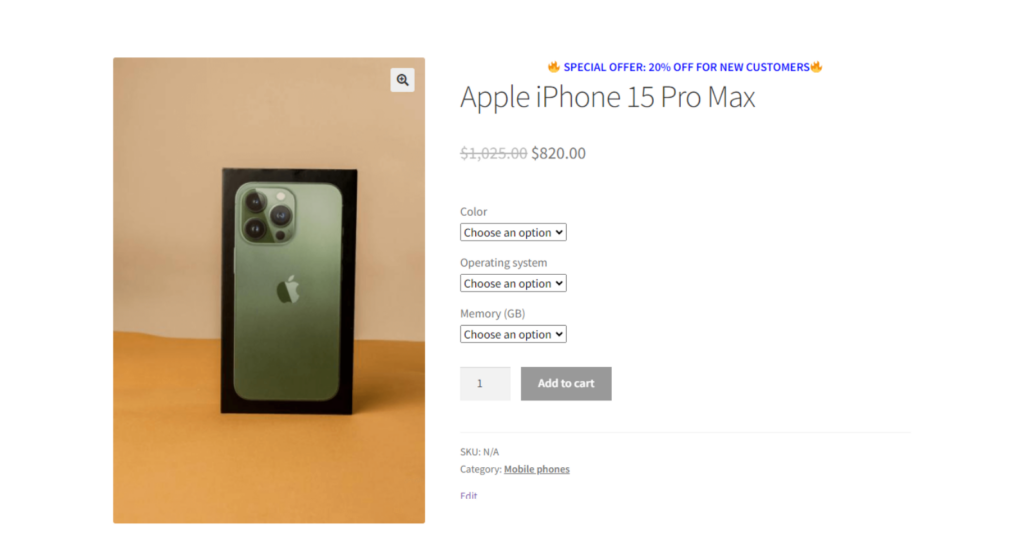
- Product page content – Here, you can enter a custom message (with text, emojis, and even images) to share details about the dynamic pricing rule on the single product pages. Something apt like, “??Mega sale: Buy 3 hoodies for $100!??”.
- Content location – Pick from six prominent locations to showcase the promo message on the product detail page: before the product page content, before product tabs, before the product title, before the add-to-cart button, before the short product description, and before meta information.
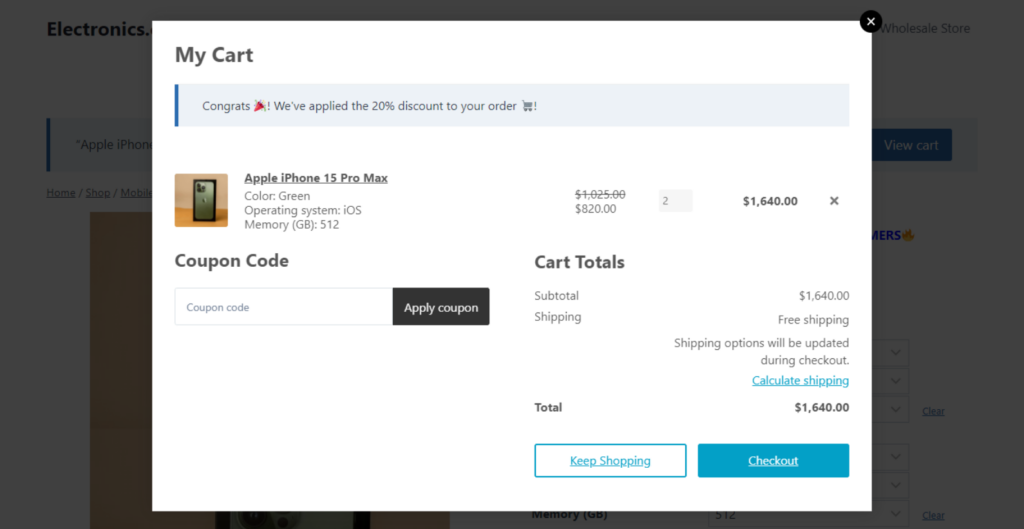
- Cart notice- Here, you can add a different custom promotional message above the cart. Similar to the message on the product detail page, this will only be shown in carts that are eligible for the pricing rule offer. To match the previous message, something like, “Congrats ?! We’ve applied the discount to your shopping cart ?!’“.
- Press Save to save the WooCommerce dynamic pricing rule.
Here’s a preview of the custom message promoting the dynamic pricing rule on the single product page of a WooCommerce site:
And, here’s a preview of the custom message on the cart page:
4. Combining multiple WooCommerce dynamic pricing rules
It’s normal for online stores to offer more than one dynamic pricing rule at once. It’s also likely that some customers will be eligible for multiple dynamic pricing offers at once, and multiple items might fall under the same pricing rule.
For instance, if you run a hybrid retail and wholesale fashion store, you can offer multiple promotions at the same time, like:
- A buy two get two free (B2G2) offer for t-shirts for retail customers.
- Flat 60% off on all products for wholesale customers.
- A buy 3 hoodies for $100 deal for retail customers.
WooCommerce Discount Manager lets you designate priority levels for each pricing rule to be enforced. Plus, it only allows one rule to be applied at a time. Here’s how to enable this in your store:
- Navigate to Marketing > Discounts in your site’s dashboard.
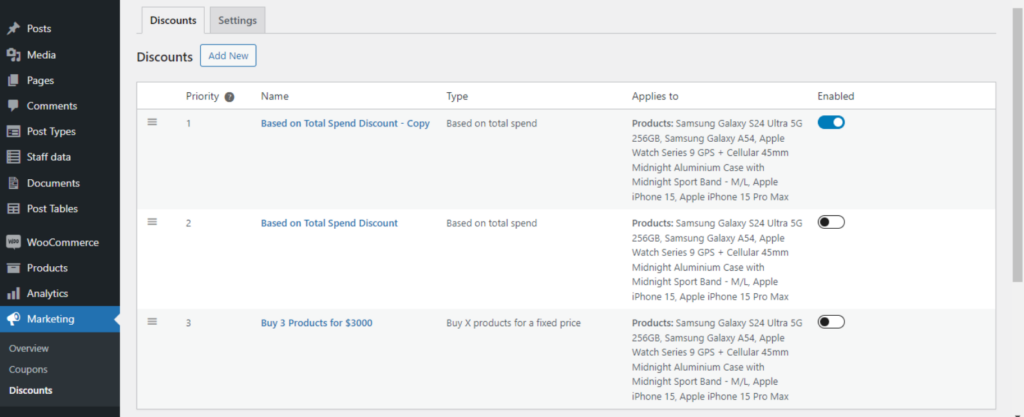
- Drag and drop each dynamic pricing rule in their priority order. (Priority one is the highest).
When should I use WooCommerce dynamic pricing?
Here are some popular use cases of how businesses across multiple industries use various dynamic pricing strategies to increase their revenue.
Hotels
The hospitality industry is extremely seasonal. Hotels often adjust room rates based on seasonal demand. For example, a beach resort might increase prices during peak summer months and lower them during the off-season.
They also offer discounted rates for rooms booked at the last minute to ensure that no room goes unoccupied.
Ecommerce sites
Online retailers typically offer discounts on specific products to clear out excess inventory or promote new arrivals.
Also, it’s pretty common to offer free shipping for orders above a certain total to nudge customers to add more items to their cart to qualify for the discount.
Air carriers
Airlines adjust ticket prices based on the time until departure, route popularity, current demand, and other factors. They raise prices as seats become limited closer to the departure date. Location-based pricing is another popular dynamic pricing strategy.
Many airlines may offer different prices for the same flight based on the departure city. For example, a flight from New York to London might have a different price compared to the same flight from Los Angeles to London.
Streaming platforms
Streaming platforms like Netflix, Amazon Prime Video, Disney+, and others, offer different subscription tiers with varying features and prices. For example, they might provide a basic plan with standard definition streaming at a lower price and a premium plan with features like HD streaming and simultaneous streaming on multiple devices for a higher price.
They also typically offer discounted subscription rates for the first few months to encourage new sign-ups and allow customers to experience the service before committing to the full price.
Grocers
Online grocery stores are known for offering bundled deals, such as “buy one, get one free” on certain items like cereal or canned goods. Also, it’s a common practice to discount perishable items that are near their expiration date to encourage customers to purchase them before they spoil and reduce waste.
That’s how to set up WooCommerce dynamic pricing!
The dynamic pricing marketing strategy is super beneficial for both store admins and customers. It rewards customers for shopping in your store and boosts your business’s revenue.
WooCommerce’s native dynamic pricing functionality is pretty limited. So, most stores prefer to set it up using a WooCommerce discount plugin like WooCommerce Discount Manager.
WooCommerce Discount Manager is a robust plugin that allows you to create dynamic pricing rules, including simple fixed and percentage-based discounts, role-based discounts, tiered discounts, and more.
It’s super easy to add conditions to control how the rules work. Plus, you can apply them storewide to particular products and product categories with a few clicks.
Get started with WooCommerce Discount Manager and create dynamic pricing rules in minutes.

Katie is CEO and founder of Barn2 Plugins. A high profile figure in the WordPress community, she loves teaching website owners how to get the most out of their sites.
Katie’s story has been told in numerous WordPress and tech industry publications. As well as speaking at WordCamp conferences, her passion for sharing her knowledge and experience has also led her to co-host two podcasts – WP Product Talk and Woo BizChat at Do the Woo – where she discusses a wide range of topics related to selling WordPress products and WooCommerce extensions.