
If you want to learn about what a one click upsell is and how to add it to your online store, you’ve come to the right place.
As an ecommerce store owner, you’re always looking for ways to increase your average order value and sales. Adding a one click upsell to your online store is one of the simplest ways to do it.
? In this guide, we’ll walk you through what a one click upsell is and how to add it to your ecommerce site.

Here are the details of what we’ll be covering:
- What a one click upsell is.
- How to set up a one click upsell in WooCommerce and Shopify.
- Best practices for implementing the one click upsell in your online store.
Ready to add this powerful revenue-boosting technique to your online store? Let’s begin by first understanding what a one-click upsell is.
Create a one click upsell with Sales Booster
Use Iconic Sales Booster for WooCommerce to add upsell and cross-sell techniques to your WooCommerce store.
What is a one click upsell?
A one click upsell (OCU) is a sales strategy where you present your customers with an additional product or an upgrade offer immediately after completing their purchase. If interested, customers can add this offer to their purchase in a single click.
They don’t have to re-enter their shipping information or payment details. Because it comes after a purchase, it is also called a post-purchase upsell.
A one click upsell introduces your customers to products that enhance their purchase. Let’s say you sell smartwatches and a customer has just bought one from you. You can offer extra straps with different materials, colors, or patterns as a one-click upsell after they complete their purchase.
In essence, a one click upsell is a win-win sales strategy. Your customers will get more value per purchase and you will make more revenue per order.
Now, let’s get into the details and see how this process works.
How does a one click upsell work in ecommerce?
A one-click upsell works by strategically suggesting products or services that add value to a customer’s initial purchase just after they’ve completed it. Let’s see how this process plays out from a customer’s and a store owner’s perspectives.
From the customer’s perspective
Here is a breakdown of how a one-click upsell funnel for a customer:
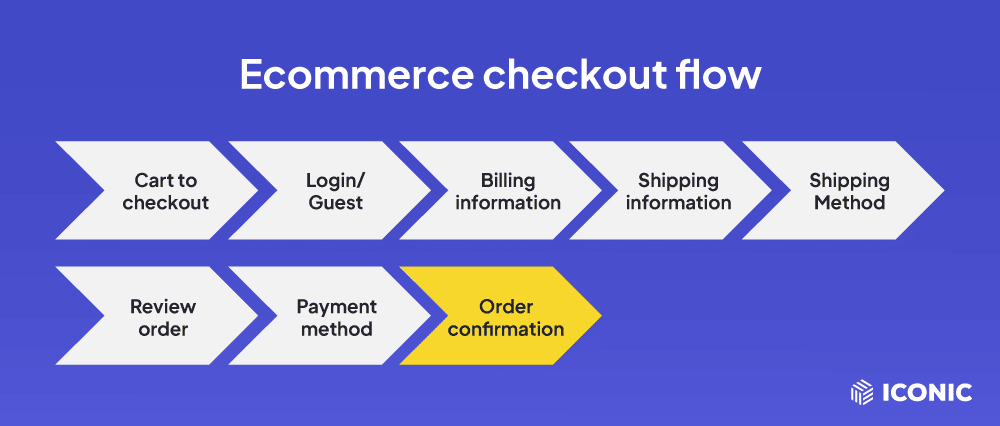
- Customer completes their purchase. After selecting what they want to buy, a customer will fill in the billing and shipping details on the checkout page. Then, they will click on ‘Place Order’ or ‘Buy Now’ to complete the purchase.
- Upsell offer pops up. Instead of going directly to the thank you page, your online shop will present them with an offer related to their purchase. This could be an add-on or an upgrade of the product they’ve purchased.
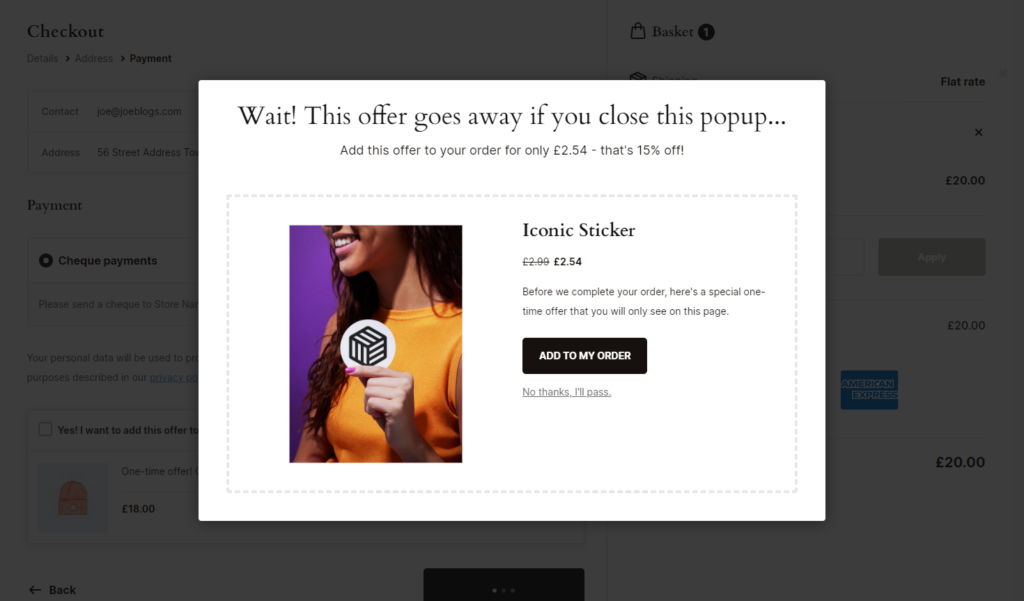
- One-click option. A single click will add the item to the customer’s original purchase. They don’t need to re-enter their shipping or payment information.
- Order confirmation. If the customer accepts this offer, it will be included in the order confirmation. But if they don’t, they will still proceed to the order confirmation (‘Thank You’) page regardless, but without the upsell product.

As you can see, it is a simple process that doesn’t inconvenience customers. They can quickly accept or reject the offer, confirm their order, and leave your store satisfied.
From the store owner’s perspective
As the store owner, yours is to set up your ecommerce site to display this offer once a customer completes the checkout process.
To do this, you’ll have to:
- Pick a plugin/app to help you do it. Numerous one-click upsell plugins are available to help you add this feature to your online store. We’ll cover the best one for WooCommerce and a few for Shopify later in this guide.
- Creating the post-purchase offer. Select the products you want to sell and create the upsell offer.
- Track conversions. Keep tabs on the number of conversions and amount of revenue you get from your upsells and adjust accordingly.
This might seem like a lot of work, but with the right tool, you’re only a few clicks away from a compelling one-click upsell that will boost your average order value (AOV). That said, let’s see how this sales technique boosts your AOV.
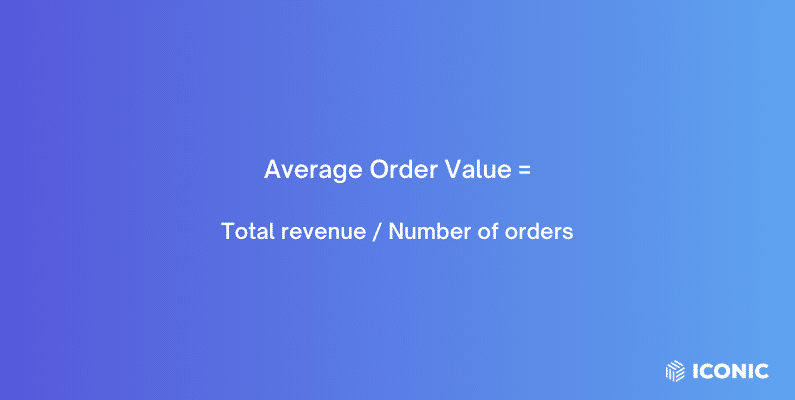
How does a one click upsell feature increase average order value?
A one click upsell increases your AOV by turning a single transaction into a more profitable exchange. Instead of customers leaving your online shop with the item(s) in their initial purchase, they can add an upgrade or add-on to it.
This directly increases the amount a customer will spend per order, boosting your AOV. Adding this feature to your store is one of the ways of maximizing revenue from the customers you already have. This is important because:
? The average customer repeat purchase rate is about 20 – 40%.
This means that about 60 – 80% of customers who buy from you will never buy again. Knowing this makes a great case for maximizing purchases from the customers you get. And a one click upsell feature is one of the best ways to do it.
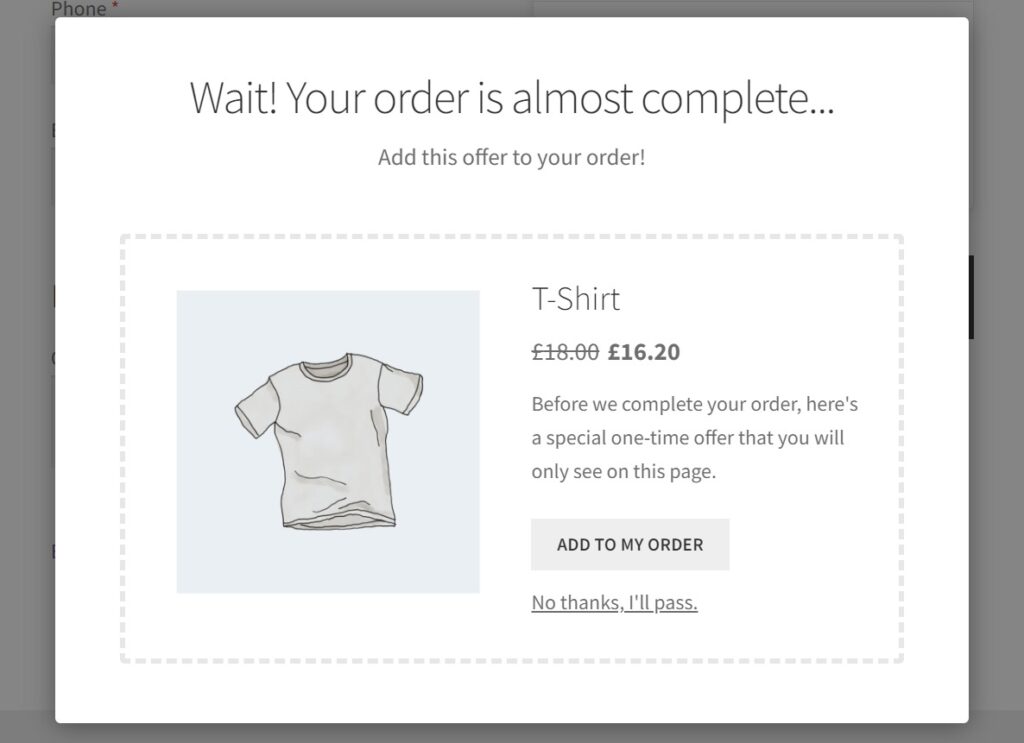
Why a one click upsell is such an effective sales strategy
A one-click upsell improves your customers’ overall experience in your store. It presents them with products they would be interested in, saving them the time and effort they would spend going back to your shop page to find them.
A better customer experience aside, this feature is pretty effective for other reasons, such as:
- Customers can easily add the upsell to their purchase. Customers can add this offer to their purchase at once in one click. It’s a convenient way for them to buy upsells as it doesn’t disrupt their initial purchase. As a result, customers will likely add it to their purchase.
- It promotes impulse purchases. A one click upsell delivers a frictionless buying experience. This ease of purchase might cause customers to say “yes” to your upsell without much thought. You can further promote impulse purchases by including timed offers, heavy discounts, etc. We’ll cover this and more later in this guide.
? With upsells boosting sales by 30%, the one click upsell feature has the potential to push this further for you.
Pre-purchase upsells have the disadvantage of potentially getting in the way of a customer’s original purchase, this technique presents upsells at the right time.
You have nothing to lose if a customer doesn’t like it, so adding this feature to your store is a no-brainer!
Now that we know everything we need to know about the one-click upsell feature, it’s time to get practical and see how to add this feature to your online store.
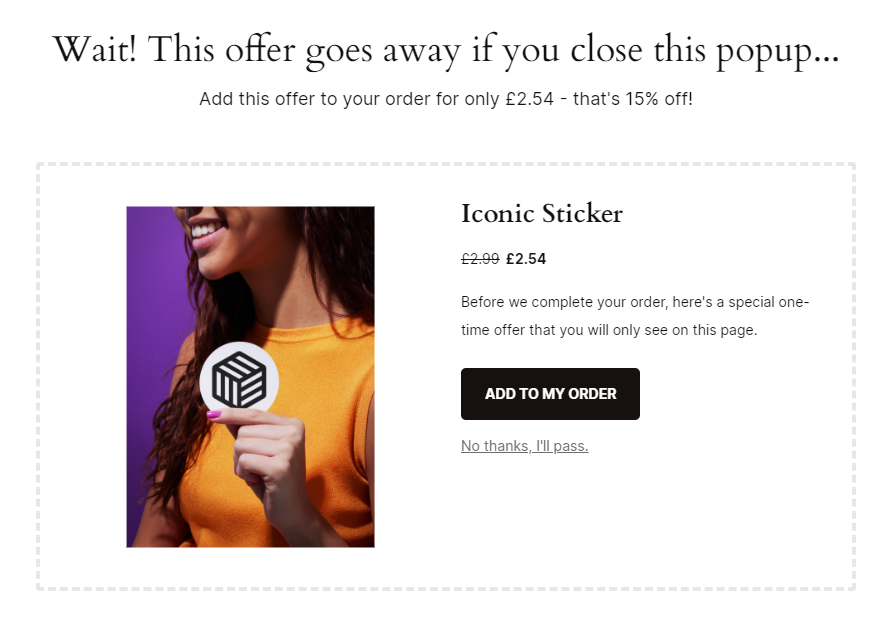
How do I set up a post-purchase upsell for my online store?
There are different ways to set up a post-purchase upsell for your online store, depending on the ecommerce platform you’ve built it on.
In this section, we’ll go over how to do it in WooCommerce and Shopify.
How to add a one click upsell to your WooCommerce store
WooCommerce is a great, if not the best, ecommerce platform for setting up your online store. But on its own, it doesn’t allow you to add a one click upsell feature to your sales funnel.
To do this, you’ll need the WooCommerce cross-selling plugin Iconic Sales Booster for WooCommerce.
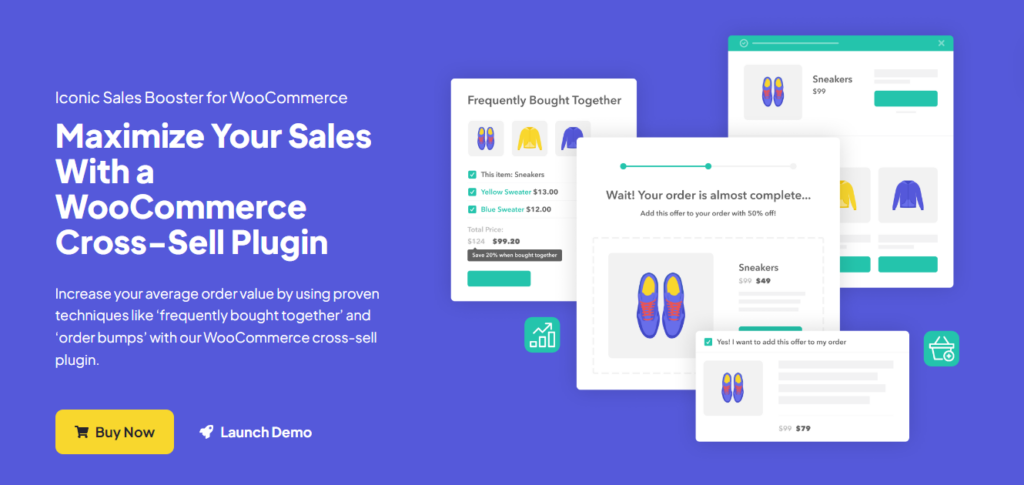
Add a one click upsell to your WooCommerce store with Iconic Sales Booster
You can maximize your WooCommerce store’s average order value with Iconic Sales Booster for WooCommerce.
With this plugin, you can use pre-purchase and post-purchase upsells to make additional product offers. In other words, it allows you to upsell from the product page, throughout the checkout, and post-checkout.
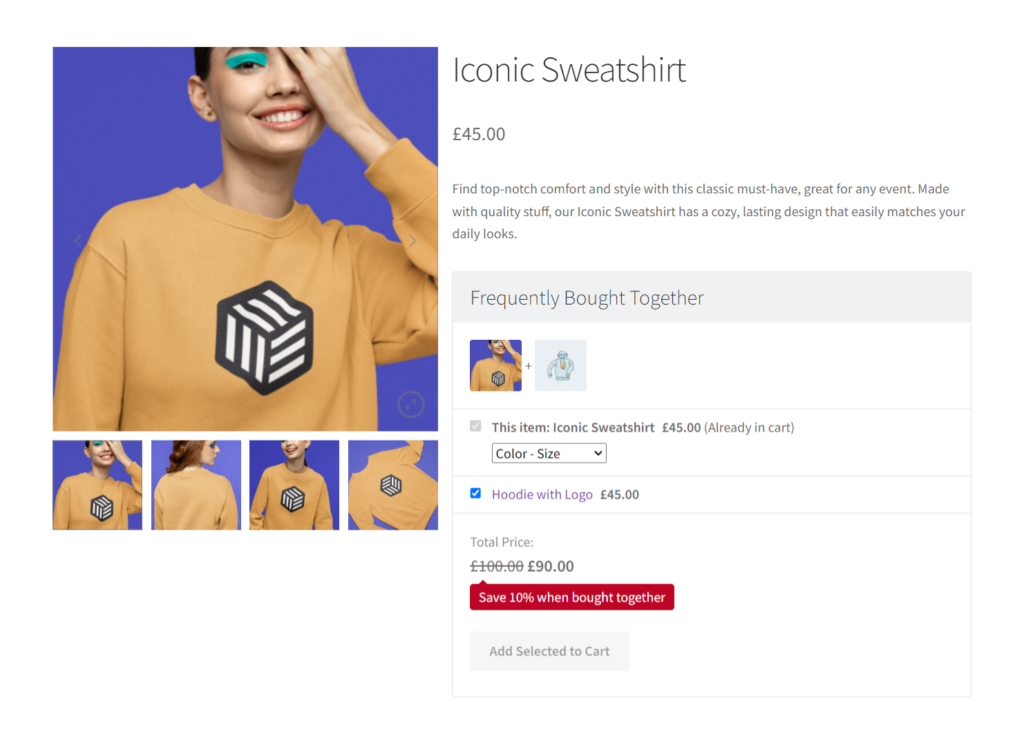
You can leverage proven sales techniques such as the following to upsell pre-purchase.
- Frequently bought together. Show customers complementary items on the product page, such as a toner to go with a moisturizer. This is a well-know technique used by Amazon.
- Customers also bought. Once a customer clicks ‘Add to Cart,’ show them what others bought from your store. These could be your best-selling items.
- Order bumps. Display irresistible offers at the checkout based on what customers have in their carts.
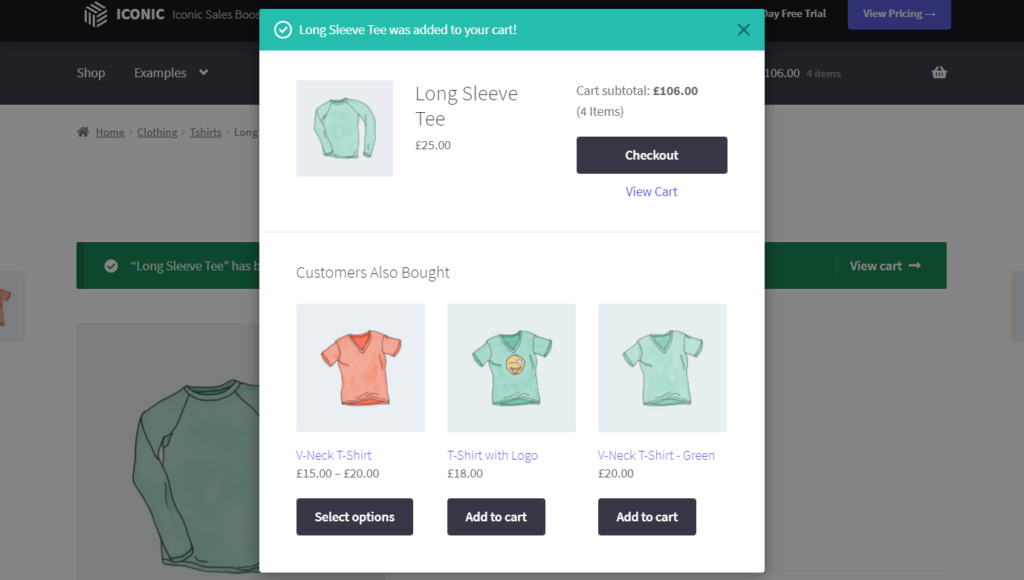
Customers can add these upsells to their carts or replace the items in their carts with their upgraded versions.
Post-purchase upsells with Iconic Sales Booster
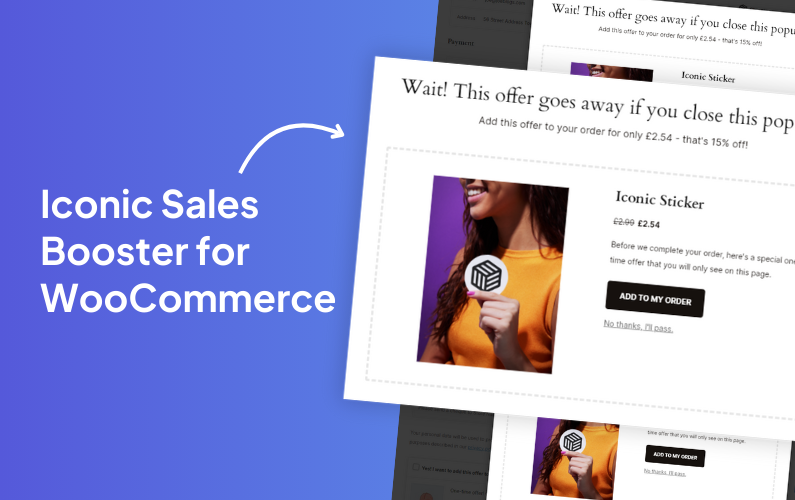
Iconic Sales Booster has a built-in one-click post-purchase upsell feature. You can leverage this to pitch upsells your customers can add to their purchase in one click after they buy.
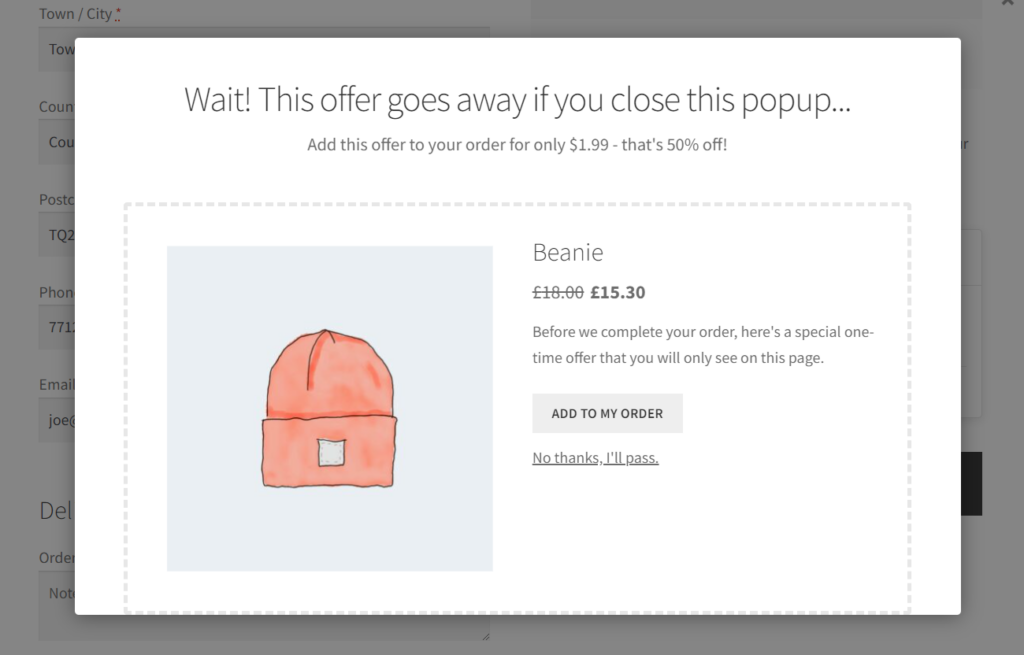
Customers don’t have to re-enter their payment details again. Once they click on it, it will be directly added to their initial purchase. This creates a smooth, frustration-free experience that might win you repeat purchases and long-term customers.
You’re free to customize everything about your upsell offer to make it appealing to your customers. This includes setting your prices and editing the upsell popup’s appearance.
So we know what Iconic Sales Booster for WooCommerce can do. Let’s go through a step-by-step tutorial on how to use it to set up one click upsells.
Step 1: Install Iconic Sales Booster for WooCommerce
Purchase the Sales Booster plugin from the Iconic store: iconicwp.com/sales-booster.
Create a one click upsell with Sales Booster
Use Iconic Sales Booster for WooCommerce to add upsell and cross-sell techniques to your WooCommerce store.
Then follow these steps to install it in your WooCommerce store:
- Go to Plugins > Add New > Upload Plugin on your WordPress dashboard.
- Upload the Iconic Sales Booster plugin .zip file you downloaded, click Install Now, and then Activate.
- Next, you’ll be directed to the license activation page, where you’ll paste your license key and click Agree & Activate License.
That’s it. Now, you’ll see the plugin on the WordPress side menu under WooCommerce. With our tool in place, let’s move on to creating our one click upsell offer.
Step 2: Create a one click upsell offer
In this section, we’ll walk you through the steps to create a one click upsell offer in your WooCommerce store using Sales Booster.
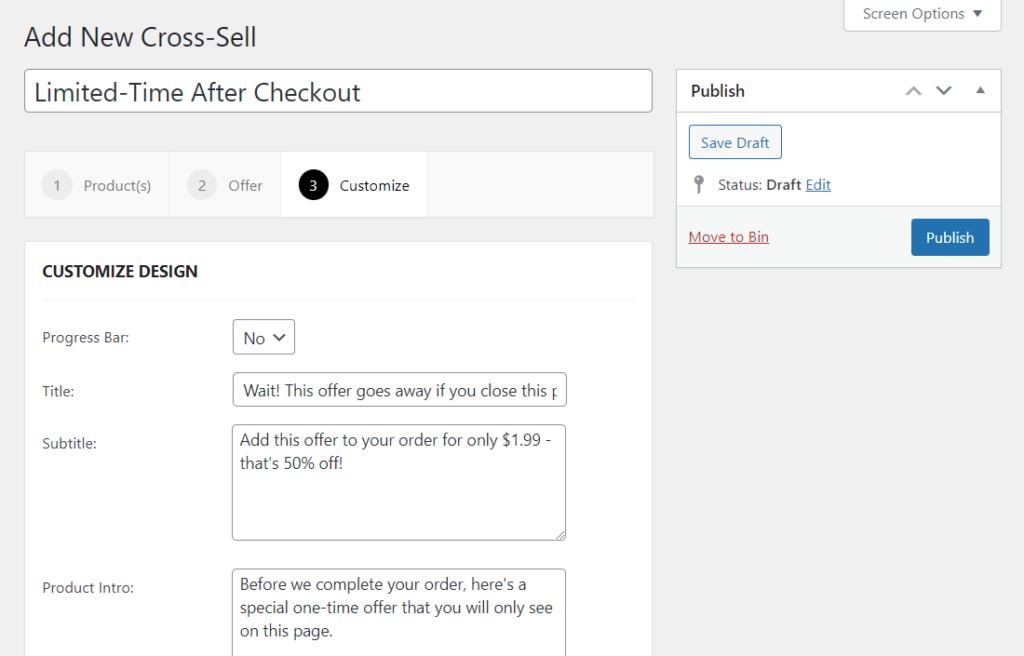
- On your WordPress dashboard, go to WooCommerce > Sales Booster > After Checkout.
- Click the Add New button at the top. You’ll be directed to a page where you can add all the details of your upsell.
- Start with the title. Below the title, you’ll see 3 tabs: Product, Offer, and Customize.
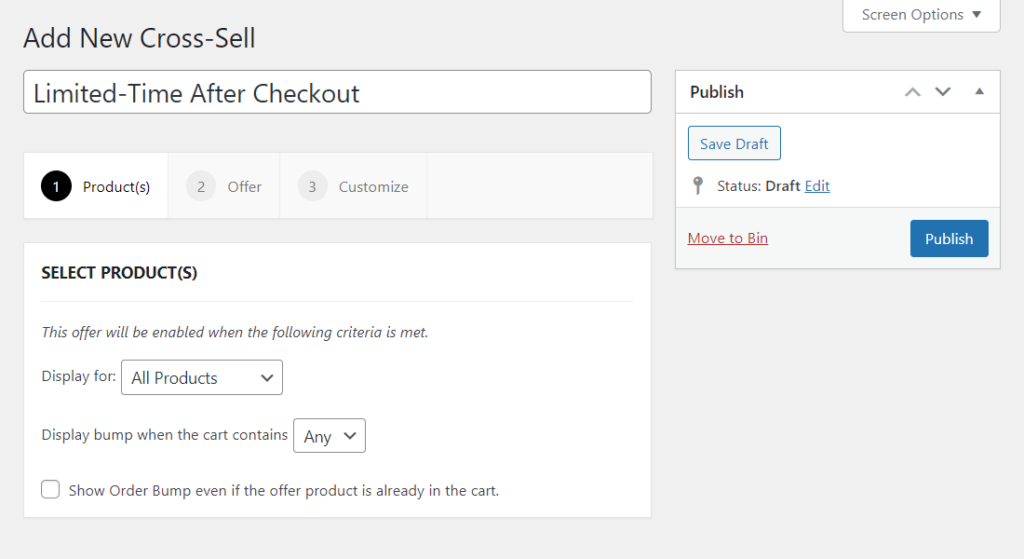
- Under the Product tab, you can pick the products for which the upsell will be displayed. By default, this is set to All Products, but if you want to make it specific:
- Click on the Display for <> dropdown and select Specific Products.
- A search field will appear where you can search for and add the specific products you want to display upsells.
- If you want to display the upsell when Any or All of the specified products are in the customer’s cart. To do it, use the ‘Apply these orders when <> of these products are in the cart’ dropdown.
Pick the product you’ll offer as the upsell
Move to the Offers tab and complete these steps to pick your upsell:
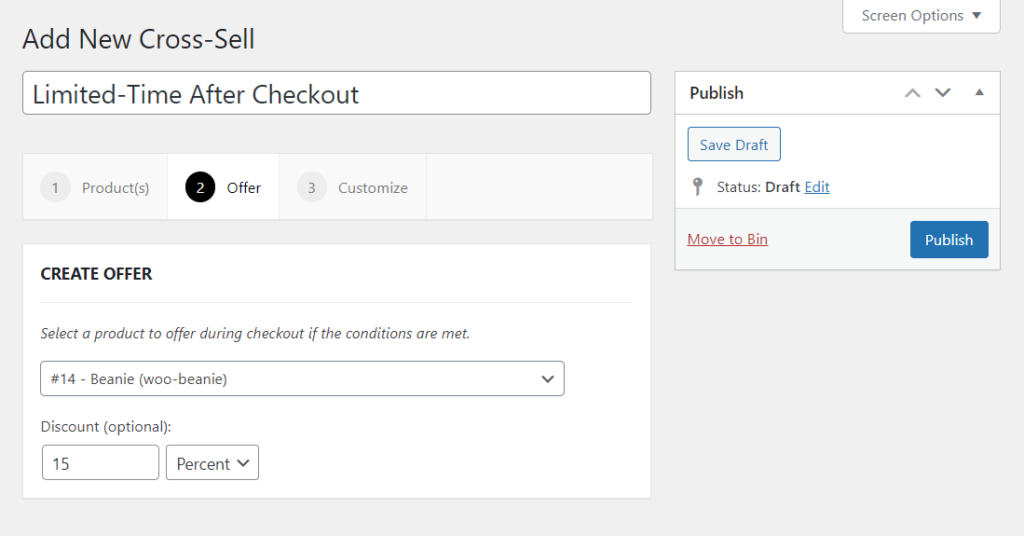
- In the Create Offer section, search for the product to offer as the upsell by name, ID, or SKU, and select it once it appears.
- Although this is optional, we recommend adding a discount in the discount section.
Customize your offer
To customize your offer, click on the Customize tab and customize your upsell to suit your store and appeal to your customers.
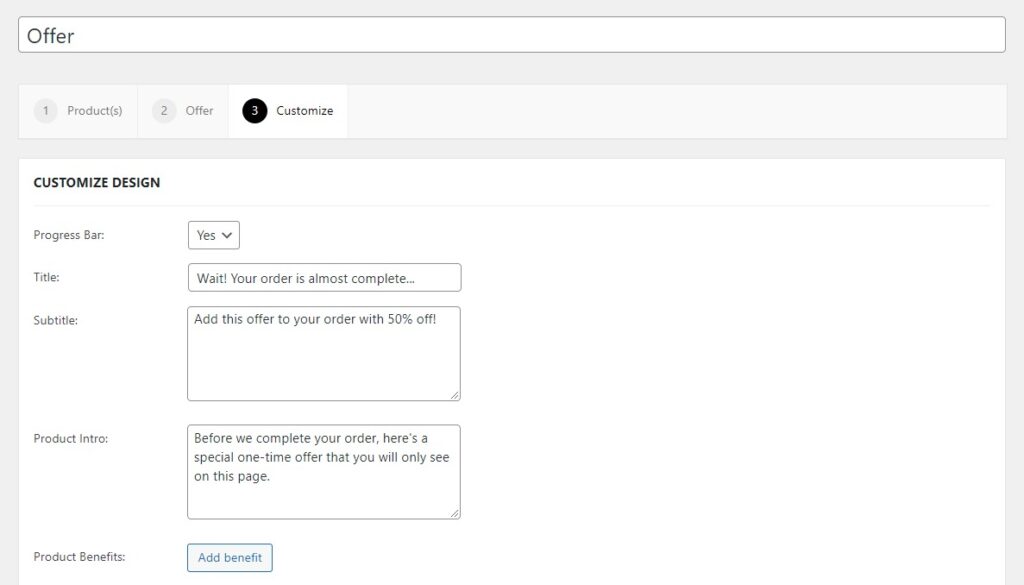
- Under this tab, you’ll need to fill in the following fields: title, subtitle, and product intro. Of course, you have to be creative with what you write here so it entices customers to add the offer to their purchase.
- Once done, click Publish or Update and that’s it. Now you can preview it on the front end and check if everything works as expected. If not, you can always go back and edit.
At this point, you might be wondering, what happens if the customer already has the upsell in their cart?
By default, Sales Booster will not display this offer after checkout. But if you want it to do so anyway, go back to the Product(s) tab and check the box that says ‘Show Order Bump even if the offer product is already in the cart’.
Rearrange one click upsells by priority
You’ll want to give display priority to your best-selling upsells. To achieve this Sales Booster allows you to rearrange your one click upsells by priority.
To rearrange your one click upsells:
- Go back to Sales Booster > After Checkout on your WordPress dashboard.
- Change the order in which upsells appear by clicking on the three lines at the right of each offer, dragging it, and dropping it where you want it to appear.
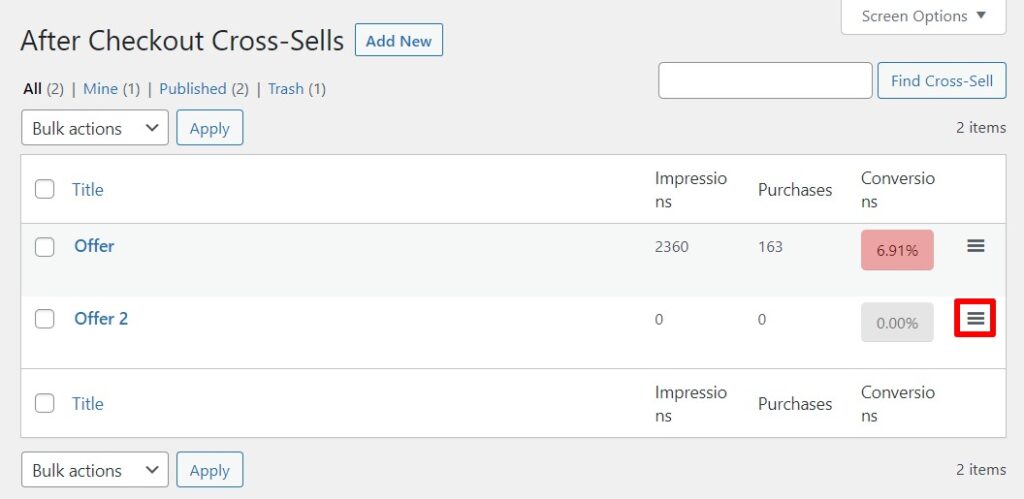
If multiple offers match the items in the cart, then the highest in the upsell list will be displayed.
So, we’ve seen how to add one click upsells for WooCommerce. Let’s delve into how you can do the same for Shopify.
How to add a one click upsell to your Shopify store
Like in WooCommerce, there’s no built-in way to add a one click upsell to your Shopify store. You’ll need to use an app. There are tons of upsell apps available in the Shopify app store, and picking the right one for your store might not be easy.
Here are some things you should look for in an upsell app to help you decide:
- Ease of use. It should have a visual drag-and-drop funnel builder where you can easily create your post-purchase upsells.
- The upsell page should be customizable. You should be able to edit the upsell page’s sales text and appearance. This allows you to incorporate your brand into the upsell strategy.
- It should have pre-made templates. So you don’t have to create the upsell page from scratch. Seeing as more than 56% of online shoppers prefer mobile phones, these templates should be mobile-optimized.
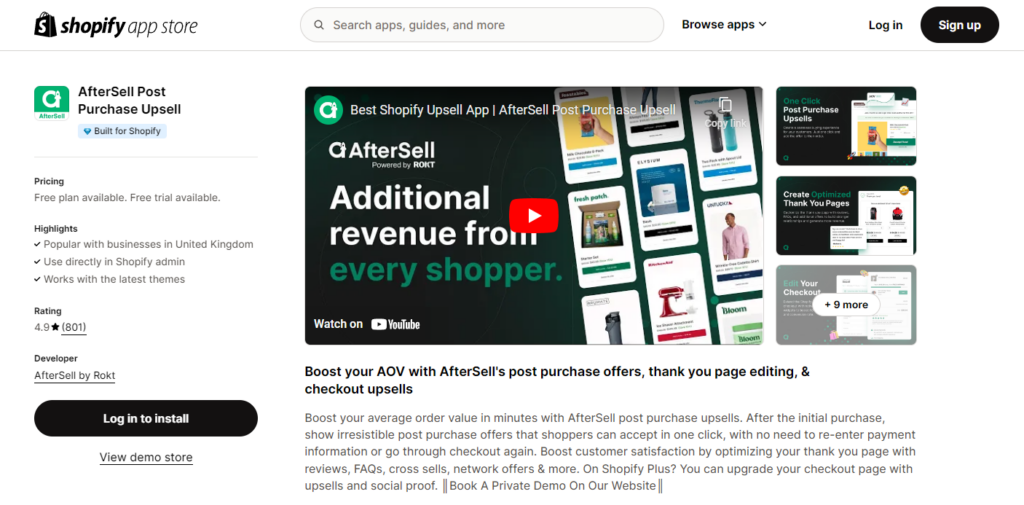
If you want to get all this, you can use either of these apps:
- Aftersell Post-Purchase Upsell.
- One click upsell – Zipify OCU – best for Shopify Plus users.
- Ark – Post-Purchas Upsell.
You can purchase these from the Shopify app store or their respective websites. Before creating your upsell, you’ll have to define the one you pick as your post-purchase upsell app. You can do it from the Settings > Checkout > Post-purchase page section. Then create your upsell offer similar to the way we did for Iconic Sales Booster.
Getting the right upsell tool and setting it up is only half the job. To be successful with it, you’ll need to know how to put it to great effect using the best practices we’ll cover in the next section.
Best practices for post purchase upsell funnels
So you’ve added a post-purchase upsell strategy to your online store, that’s great! Here are some tips, tricks, and strategies to help you make the most out of your upsells.
Ensure your upsells are relevant
We don’t need to tell you that customers love personalized offers.
? Studies show that 83% of customers are interested in personalized offers.
So, what does this mean for you, someone who is looking to pitch upsell offers?
Ensure you pitch upsells that make sense. For example, offering a snowboard doesn’t make much sense if a customer has just bought swimming goggles. The products you offer here should be based on what customers have in their carts.
With Iconic Sales Booster, you can handpick specific products, and the upsells you’ll display at this stage of your customer’s journey.
Get creative with your title and sales text
Make your upsell title and sales text appealing to customers while staying on-brand. The language you use here might just tip the scale in your favor and convince them to add the upsell to their initial purchase.
For the title, here are some examples you can use:
- ‘Wait, your order is almost over…’
- ‘Special offer just for you!’
Make sure to highlight some key benefits and incentives in the sales text.
Incentivize your offer with discounts
Post-purchase upsells come after a customer is done with their purchase and ready to leave your online store. You need something to convince them to make an extra purchase.
? One study found that 67% of U.S. customers have made a purchase they weren’t planning to make purely because the item was discounted.
This means that discounts might just be the thing that convinces your customers to buy the upsell.
The discount has to be good here. Remember that you want the offer to be irresistible, so something like a 5% discount might not cut it. We recommend 15% going upwards.
You can go further and time this offer. Say the offer ends in 5 hours, for example, to create a sense of urgency. Customers with FOMO (fear of missing out) will likely add it to their purchase.
Track your upsell’s success
How will you know if customers are adding your upsells to their purchases? By tracking the upsell conversion rates. This shows you how many customers accept or decline your upsell offer.
Downsell, if the upsell gets declined
A customer could decline an upsell if they deem it expensive. Instead of walking away, you can take another swing at upselling and present them with a down-sell. In case you didn’t know, down-selling is a sales technique where you offer an alternative product to the upsell at a lower price.
The downsell might just be cheap enough for the customer to add it to their purchase. It’s better to sell something cheaper than to sell nothing at all.
Get to grips with one click upsells today
Offering one click upsells is crucial to increasing your online store’s AOV. It allows you to sell to customers even after they’ve completed their initial purchase. There are different ways to add these post-purchase upsells depending on your ecommerce platform.
With WooCommerce as your ecommerce platform, Iconic Sales Booster allows you to add one click upsell without breaking a sweat. All you have to do is pick the products you want to offer upsells for and the upsell products.
This plugin also allows you to customize the one click upsell offer popup’s appearance and sales text to appeal to your customers while staying on brand. Use Iconic Sales Booster to show your customers irresistible offers post-purchase and watch your AOV go up.
Create a one click upsell with Sales Booster
Use Iconic Sales Booster for WooCommerce to add upsell and cross-sell techniques to your WooCommerce store.

Gina Lucia is our in-house Content Manager at Orderable. She writes articles, user guides, technical documentation, and creates videos on everything WooCommerce and Orderable.
Gina has been working in the WordPress/WooCommerce space since 2012 when she developed WordPress websites for clients large and small.
For the past 8 years, she’s been writing about everything WordPress and WooCommerce, becoming an expert in what makes a WooCommerce store succeed.
When not writing, Gina loves to tend to her vegetable garden, read, or travel to mainland Europe.