

Looking to add flexible delivery slots to your checkout so customers can select their preferred delivery dates and delivery time windows? If so, this guide is here to help.
? In this guide, we’ll walk you through all the steps to add delivery slots to your WooCommerce store’s checkout.
We’ll cover the following:
- Why add a delivery slot to your ecommerce store’s checkout page?
- What a delivery slot at the checkout looks like.
- How to add a delivery slot to your WooCommerce checkout.
Creating flexible delivery options is nearly impossible with the standard WooCommerce installation.
So, if you want to keep up with increasing customer demand for more convenient delivery options, we’re here to help. We’ll introduce you to a plugin that lets you create a manageable custom schedule that matches your delivery capacity.
WooCommerce Delivery Slots
Let customers choose their preferred WooCommerce delivery date and time right from your WooCommerce checkout page. With WooCommerce Delivery Slots, you can set a flexible delivery schedule to suit you and your customers.
But first, let’s begin with why integrating delivery slots at the checkout is important.
Why add a delivery slot to your ecommerce store’s checkout page?
There are four important reasons why including delivery dates and time slots in your checkout process is critical for deliveries.
It increases customer satisfaction and loyalty
Online shoppers are loyal to stores that offer flexible delivery times and consistently deliver on time. Therefore, allowing customers to choose when to receive their orders is one way to increase the number of satisfied/loyal customers in your shop.
? According to studies, 89% of satisfied customers are more likely to reorder after a positive customer experience.
Reduced failed deliveries
Offering specific delivery time slots can significantly reduce failed deliveries, rescheduling, and delays.
When customers are aware of the delivery time, they are less likely to miss the delivery, which will result in an improved overall delivery experience for the same customers.
Providing delivery slots enables better route planning, making deliveries more efficient and reducing delays.
Increased sales
Adding delivery slots allows you to determine the number of orders you can fulfill per time slot. By completing more orders quickly and delivering on time, you can increase your store’s sales. Besides, keeping customers returning with on-time delivery orders can increase your sales.
At the same time, charging additional delivery fees for various delivery services or options can increase the average order value (AOV). A higher AOV translates to a higher profit margin.
Note: While charging a delivery fee can contribute to your revenue, always be transparent about shipping costs in the order summary.
This is because:
- 47% of customers abandon their carts if extra costs are too high.
- 17% of customers abandon their carts when they can’t see or calculate the total cost of the order upfront.

Ability to create manageable delivery schedules
Delivery slots let you create a realistic delivery schedule that can meet your customer expectations in different ways.
You can offer customers other efficient delivery options instead of only letting them pick specific dates and time slots. For instance, you can offer local delivery, same-day delivery, ASAP or next-day delivery, last-mile delivery, etc.
Meeting customer expectations in this way can boost their shopping experience with your business.
Delivery/pickup slots allow you to restrict the number of orders based on the available resources or your delivery capacity. This kind of delivery management can help prevent employee stress.
Now that we know the benefits of adding a delivery slot selection to your WooCommerce checkout process, let’s see it in action.
What a delivery slot at the checkout looks like
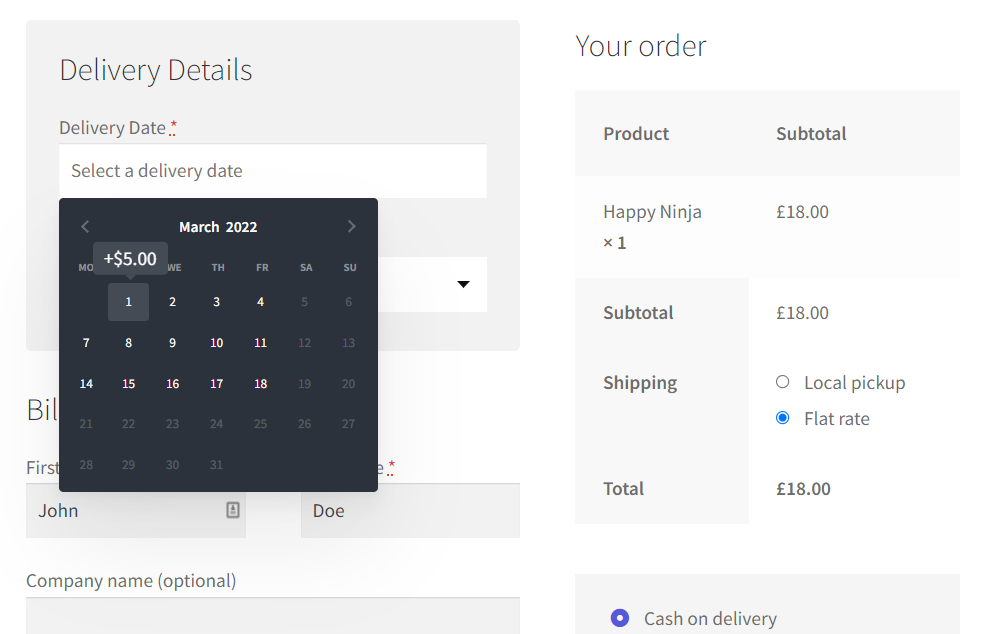
A delivery slot is a date picker or delivery calendar found at the checkout. Customers can use this to select an order delivery date. After that, they’ll be presented with a list of delivery time slots available for the specific date they have picked. They can select one that’s convenient for them.
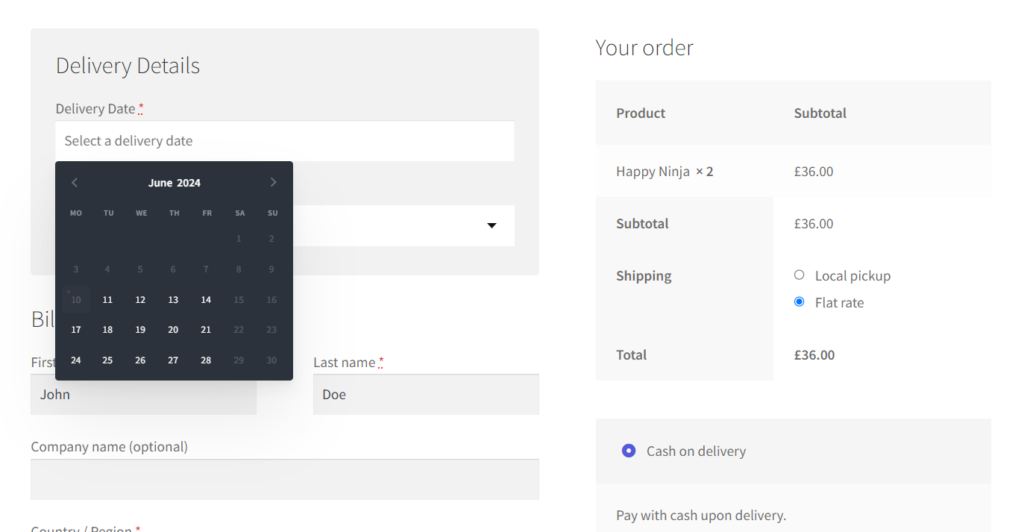
So, let’s see how the WooCommerce Delivery Slots plugin does it and simplifies delivery for you and the customers.
WooCommerce Delivery Slots
Let customers choose their preferred WooCommerce delivery date and time right from your WooCommerce checkout page. With WooCommerce Delivery Slots, you can set a flexible delivery schedule to suit you and your customers.
How the WooCommerce Delivery Slots plugin works
Instaling WooCommerce Delivery Slots adds a modern, user-friendly date picker and time slots to your WooCommerce checkout page.
After setting it up in your store, customers can easily select their preferred date and available time slots during checkout. Then, they can proceed to complete their order and pay as usual.

Here’s how it works from the customer’s perspective:
- The selection starts immediately after they start the ecommerce checkout process. They will see a section asking for their delivery details.
- This is achieved using a user-friendly date picker/delivery calendar at the checkout. They can select their own pickup or order delivery date.
- New customers will have to provide additional customer information. This usually includes their billing address, contact details, payment details, shipping preferences, etc. Customers can also create an account if they want to.
- Returning customers can log in and place their orders.
- Once the order is paid, the customer will receive an email notification with their delivery details and a reminder of their selected time.
That’s for your customers. But how about you, the shop owner?
Key features of the WooCommerce Delivery Slots
The delivery experience customers will enjoy during checkout is determined by store owners on the backend of WordPress. This plugin enables you to create delivery schedules based on your resources.
With WooCommerce Delivery Slots, you’re able to do the following:
- Customize your delivery schedule with flexible settings. For example, you can define specific delivery days, set holidays or closed periods, add a reservation table, and allocate flexible time slots per day.

- Limit the number of orders per delivery slot based on your delivery capacity. This way, you’ll be able to fulfill them without stressing your employees.
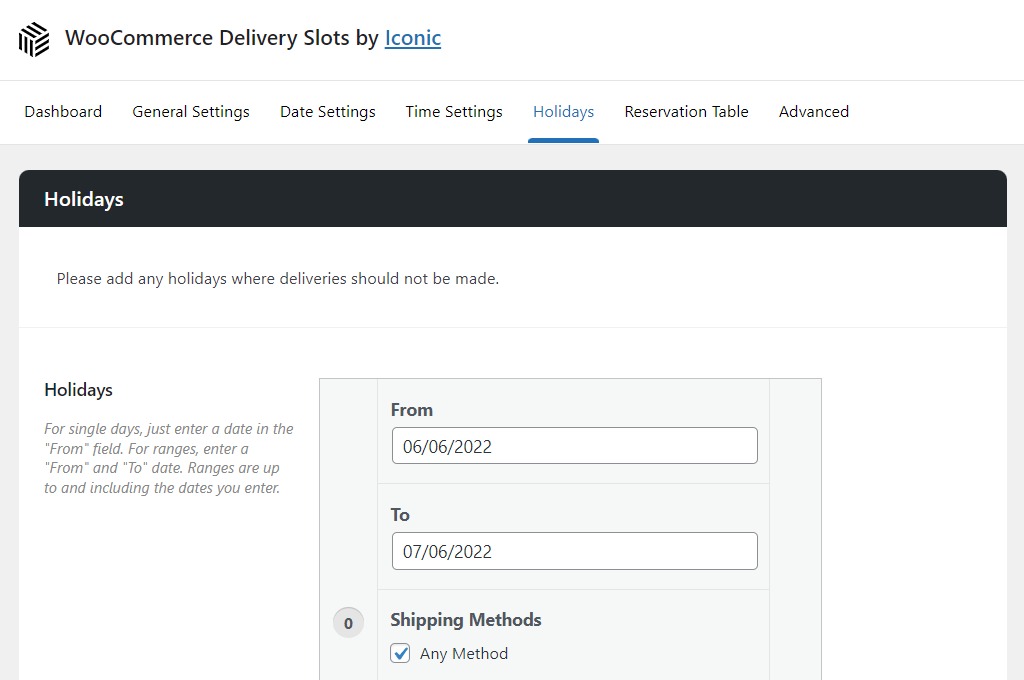
- You can prevent orders on holidays or choose when your store is closed. You can block dates based on the selected delivery method. You can also disable specific dates or date ranges and choose whether to repeat them every year.
- Create and customize a reservation calendar. This lets customers reserve a delivery slot before they can start shopping and set expiration time in minutes.
- Choose to provide flexible delivery options. You can set up local pickup dates for customers. Other options you can enable include same-day delivery, next-day delivery, ASAP delivery, etc. You can set cut-off times for same-day or next-day deliveries.

- Charge customizable delivery fees. Stores can charge additional fees depending on the specific days of the week, same-day and next-day deliveries, or time slots. You can also charge custom fees for special dates and holidays.
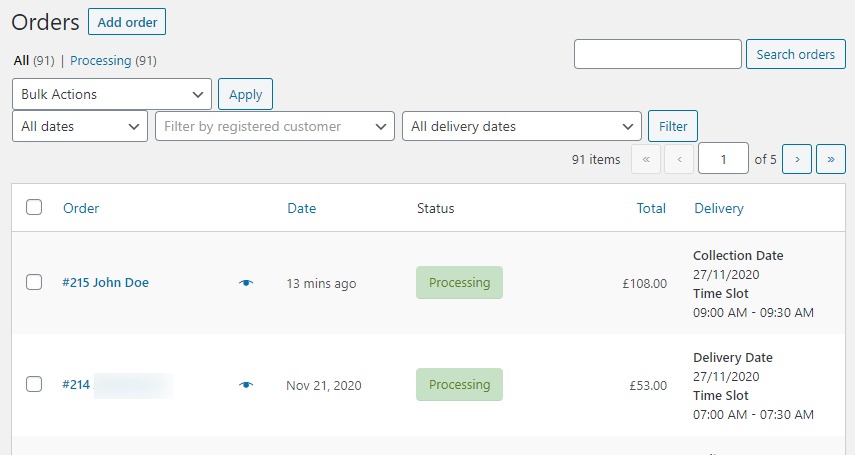
- View and prepare for upcoming orders and reserved deliveries. This plugin has an upcoming orders dashboard where you can see the number of deliveries you’ve fulfilled at a glance.
Next, let’s add this delivery slot to your WooCommerce checkout. As you begin using this plugin, you’ll enjoy additional benefits we haven’t mentioned.
How to add a delivery slot to your WooCommerce checkout
In this section, we’ll walk you through how to add WooCommerce Delivery Slots and set up your own delivery schedule.
Let’s start with installing the plugin.
Step 1: Install WooCommerce Delivery Slots
The first step is to purchase WooCommerce Delivery Slots from the Iconic website: iconicwp.com/woocommerce-delivery-slots
WooCommerce Delivery Slots
Let customers choose their preferred WooCommerce delivery date and time right from your WooCommerce checkout page. With WooCommerce Delivery Slots, you can set a flexible delivery schedule to suit you and your customers.
Follow these steps to install the WooCommerce Delivery Slots:
- Login to your WordPress dashboard.
- Go to Plugins > Add New and click Upload Plugin.
- Choose the zip file you downloaded, upload it, and click Activate.
- Once activated, you’ll need to enter your license key.
Upon activation, we’re ready to proceed to the next step.
Step 2: Set up your delivery date schedule
We’ll divide this step into two. First, we’ll set up delivery days. Then, we’ll create the time slots for each day of deliveries.
Set up your delivery days
This step is straightforward. You’ll only select the specific days of the week when you will allow deliveries and limit the number of deliveries per day.
To do this:
- Go to WooCommerce > Delivery Slots.
- Click on the Date Settings tab.
- Make sure the Required checkbox is ticked in the Date Setup section. This will require customers to select a delivery/collection date at checkout.
- Next, scroll down to Delivery Days in the Data Settings section. In this section, we’ll select which days of the week you’ll offer delivery.

- Check the boxes on the days you want to do deliveries.
- At the same time, as you select your delivery days, add the maximum number of orders you’d like to fulfill each day in the Maximum Orders field.
Note: Read through this doc to learn how to set up holidays and closed periods.
- Scroll down and in the Specific Delivery Days section, you’ll also be able to set up custom delivery dates. These dates can be repeated but work best for special occasions and holidays.
- Once you’re finished, click Save Changes at the bottom of the page.
Next, we’ll create the time slots for each day of deliveries.
Create your delivery time slots
To set up your delivery time slots, take the following steps:
- Click the Time Settings tab at the top of the page.
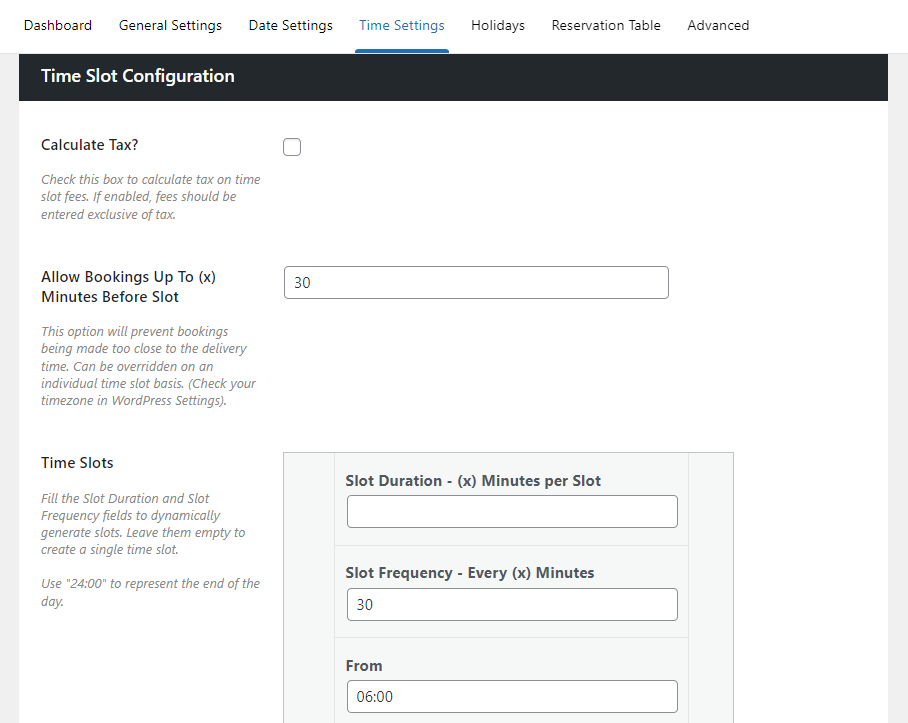
- On this page, ensure the Enable Time Slots and Required boxes are checked to allow you to offer specific times for your customers to pick after they select a delivery date.
- Then, scroll down to the Time Slot Configuration section.

- You’ll be able to customize the time slots you want to offer as follows. You can set:
- The duration and frequency of the time slots.
- The time you’ll start and end offering deliveries.
- The cutoff time for bookings.
- The maximum number of orders per time slot.
- The shipping method associated with the time slot
- If there are any extra fees involved.
- The days of the week these time slots should be available
- You can create as many as many different delivery time slots as you like.
- If you’re happy with your time slot, click Save Changes to save your delivery slots. You can view your delivery date and time slots at the checkout.
Step 3 (optional): Restrict same-day and next-day delivery
Sometimes, it’s overwhelming to fulfill online deliveries on the same day after a certain time – even the next day.
WooCommerce Delivery Slots allow you to restrict same-day delivery and next-day delivery after a certain time to help you plan ahead.
To restrict these options:
- Go to WooCommerce > Delivery Slots on your WordPress dashboard and click on the Date Settings tab.
- Scroll down the Date Settings page until you locate the Specific Delivery Days section. This section contains settings for same-day and next-day delivery settings.
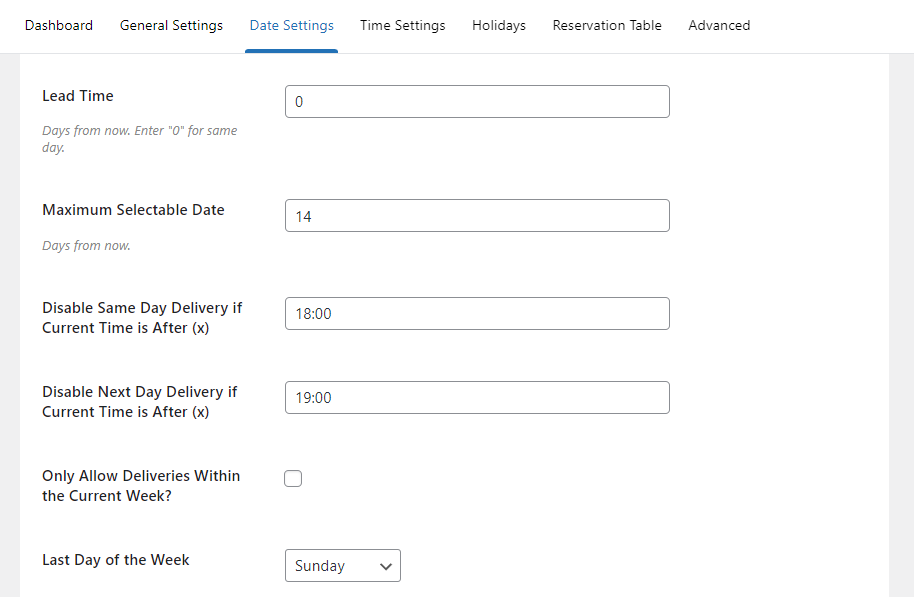
- Use this page to:
- Disable same-day delivery if it’s after a certain time.
- Disable next-day delivery if it’s after a certain time.
- Only allow deliveries within the current week.
- Skip the current day if it’s not an allowed delivery day
- Set delivery lead time for the entire store (you can also determine this per category or per product in WooCommerce Delivery Slots – this will appear on the product page)
- Change the date format for your store.
- and more.
You can also adjust your settings for each time slot to restrict how long a customer has before a time slot to order.
To do this:
- Click on the Time Settings tab.
- Scroll down to your already created time slot.
- Adjust the Allow Bookings Up To (x) Minutes Before Slot section by adding the number of minutes into the box.
Note: If you want to let customers book their deliveries before adding items to their cart, our guide on how to use the reservation table can help.
Add checkout page delivery date and time slots today
By following this guide, your WooCommerce store should start receiving online orders with specific delivery dates and time slots.
Adding these to the checkout can help increase customer satisfaction, tailor your store’s delivery schedule to suit you, and generate more sales.
With WooCommerce Delivery Slots, adding this setup to your checkout page is much easier. This plugin adds a delivery calendar and time slot selection in only a few steps. It also offers more options for product delivery like local pickup, same-day, ASAP, and next-day deliveries.
Add delivery dates and delivery time slots to your store’s checkout effortlessly and quickly using our WooCommerce Delivery Slots plugin.
WooCommerce Delivery Slots
Let customers choose their preferred WooCommerce delivery date and time right from your WooCommerce checkout page. With WooCommerce Delivery Slots, you can set a flexible delivery schedule to suit you and your customers.

Gina Lucia is our in-house Content Manager at Orderable. She writes articles, user guides, technical documentation, and creates videos on everything WooCommerce and Orderable.
Gina has been working in the WordPress/WooCommerce space since 2012 when she developed WordPress websites for clients large and small.
For the past 8 years, she’s been writing about everything WordPress and WooCommerce, becoming an expert in what makes a WooCommerce store succeed.
When not writing, Gina loves to tend to her vegetable garden, read, or travel to mainland Europe.