

Create more selling opportunities, boost your average order value, and save time with Flux Checkout’s new cross-selling feature.
With Flux Checkout for WooCommerce, you can now add cross-selling directly to your checkout. No need for additional plugins. Flux Checkout comes with cross-selling built-in!
Curious? Here’s what cross-selling with Flux Checkout is all about.
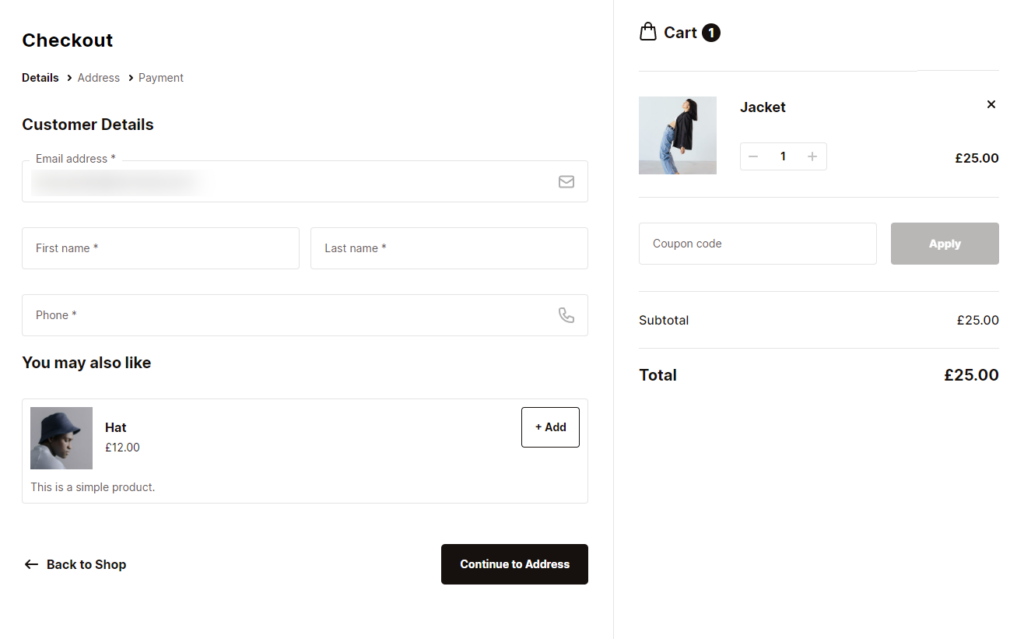
Introducing: Cross-Selling With Flux Checkout
As a store owner, you know how important it is to offer customers convenience and choice while also improving your bottom line.
Cross-selling is one of the most effective strategies for achieving both of these goals and now, Flux Checkout comes with it built in.
With Flux Checkout for WooCommerce, you can add a cross-sell offer to your checkout in just a few clicks. You can place it wherever you want, make it conditional or global, and/or customize it for each product.
Flux gives you the flexibility and choice to make cross-selling easy and profitable.
Flux Checkout for WooCommerce
Flux Checkout transforms the default WooCommerce checkout into one that’s lightning-fast, distraction-free, and reduces checkout abandonment.
Create your cross-sell offer
To create your cross-sell with Flux Checkout, you’ll use our in-built Elements. These are widgets or blocks you add to the checkout flow.
These blocks will allow you to set up a global cross-sell (should you wish to) that appears in the checkout no matter what the customer has in their cart, saving you a lot of time.
Alternatively, you can get specific by adding set product/s or leaving it blank. If you leave it blank and have cross-sells set up on a per-product basis, they’ll be filled with those.
Place your cross-sell anywhere in the checkout flow
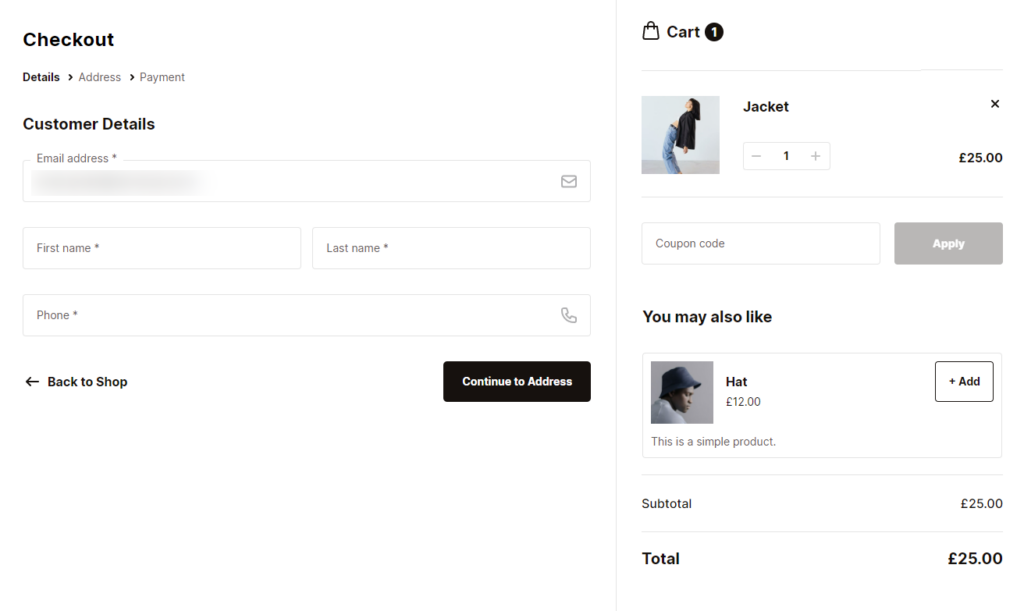
With Flux Checkout, you can place any Element at any location in the checkout flow. These cross-sell offers are no different.
You can place them above the order summary to draw the eye, or right before the cart total as an enticing last-minute offer. Wherever you decide to place your cross-sell, you can move it with the click of a button.
Customers can then click the + Add button on any cross-sell offer and it will be added to the checkout right then and there.
Make your cross-sell conditional
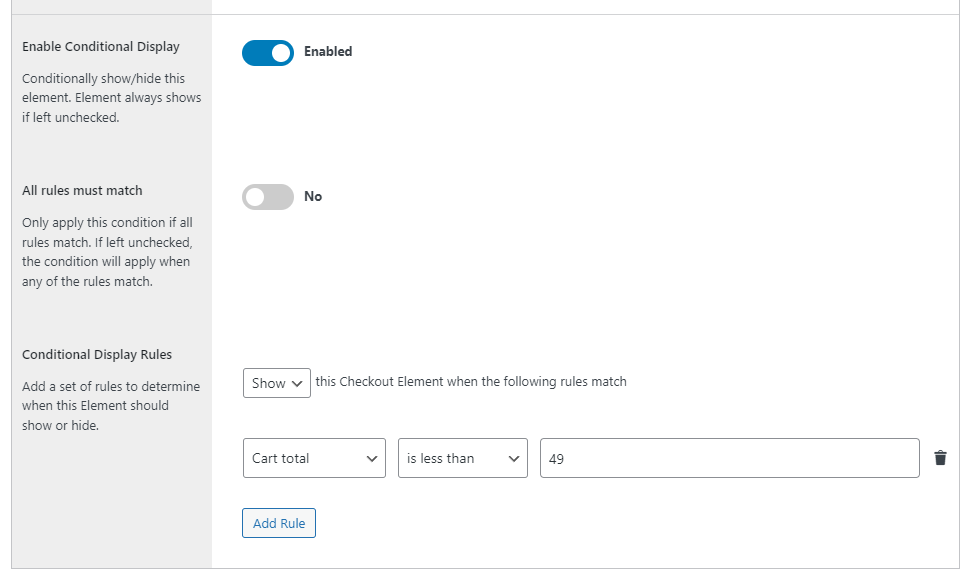
As well as adding cross-sells that only appear for specific products, you can make each cross-sell offer conditional.
For example, you could display one cross-sell offer if the cart total is under or over a specific amount. Or show specific cross-sell products when a particular product or category is in the cart.
Essentially, you can get as specific as you like with your cross-selling strategy to maximize profits and selling opportunities.
Fall-back with WooCommerce’s in-built cross-selling
If you already have cross-sell products set up via WooCommerce’s default cross-sell feature (which show up on the WooCommerce cart page), you can use these.
You can either turn on the cross-sell setting on Flux Checkout’s settings page and:
- Use these as your default cross-sells. Flux Checkout will then automatically place these on the checkout page right before the Subtotal.
- Use your per-product cross-sells as a fallback when you set up your cross-sell Element.
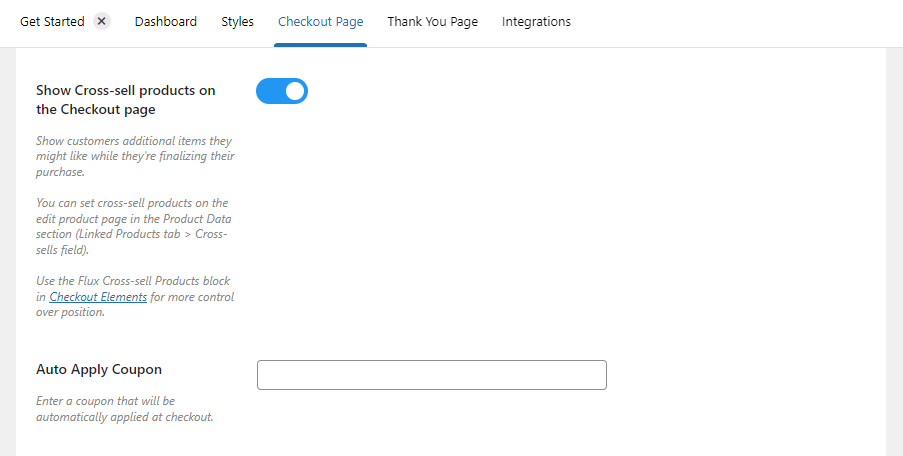
Let’s say you’ve turned on cross-selling via Flux Checkout’s settings, you’ve created a cross-sell block via Elements, but you’ve not added any products (you’ve left it blank). In this case, you’ll need to add your cross-sell products on a per-product basis.

You can add these in the Product Data or Linked Products section of each individual product page. These products will then fill the cross-sell Element you’ve created.
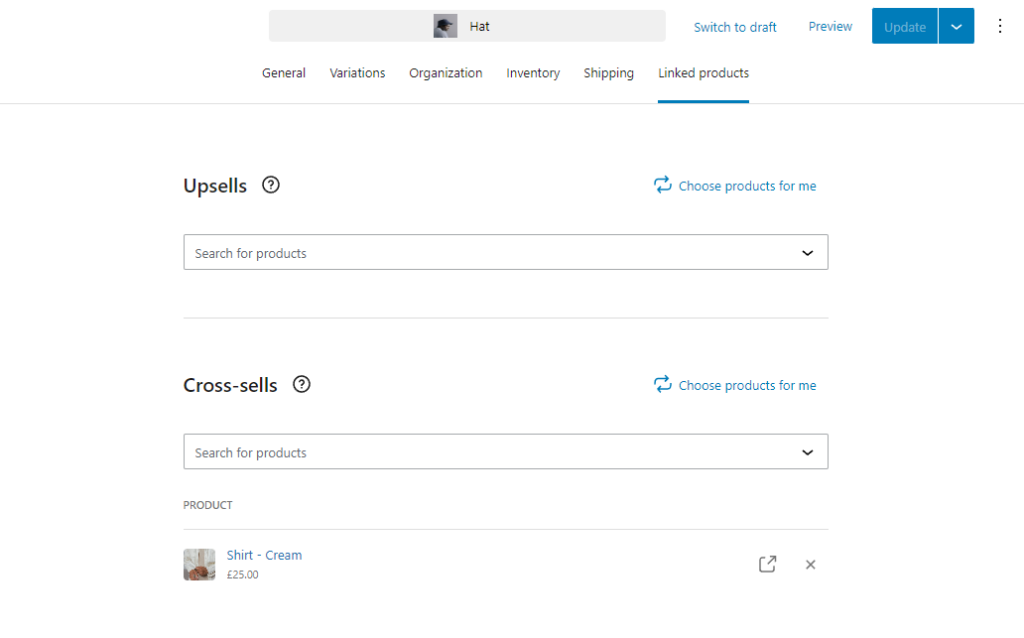
The best part? By showcasing the same cross-sell products on the cart and checkout pages, you’ll have more opportunities to showcase the same targeted offers to customers throughout their buying journey.
Flux Checkout for WooCommerce
Flux Checkout transforms the default WooCommerce checkout into one that’s lightning-fast, distraction-free, and reduces checkout abandonment.
How to get Flux Checkout for WooCommerce’s cross-selling feature
If you’re already using Flux Checkout for WooCommerce, you can update from the WordPress Dashboard as usual.
Want to see how to use cross-selling with Flux Checkout? Here are some step-by-step docs that can help:
If you don’t already have Flux Checkout for WooCommerce, get Flux Checkout for yourself here:
Flux Checkout for WooCommerce
Flux Checkout transforms the default WooCommerce checkout into one that’s lightning-fast, distraction-free, and reduces checkout abandonment.
So, what do you think of this exciting new update? Let us know in the comments. If you have questions about our cross-selling update, we’d love to hear from you.

Gina Lucia is our in-house Content Manager at Orderable. She writes articles, user guides, technical documentation, and creates videos on everything WooCommerce and Orderable.
Gina has been working in the WordPress/WooCommerce space since 2012 when she developed WordPress websites for clients large and small.
For the past 8 years, she’s been writing about everything WordPress and WooCommerce, becoming an expert in what makes a WooCommerce store succeed.
When not writing, Gina loves to tend to her vegetable garden, read, or travel to mainland Europe.