
How to Set Up the Product Visibility Settings with WPML
If you’re running a multilingual WooCommerce store with WPML, you may need to control product visibility per language. This guide will help you set up product visibility settings so that products appear correctly in each language.
From your WordPress dashboard, go to WooCommerce > Show Single Variations > Index. If you want to apply the same visibility settings across all languages, you have to select “All languages” from the WPML dropdown menu before proceeding. This ensures your changes will affect every language version of your products
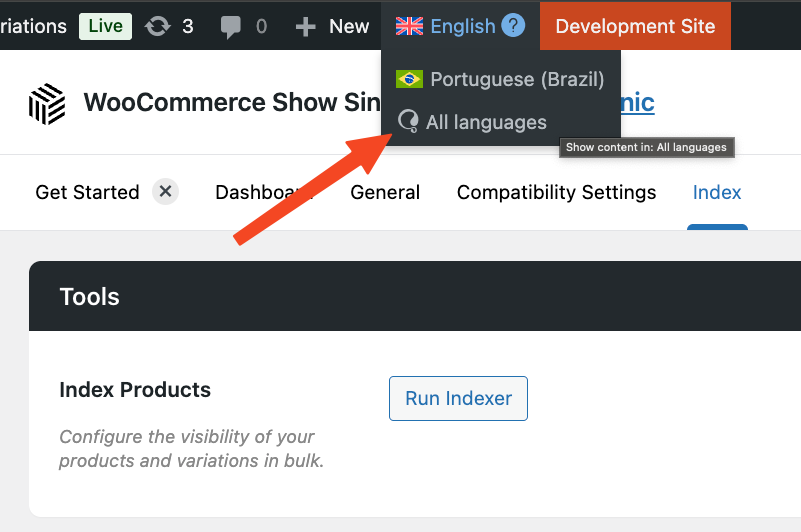
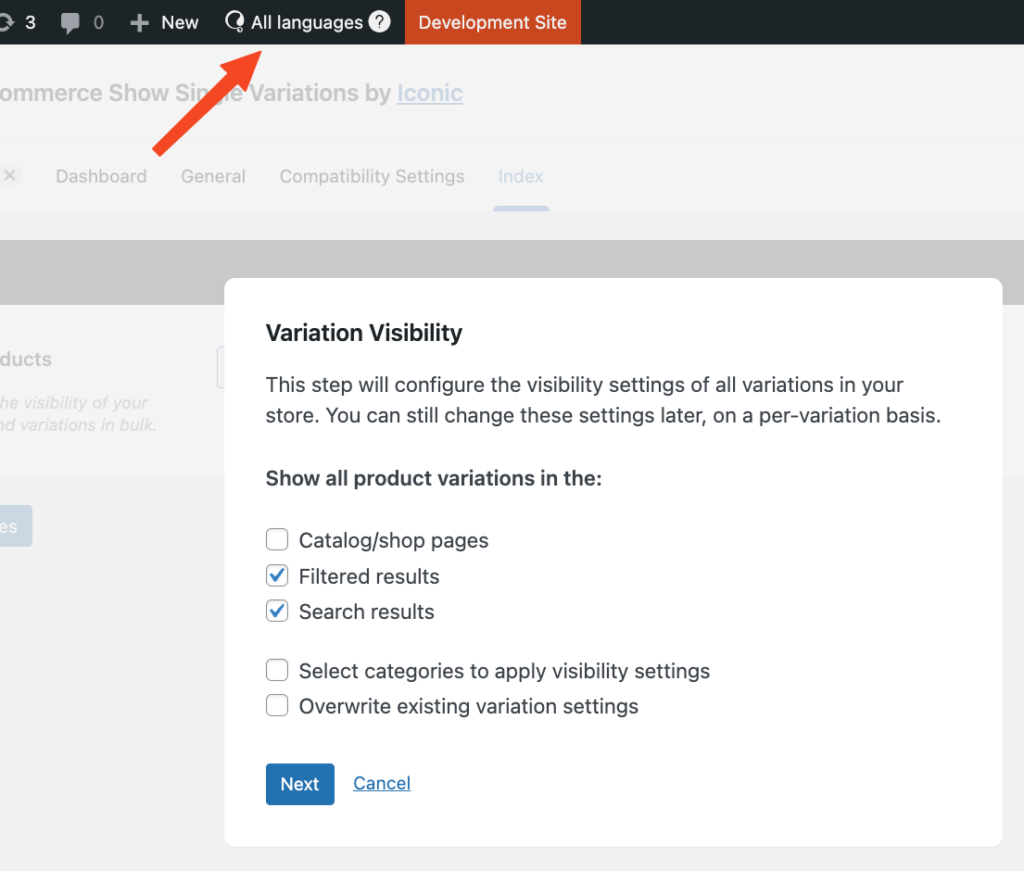
Once you’ve selected “All languages”, click on the Run Indexer button and set up the visibility settings you want to apply for all languages. Just make sure you have “All languages” selected.
If you need different visibility settings for each language, you’ll need to set up them individually. Start by selecting the language from the WPML dropdown menu, then click Run Indexer and enter your desired settings
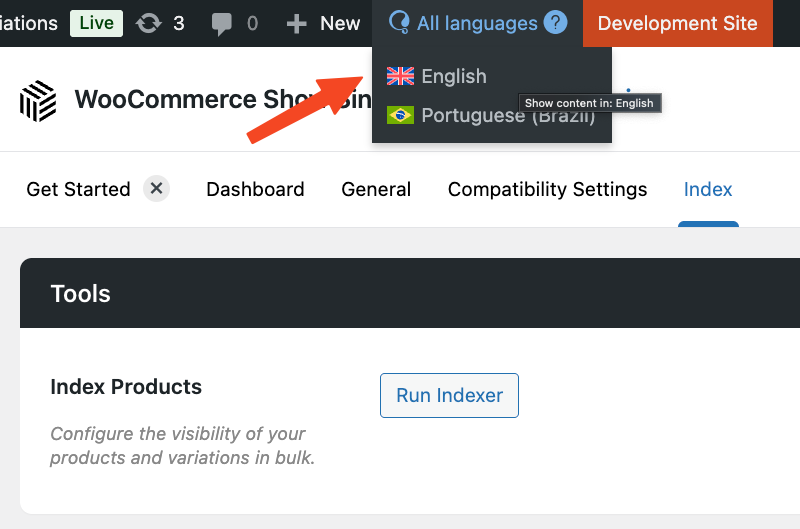
After completing this for one language, repeat the process for each additional language you support. This step-by-step approach ensures precise control over how variations appear in each language version of your store.
WooCommerce Show Single Variations
Show WooCommerce variations as single products on the shop page, category pages, search results, and filtered results with WooCommerce Show Single Variations.
Was this helpful?
Please let us know if this article was useful. It is the best way to ensure our documentation is as helpful as possible.