
How to Change the Linked Variation Swatch Image
By default, when your WooCommerce Linked Variation settings are set to display product images, the image shown on the browser is a cropped version of your original image, referenced internally as shop_thumbnail.
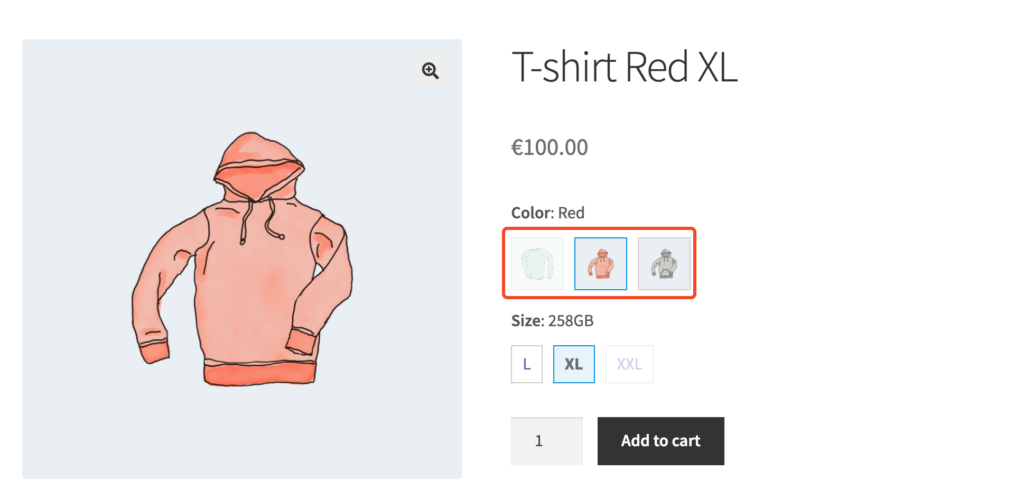
If you’d like to display the full image or use a custom image size instead, you can use the iconic_wlv_linked_variation_image_size filter. Below is an example code snippet that displays the full image size:
function iconic_wlv_linked_variation_image_size() {
	return 'full';
}

add_filter( 'iconic_wlv_linked_variation_image_size', 'iconic_lv_change_image_size' );
In this example, the callback function returns full as the image size. WordPress provides several default image sizes, which include:
- thumbnail
- medium
- large
- full
You can modify the snippet to use any of these sizes or any custom image size that you’ve registered using the add_image_size function.
To apply this snippet, you can add it to the functions.php file of your child theme or use a plugin like Code Snippets for easier management.
WooCommerce Linked Variations
Link together individual products without using variations in your WooCommerce store. Use color, image, or text swatches to allow customers to switch to similar products of your choosing.
Was this helpful?
Please let us know if this article was useful. It is the best way to ensure our documentation is as helpful as possible.