
Delivery Date Fields Aren’t Showing At Checkout
If you have set up your delivery date and time fields, but can’t see them at checkout, take a look at the potential solutions below.
Are you selling digital products?
If you’re selling digital products which don’t require shipping, then the delivery date fields will be disabled by default. This is because digital products don’t usually require a delivery date and/or time.
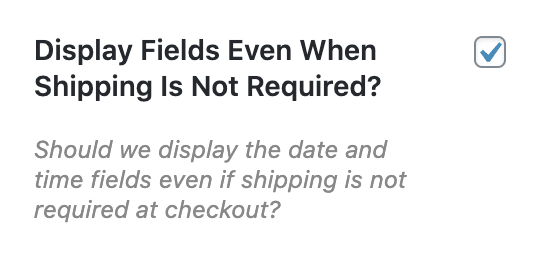
If you want to display the date and time fields, even if shipping is not required, there is a setting for that.
- Navigate to WooCommerce > Delivery Slots.
- Click on the General Settings tab.
- Under General Setup, ensure that the field “Display Fields Even When Shipping Is Not Required?” is checked.
- Save the settings.
Now, even if shipping isn’t required at checkout, the delivery date and time fields will still be displayed.
Are the date and time fields enabled for the shipping method?
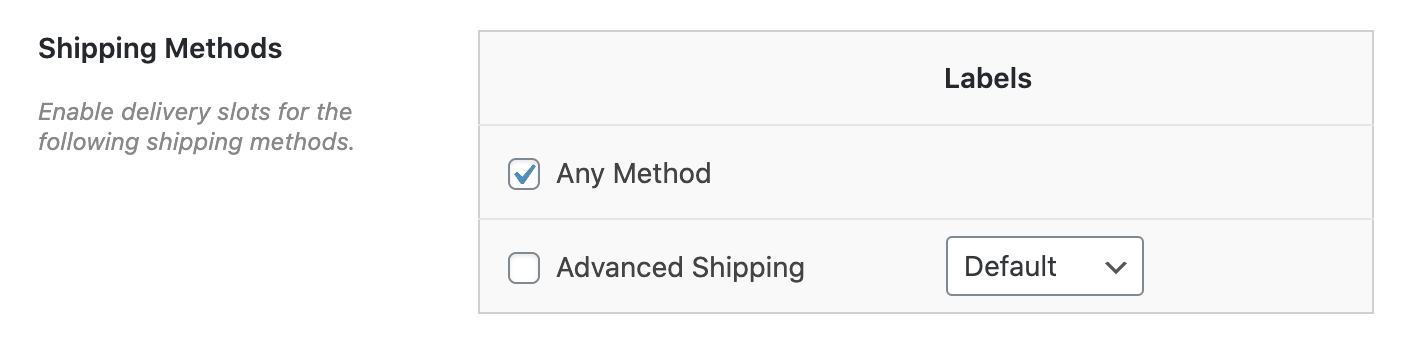
Double-check that the delivery date and time fields are enabled for your selected shipping method.
- Navigate to WooCommerce > Delivery Slots.
- Click on the General Settings tab.
- Under General Setup, ensure that the correct shipping methods are selected under Shipping Methods. To enable the delivery date and time fields for any method, select Any method.
- Save the settings.
? If none of these fixes work for you, please get in touch with us and we’ll do our best to help.
WooCommerce Delivery Slots
Let customers choose their preferred WooCommerce delivery date and time right from your WooCommerce checkout page. With WooCommerce Delivery Slots, you can set a flexible delivery schedule to suit you and your customers.
Was this helpful?
Please let us know if this article was useful. It is the best way to ensure our documentation is as helpful as possible.