
How to Allow Customers to Update Timeslots After Placing an Order
If you want customers to be able to update the timeslot for their order after they’ve placed it, this guide will help you do it.
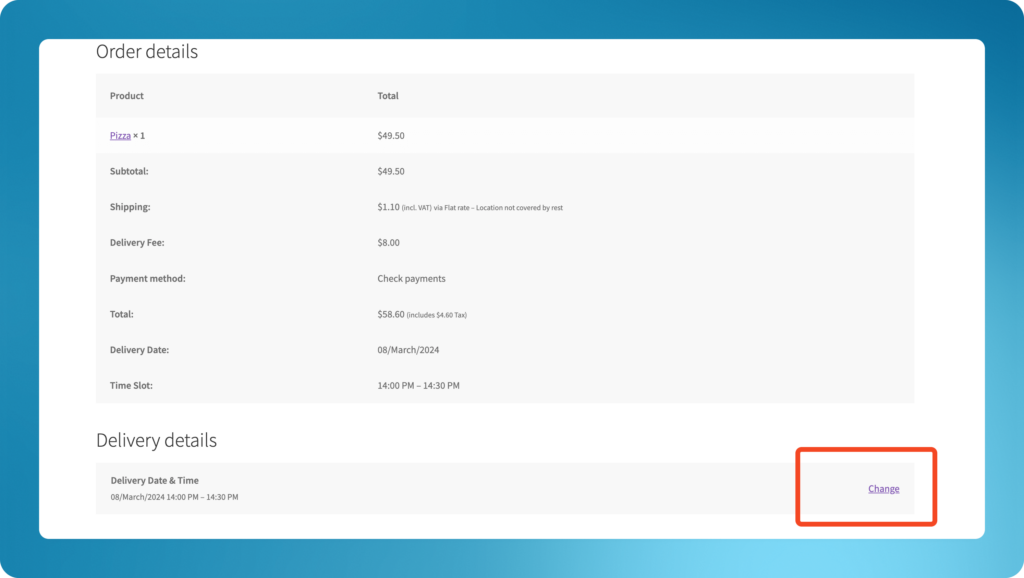
In Delivery Slots, you can give customers the ability to update their chosen time slots after they have placed an order from the Order Received page or the My Account > Orders page.
To do this, take the following steps:
- From the WordPress dashboard, go to WooCommerce > Delivery Slots and click on the General Settings tab.
- Once there, scroll to the Customer Time Slot Management section.
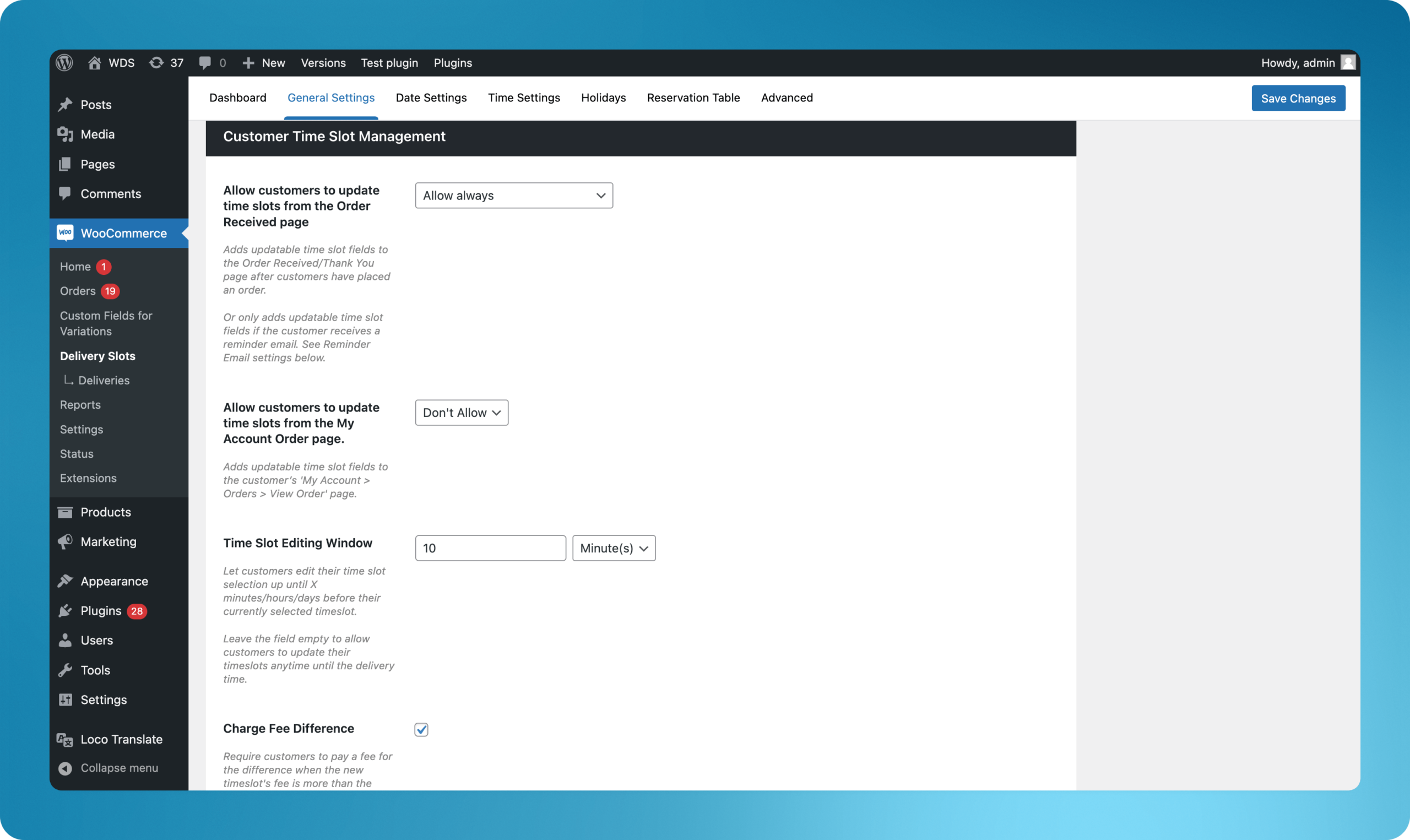
- To turn this setting on, use the dropdown next to Allow customers to update time slots from the Order Received page.
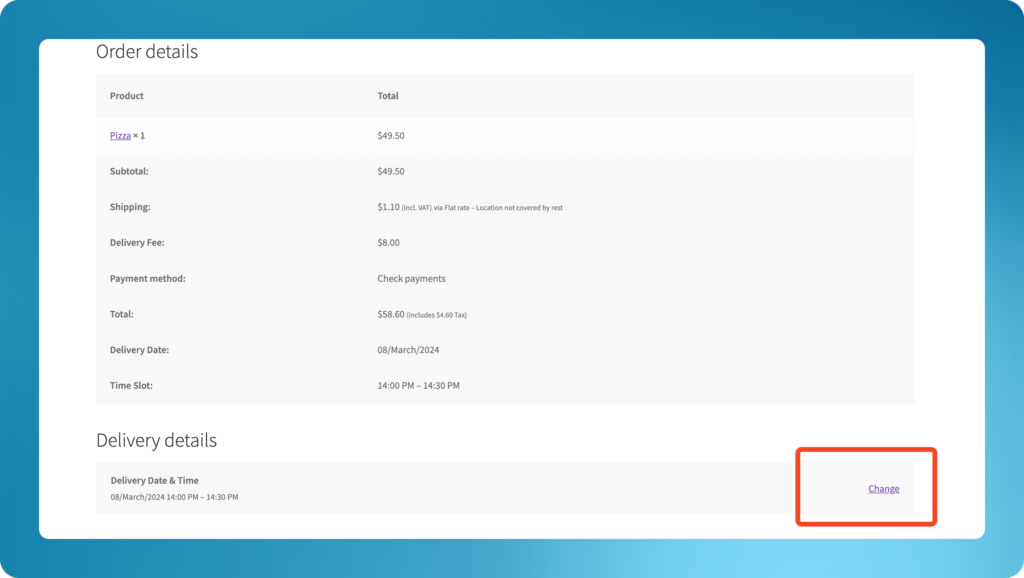
- Next, if you want to allow customers to update this from the My Account page, use the dropdown menu next to Allow customers to update time slots from the My Account Order page.
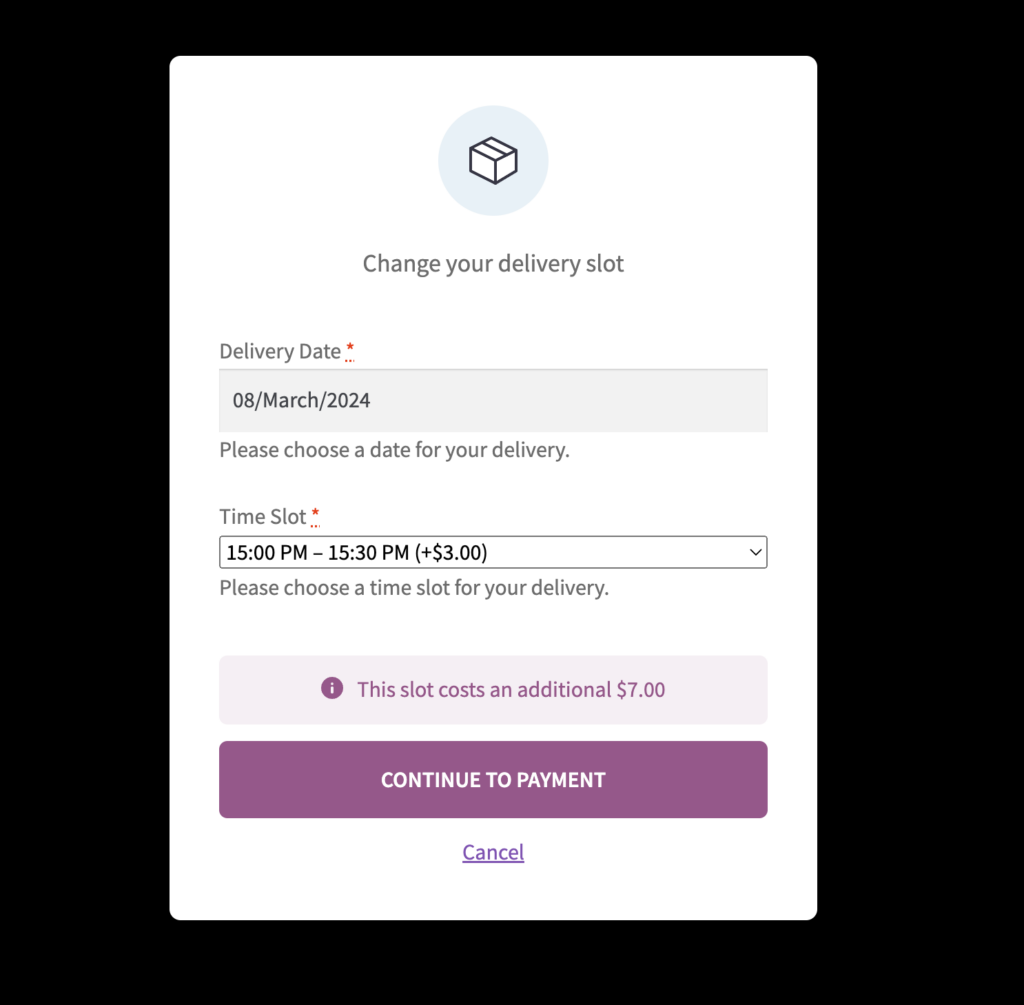
- The Time Slot Editing Window setting determines how much time customers have to update their time slots after they have placed an order. The time slot editing window can be set in minutes, hours, or days.
- The Charge Fee Difference setting allows store owners to require customers to pay the difference in fees if they select a new time slot that has a higher fee than the time slot they originally selected.
- Once you’re happy with all your changes, make sure to save them.
WooCommerce Delivery Slots
Let customers choose their preferred WooCommerce delivery date and time right from your WooCommerce checkout page. With WooCommerce Delivery Slots, you can set a flexible delivery schedule to suit you and your customers.
Was this helpful?
Please let us know if this article was useful. It is the best way to ensure our documentation is as helpful as possible.